Get Free SEO Analysis Template


Edit Template Offline
2. Create new page and search for id 4214875
Edit Template Online
Create Awesome Websites


Free Nicepage Builder
Keywords
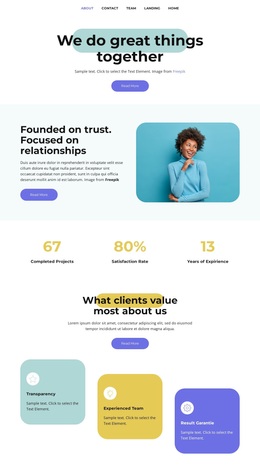
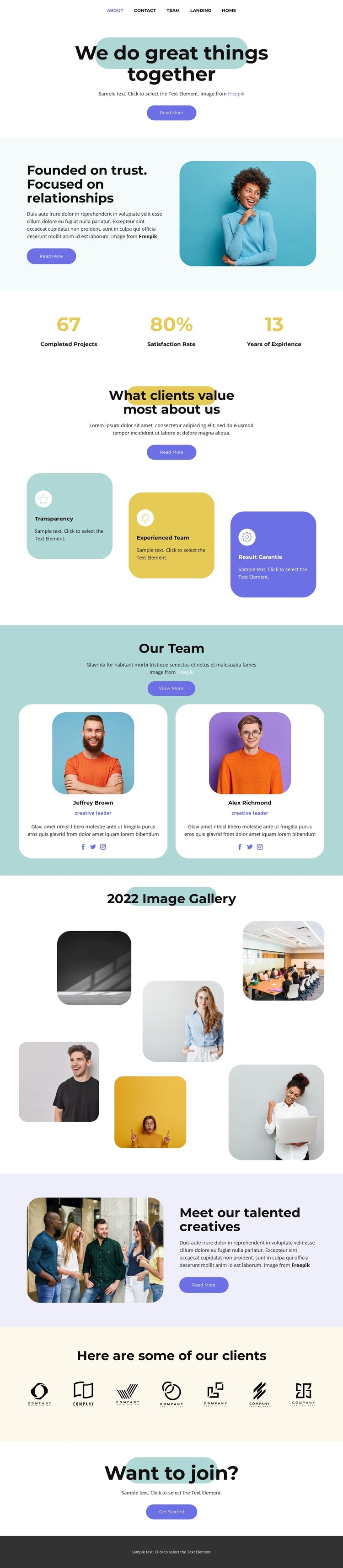
Trust, Team Profiles, and Six Images Make the Design Distinctive
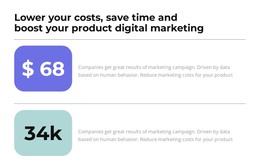
The design is a notable option because it covers several ways a creative organization can explain itself without relying on a dense corporate layout. The opening message and trust-focused portrait section establish a relationship-led introduction, while the three value cards make Transparency, Experienced Team, and Result Garantie visible as separate themes. Three displayed metrics add a compact evidence layer between the organization story and the values section.
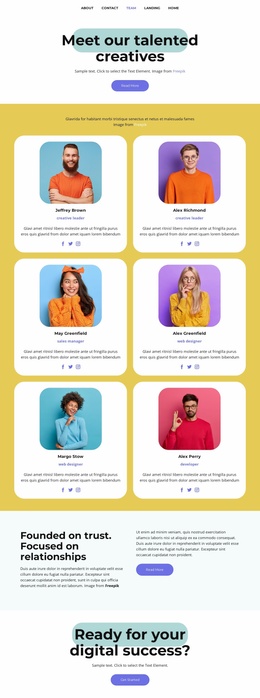
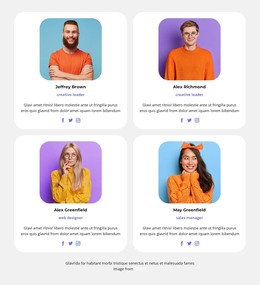
Its strongest point of distinction is the combination of people and visual work. Two team profile cards include social links, the six-image gallery creates an editorial-style image collage, and the second creative-team feature returns to a large team photograph beside supporting text. These elements make the page feel centered on collaboration and creative talent. Seven client logo images then add a recognizable client-facing section without overwhelming the page’s visual balance.
The final invitation to join broadens the possible use cases, since the design can support an organization that wants to introduce its team, present its working character, or encourage a next step from prospective clients or team members. The pastel palette, rounded cards, generous spacing, and centered headings reinforce that direction. As a template choice, it suits projects that need a warm, image-supported About experience with more personality than a simple company overview.
Customize with Nicepage
Open this ready-made template in the Template Builder and customize it visually in the Nicepage editor. Replace demo content, edit page sections, and adapt the design to your project without rebuilding the template from scratch.
Start With a Ready-Made Template
Choose a Design for a New Page
Use a ready-made template as a starting point instead of creating every page from a blank canvas. When adding a new page in Nicepage, browse available designs, compare different layouts, and choose an option that already fits the general purpose and visual direction of your project.
Browse Different Page Designs
Explore Page Designs using search, thematic categories, Design Sets, and full-page previews. The collection includes layouts for different subjects and page purposes, making it easier to compare alternatives before selecting a design to customize.
Customize the Selected Template
After choosing a design, create the page and continue editing it visually in Nicepage. Replace the demo content, adjust images, typography, colors, sections, and other elements, and adapt the ready-made layout to your own content instead of rebuilding the design from the beginning.
Explore More Design Directions
If the first option does not match your project closely enough, return to the design collection and compare other templates before committing to a layout. This makes the template library useful not only for faster page creation, but also for exploring different visual approaches and finding a suitable starting point for a new project.
This workflow gives you access to a broad collection of ready-made designs that can be selected, compared, and customized according to the needs of each new page or project.