Unforgettable vacations Template


Four Evenly Spaced Counters Offer a Compact Travel Statistics Option
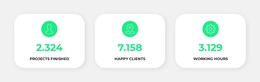
The design combines four related counter items in a single horizontal row instead of spreading the statistics across separate cards or a dense grid. Each item uses the same icon-value-label sequence, with a decorative travel-themed icon above a displayed number and a smaller italic label below. The four labels—visited countries, travel tours, happy clients, and tracking tours—give the section recognizable content coverage, while the shown values are 44, 120, 102, and 21.
That combination makes the block a useful design option when a page needs numerical emphasis without a long explanation or a prominent heading. The repeated vertical alignment helps visitors compare the four items quickly, and the even horizontal spacing keeps one metric from visually dominating the others. Blue typography and pale blue outlined icons add color without introducing heavy surfaces, while the white background lets the section transition easily into neighboring content. Compared with a card-based statistics design, this option is lighter and more linear; compared with a text-only section, it gives each figure a distinct visual anchor. The displayed figures should remain understood as sample block content, but the layout itself provides a clear, ready-made way to organize a travel statistics message.
Customize with Nicepage
Open this ready-made template in the Template Builder and customize it visually in the Nicepage editor. Replace demo content, edit page sections, and adapt the design to your project without rebuilding the template from scratch.
Edit Template Offline
2. Create a new page or select existing
3. Click Add new block, search for id 40926 and click enter
Edit Template Online
Create Awesome Websites


Free Nicepage Builder
Keywords
Start With a Ready-Made Template
Choose a Design for a New Page
Use a ready-made template as a starting point instead of creating every page from a blank canvas. When adding a new page in Nicepage, browse available designs, compare different layouts, and choose an option that already fits the general purpose and visual direction of your project.
Browse Different Page Designs
Explore Page Designs using search, thematic categories, Design Sets, and full-page previews. The collection includes layouts for different subjects and page purposes, making it easier to compare alternatives before selecting a design to customize.
Customize the Selected Template
After choosing a design, create the page and continue editing it visually in Nicepage. Replace the demo content, adjust images, typography, colors, sections, and other elements, and adapt the ready-made layout to your own content instead of rebuilding the design from the beginning.
Explore More Design Directions
If the first option does not match your project closely enough, return to the design collection and compare other templates before committing to a layout. This makes the template library useful not only for faster page creation, but also for exploring different visual approaches and finding a suitable starting point for a new project.
This workflow gives you access to a broad collection of ready-made designs that can be selected, compared, and customized according to the needs of each new page or project.