Unlimited image transformations Template


Six service capabilities give the pricing design a clear point of difference
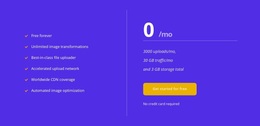
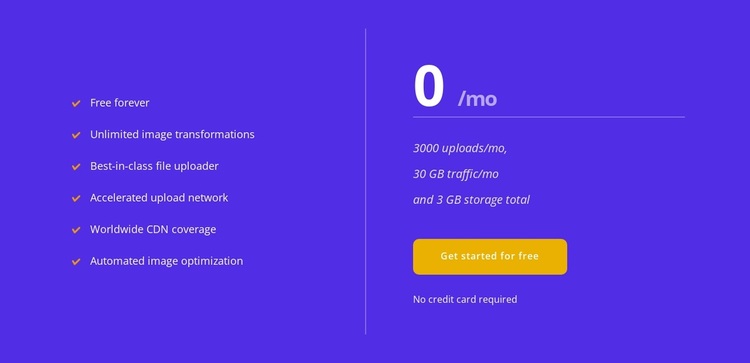
The design combines two kinds of information that are often separated into unrelated blocks: a concise explanation of included service capabilities and a precise free-plan summary. The left column lists six items, including image transformations, file uploading, accelerated uploads, worldwide CDN coverage, and automated image optimization. That makes the section more informative than a price-only card while keeping the capability list short enough to scan.
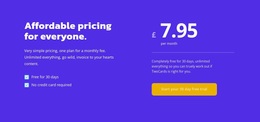
The right column supplies a strong visual anchor through the large white 0 /mo treatment. Beneath it, 3000 uploads per month, 30 GB of monthly traffic, and 3 GB of total storage establish concrete boundaries for the offer. The vertical divider creates a clean separation between explanation and decision details, while the yellow Get started for free button gives the panel a visible endpoint. The no-credit-card-required disclaimer adds another useful piece of offer context without enlarging the layout.
Among ready-made block alternatives, this design fits a page that needs a pricing section with both service breadth and operational limits. The purple background and yellow accents provide more visual presence than a neutral comparison row, while generous spacing keeps the content from feeling crowded. It remains one reusable pricing section, but its combination of six capabilities, a prominent free price, defined limits, and a direct action makes the design easy to distinguish from simpler plan presentations.
Customize with Nicepage
Open this ready-made template in the Template Builder and customize it visually in the Nicepage editor. Replace demo content, edit page sections, and adapt the design to your project without rebuilding the template from scratch.
Edit Template Offline
2. Create a new page or select existing
3. Click Add new block, search for id 3166863 and click enter
Edit Template Online
Create Awesome Websites


Free Nicepage Builder
Keywords
Start With a Ready-Made Template
Choose a Design for a New Page
Use a ready-made template as a starting point instead of creating every page from a blank canvas. When adding a new page in Nicepage, browse available designs, compare different layouts, and choose an option that already fits the general purpose and visual direction of your project.
Browse Different Page Designs
Explore Page Designs using search, thematic categories, Design Sets, and full-page previews. The collection includes layouts for different subjects and page purposes, making it easier to compare alternatives before selecting a design to customize.
Customize the Selected Template
After choosing a design, create the page and continue editing it visually in Nicepage. Replace the demo content, adjust images, typography, colors, sections, and other elements, and adapt the ready-made layout to your own content instead of rebuilding the design from the beginning.
Explore More Design Directions
If the first option does not match your project closely enough, return to the design collection and compare other templates before committing to a layout. This makes the template library useful not only for faster page creation, but also for exploring different visual approaches and finding a suitable starting point for a new project.
This workflow gives you access to a broad collection of ready-made designs that can be selected, compared, and customized according to the needs of each new page or project.

Design Set (22)
-

-
-
-
-
-
-
-
-
-
-
-
-
-
-
Free Website Builder SoftwareDownload
-
-