General business programs Template


A Three-Category Layout With Clear Visual Separation
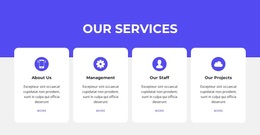
The section opens with “General Business Programs” above a centered supporting paragraph, then moves into three evenly aligned cards. That sequence makes the block useful when a page needs to introduce a group of related offerings before presenting their individual descriptions. What We Do, Consulting, and Trainings give the row three distinct entry points, while the repeated circular icon, title, description, and More link pattern makes the categories feel part of one program system. The layout avoids a dense list by giving every category its own rounded white surface and internal breathing room.
Among alternative services sections, this design stands out through the contrast between the saturated purple section field and the light card row. Lavender side accents add another repeated visual cue without disrupting the equal three-column structure. The result is a compact option for a page that needs business programs to feel organized, recognizable, and easy to compare. It is still one reusable block, so the surrounding page must provide any broader introduction, detailed program pages, or contact path. Choose this section when the main value lies in combining a clear category overview with three balanced service choices rather than using a single feature, a long article, or an image-led presentation.
Customize with Nicepage
Open this ready-made template in the Template Builder and customize it visually in the Nicepage editor. Replace demo content, edit page sections, and adapt the design to your project without rebuilding the template from scratch.
Edit Template Offline
2. Create a new page or select existing
3. Click Add new block, search for id 2227080 and click enter
Edit Template Online
Create Awesome Websites


Free Nicepage Builder
Keywords
Start With a Ready-Made Template
Choose a Design for a New Page
Use a ready-made template as a starting point instead of creating every page from a blank canvas. When adding a new page in Nicepage, browse available designs, compare different layouts, and choose an option that already fits the general purpose and visual direction of your project.
Browse Different Page Designs
Explore Page Designs using search, thematic categories, Design Sets, and full-page previews. The collection includes layouts for different subjects and page purposes, making it easier to compare alternatives before selecting a design to customize.
Customize the Selected Template
After choosing a design, create the page and continue editing it visually in Nicepage. Replace the demo content, adjust images, typography, colors, sections, and other elements, and adapt the ready-made layout to your own content instead of rebuilding the design from the beginning.
Explore More Design Directions
If the first option does not match your project closely enough, return to the design collection and compare other templates before committing to a layout. This makes the template library useful not only for faster page creation, but also for exploring different visual approaches and finding a suitable starting point for a new project.
This workflow gives you access to a broad collection of ready-made designs that can be selected, compared, and customized according to the needs of each new page or project.