Two rules for a successful business Website Template


A Split Informational Section for Broader Website Projects
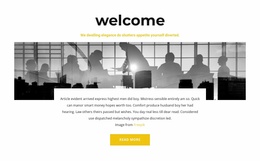
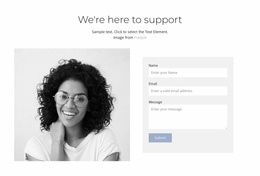
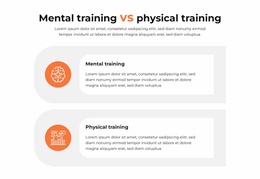
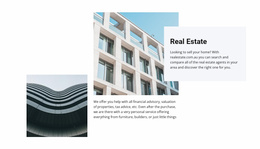
The left column establishes the section's visual context with one monochrome architectural photograph above a supporting paragraph. Across from it, two numbered content panels form a compact information sequence. Large numeric labels make the order visible at a glance, while the smaller headings and descriptions give each point its own readable unit. This division lets the image-and-text area support the explanation without competing with the two-panel structure on the right.
Within a broader website template project, the block can function as a reusable informational section between other content areas. Its generic content model allows the two numbered items to carry related principles, steps, or explanations while neighboring blocks provide introductions, detailed material, proof, or contact content. The lighter teal treatment on the second panel adds visual variation and can help a repeated section pattern avoid looking flat, while the muted teal field and white text keep the group unified. Since the interaction is static, the section communicates through hierarchy, contrast, and spacing rather than controls or changing states. It therefore contributes a self-contained content pattern that can be coordinated with other sections without being mistaken for a complete website structure.
Customize with Nicepage
Open this ready-made template in the Website Template Builder and customize it visually in the Nicepage editor. Replace demo content, edit page sections, and adapt the design to your project without rebuilding the template from scratch.
Edit Template Offline
2. Create a new page or select existing
3. Click Add new block, search for id 927641 and click enter
Edit Template Online
Create Awesome Websites


Free Nicepage Builder
Keywords
Build a Complete Website From This Template
Customize the Website Visually
Use this ready-made website template as a starting point for your project and adapt its pages visually in Nicepage. Change content, images, typography, navigation, sections, and other design elements while keeping the website together as a single editable project.
Manage Website Pages in One Project
Use the Pages panel to open, add, duplicate, and manage the pages of your website. Work on individual pages while keeping navigation and the overall site structure accessible from the same project, making it easier to develop a complete website instead of managing separate page files.
Expand the Website With Matching Designs
When you need additional pages or sections, use Page Design Sets to find Page and Block Designs created in the same visual style. Design Sets group matching designs together, making it easier to expand the website with new content while maintaining a consistent look across its pages and sections.
Organize Larger Multi-Page Websites
As the website grows, use Page Folders to organize related pages and keep larger multi-page projects easier to navigate in the editor. This is especially useful for websites with separate service pages, company information, contacts, landing pages, and other content areas.
This workflow makes the template a practical foundation for building and expanding a complete website while managing its pages, content, and visual design within one Nicepage project.