Smart insurance Website Template


A Reusable Two-Column Pattern for Coverage and Activation
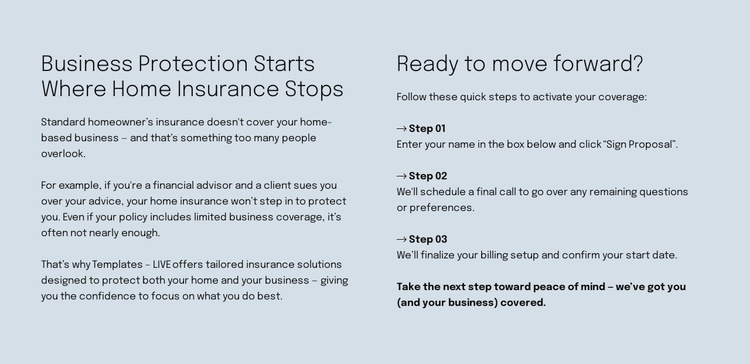
The block defines one stable insurance content area that can contribute to a broader website project. On the left, “Business Protection Starts Where Home Insurance Stops” introduces an explanation of why standard homeowner insurance may not cover a home-based business. The financial advisor and client lawsuit example gives the section a concrete educational angle, while the reference to tailored insurance solutions keeps the content connected to business and home protection.
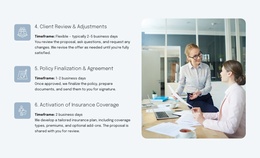
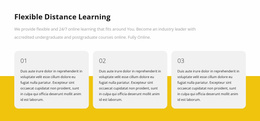
On the right, “Ready to move forward?” changes the rhythm from explanation to process. Three numbered steps are stacked vertically, beginning with entering a name and selecting “Sign Proposal.” The last step addresses billing setup and confirmation of a start date, followed by reassurance. This makes the block a reusable pattern for a site that needs to explain coverage before presenting practical activation guidance, while other sections can handle broader company information, detailed products, contact content, or legal material.
Its visual treatment also supports reuse. The pale blue-gray background, dark text, aligned columns, generous horizontal spacing, and decorative step icons create a recognizable section pattern without depending on cards or complex interaction. In a wider website template project, the same structural logic could coordinate with adjacent insurance content while remaining one focused block rather than representing the project’s complete page or site architecture.
Customize with Nicepage
Open this ready-made template in the Website Template Builder and customize it visually in the Nicepage editor. Replace demo content, edit page sections, and adapt the design to your project without rebuilding the template from scratch.
Edit Template Offline
2. Create a new page or select existing
3. Click Add new block, search for id 6507748 and click enter
Edit Template Online
Create Awesome Websites


Free Nicepage Builder
Keywords
Build a Complete Website From This Template
Customize the Website Visually
Use this ready-made website template as a starting point for your project and adapt its pages visually in Nicepage. Change content, images, typography, navigation, sections, and other design elements while keeping the website together as a single editable project.
Manage Website Pages in One Project
Use the Pages panel to open, add, duplicate, and manage the pages of your website. Work on individual pages while keeping navigation and the overall site structure accessible from the same project, making it easier to develop a complete website instead of managing separate page files.
Expand the Website With Matching Designs
When you need additional pages or sections, use Page Design Sets to find Page and Block Designs created in the same visual style. Design Sets group matching designs together, making it easier to expand the website with new content while maintaining a consistent look across its pages and sections.
Organize Larger Multi-Page Websites
As the website grows, use Page Folders to organize related pages and keep larger multi-page projects easier to navigate in the editor. This is especially useful for websites with separate service pages, company information, contacts, landing pages, and other content areas.
This workflow makes the template a practical foundation for building and expanding a complete website while managing its pages, content, and visual design within one Nicepage project.