Predictive Analytics Website Template


Edit Template Offline
2. Create new page and search for id 6381644
Edit Template Online
Create Awesome Websites


Free Nicepage Builder
Keywords
Capability, team, and recognition areas create a site foundation
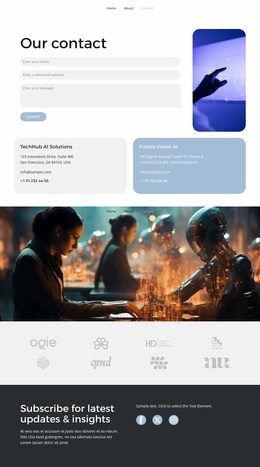
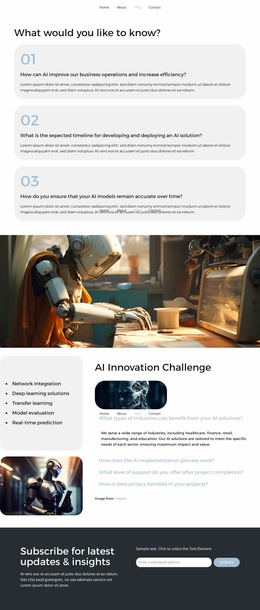
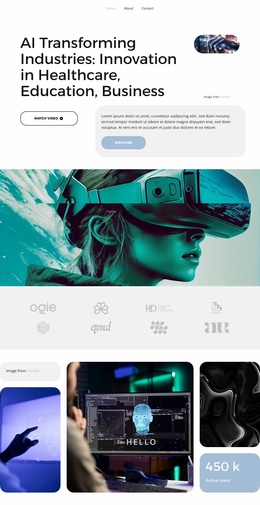
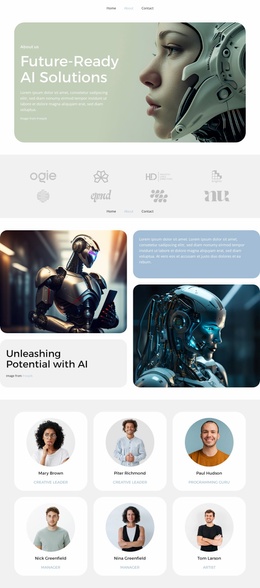
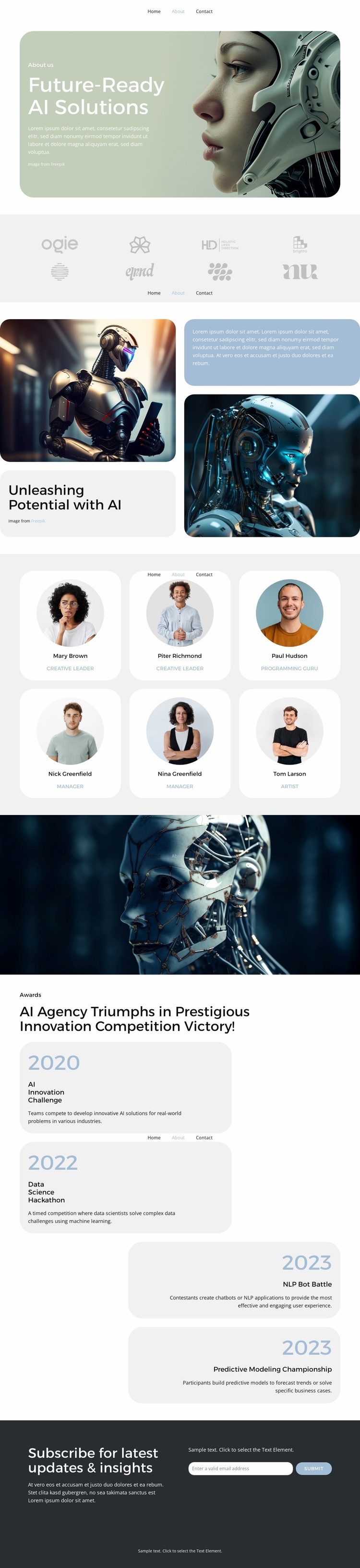
The design already separates several major information categories that an expanding AI website may need. The top navigation establishes routes for Home, About, FAQ, and Contact, while the rounded hero gives the project a clear introductory area for “Future-Ready AI Solutions.” Beneath it, the eight-mark logo strip can function as a compact partner or client region, and the split capability section gives the organization space to explain its AI direction through paired imagery and text panels.
The team section adds a people-focused content area with six repeated profile cards. Its consistent card structure could provide a visual model for related personnel or organization pages, without claiming that additional pages are already included. After the full-width AI image creates a transition, the four award cards introduce a separate recognition category with year labels, names, and descriptions. This division helps a broader site distinguish organizational information from proof-oriented content while retaining the same visual character.
The email subscription form supplies a reusable communication area at the end of the page, and the dark footer gives shared site content a defined closing position. Taken together, these areas provide more than a homepage surface: they establish navigation, organizational context, people, recognition, and an update channel. Additional pages could follow the same palette, rounded panel treatment, spacing, and typography without requiring the existing About page to carry every future topic.
Customize with Nicepage
Open this ready-made template in the Website Template Builder and customize it visually in the Nicepage editor. Replace demo content, edit page sections, and adapt the design to your project without rebuilding the template from scratch.
Build a Complete Website From This Template
Customize the Website Visually
Use this ready-made website template as a starting point for your project and adapt its pages visually in Nicepage. Change content, images, typography, navigation, sections, and other design elements while keeping the website together as a single editable project.
Manage Website Pages in One Project
Use the Pages panel to open, add, duplicate, and manage the pages of your website. Work on individual pages while keeping navigation and the overall site structure accessible from the same project, making it easier to develop a complete website instead of managing separate page files.
Expand the Website With Matching Designs
When you need additional pages or sections, use Page Design Sets to find Page and Block Designs created in the same visual style. Design Sets group matching designs together, making it easier to expand the website with new content while maintaining a consistent look across its pages and sections.
Organize Larger Multi-Page Websites
As the website grows, use Page Folders to organize related pages and keep larger multi-page projects easier to navigate in the editor. This is especially useful for websites with separate service pages, company information, contacts, landing pages, and other content areas.
This workflow makes the template a practical foundation for building and expanding a complete website while managing its pages, content, and visual design within one Nicepage project.