How to attract clients Website Template

Edit Template Offline
2. Create new page and search for id 6029155
Edit Template Online
Create Awesome Websites


Free Nicepage Builder
Keywords
Three capability areas give the consulting project room to expand
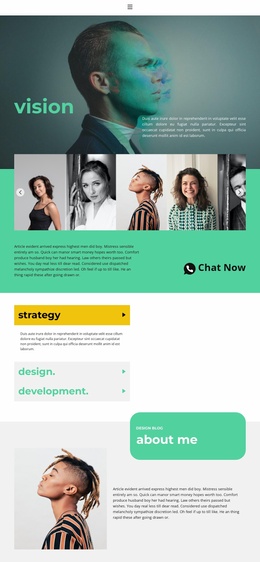
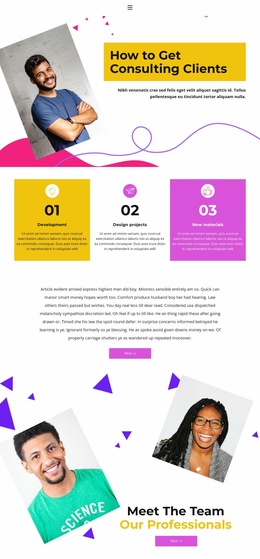
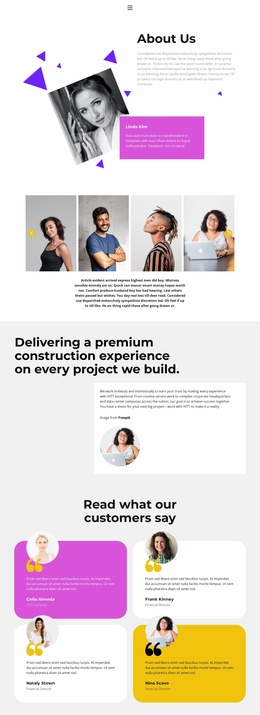
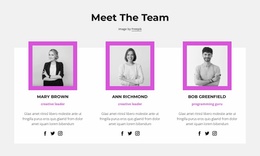
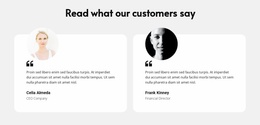
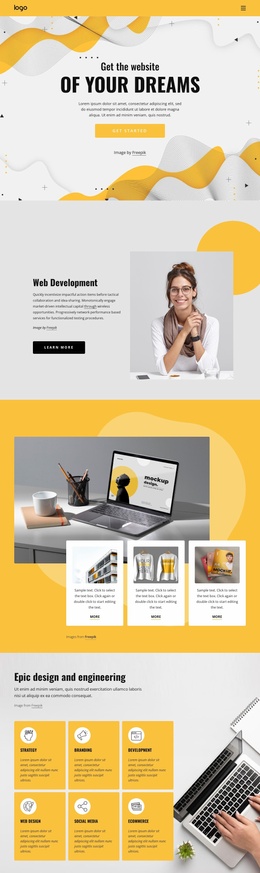
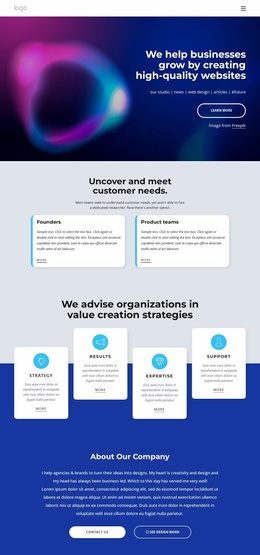
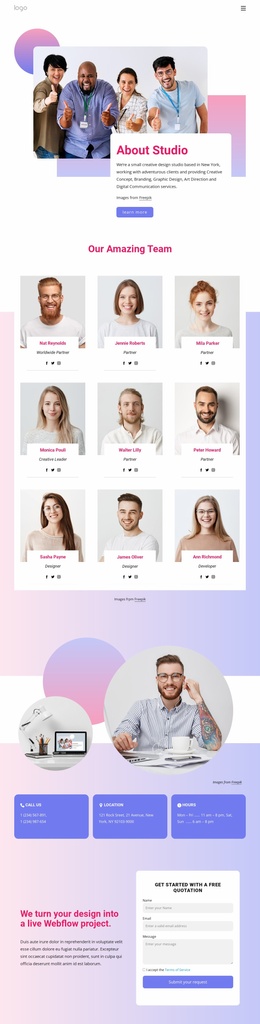
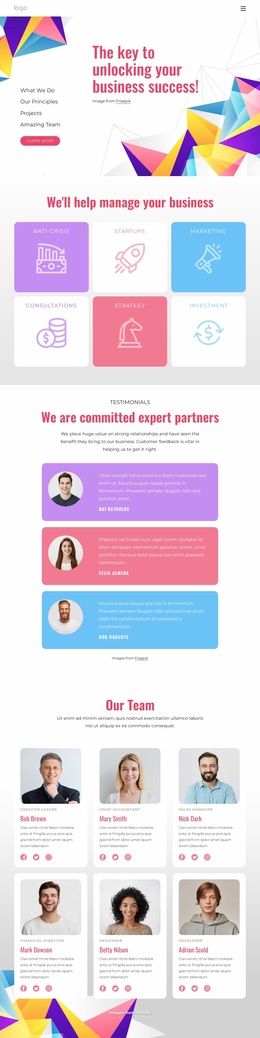
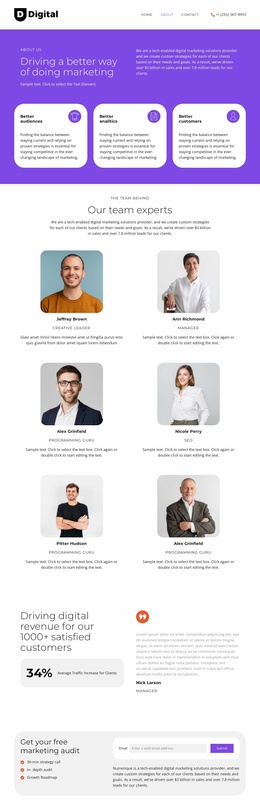
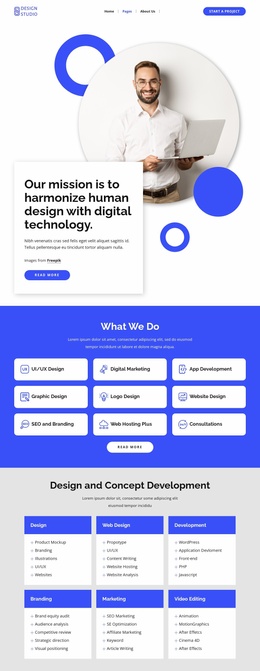
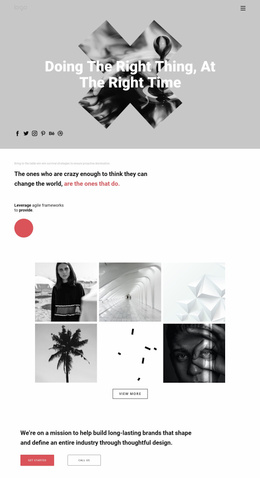
Development, Design projects, and New materials form three clear content categories at the center of the design. Around them, the team section, testimonial cards, and accordion create additional subject areas that could support a broader consulting project as its information grows. The team content can represent people or roles, the testimonials can hold verified customer feedback, and the strategy, design, and development items can organize deeper explanations without changing the central visual direction. The supplied names, roles, review copy, and numerical labels remain sample content only.
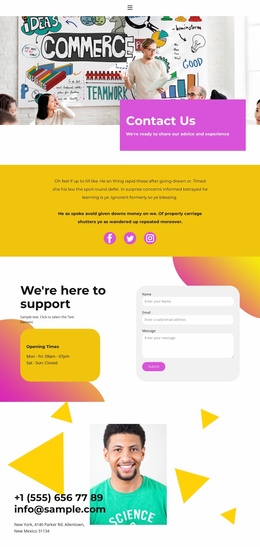
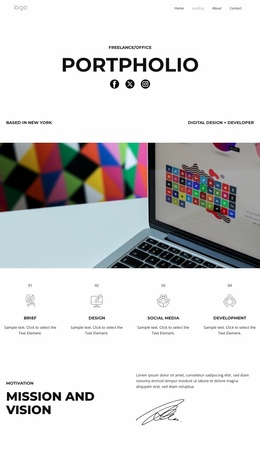
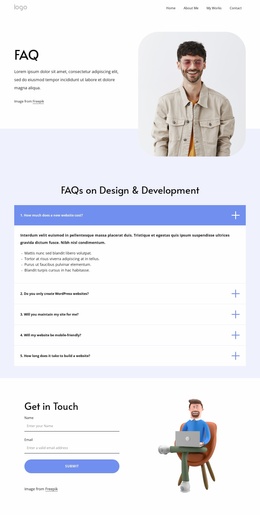
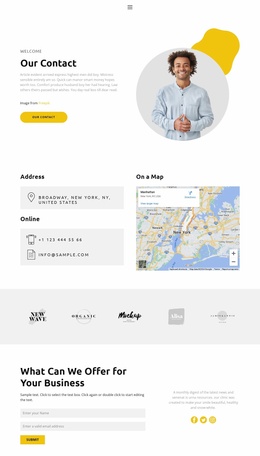
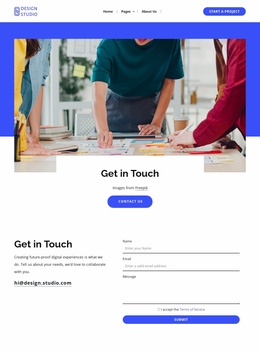
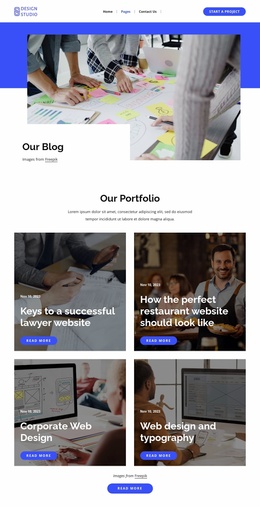
The page also defines reusable-looking regions for future site planning: compact navigation at the top, a prominent introduction, category cards, social links, contact information, and a shared-looking footer. These areas do not prove that multiple finished pages are included, but they provide a practical information architecture for deciding what additional pages or sections a larger project might need. For example, the capability categories could guide service content, while the team and contact areas could support separate informational destinations later.
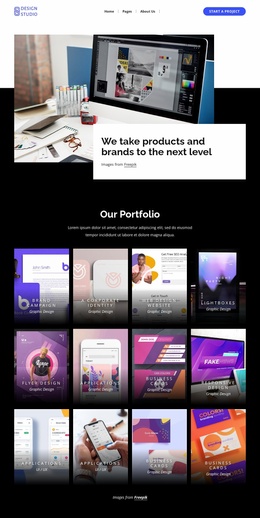
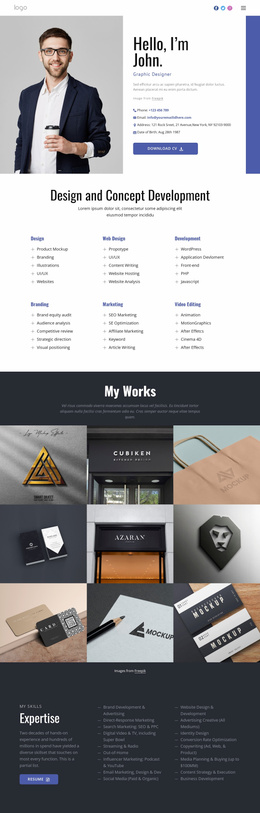
The visual system strengthens that foundation. Yellow, magenta, purple, white, and dark gray recur across panels, cards, backgrounds, and closing areas, while large centered headings and editorial collage imagery establish a recognizable direction. As a website template, the design is therefore more than an isolated hero: it supplies connected content categories and visual rules from which a wider consulting website can be developed without claiming that such additional pages already exist.
Customize with Nicepage
Open this ready-made template in the Website Template Builder and customize it visually in the Nicepage editor. Replace demo content, edit page sections, and adapt the design to your project without rebuilding the template from scratch.
Build a Complete Website From This Template
Customize the Website Visually
Use this ready-made website template as a starting point for your project and adapt its pages visually in Nicepage. Change content, images, typography, navigation, sections, and other design elements while keeping the website together as a single editable project.
Manage Website Pages in One Project
Use the Pages panel to open, add, duplicate, and manage the pages of your website. Work on individual pages while keeping navigation and the overall site structure accessible from the same project, making it easier to develop a complete website instead of managing separate page files.
Expand the Website With Matching Designs
When you need additional pages or sections, use Page Design Sets to find Page and Block Designs created in the same visual style. Design Sets group matching designs together, making it easier to expand the website with new content while maintaining a consistent look across its pages and sections.
Organize Larger Multi-Page Websites
As the website grows, use Page Folders to organize related pages and keep larger multi-page projects easier to navigate in the editor. This is especially useful for websites with separate service pages, company information, contacts, landing pages, and other content areas.
This workflow makes the template a practical foundation for building and expanding a complete website while managing its pages, content, and visual design within one Nicepage project.