Agile software development Website Template


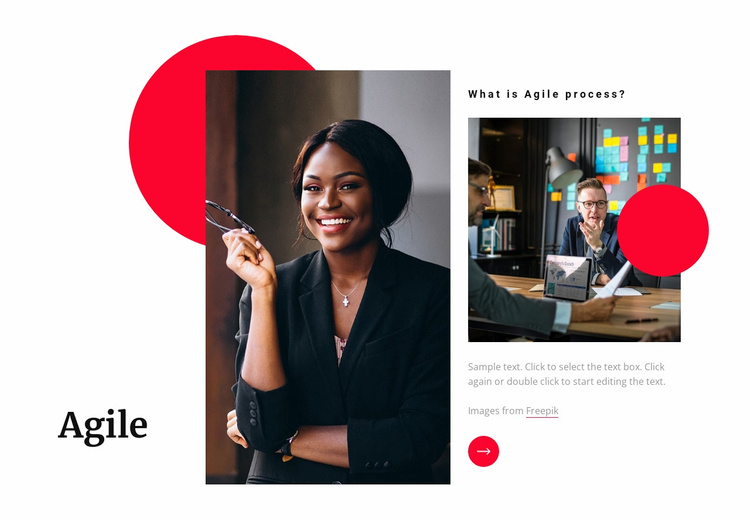
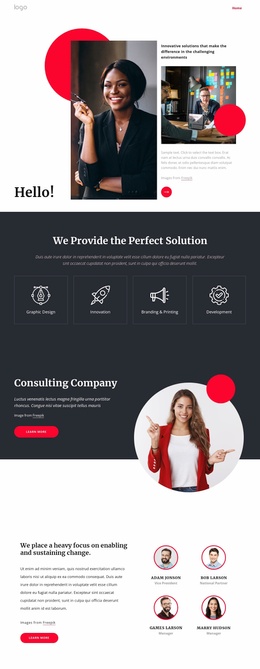
The three-part Agile layout provides a repeatable process-information section
The block establishes a focused content role through three coordinated areas: a subject title on the left, a large human-centered image in the middle, and explanatory material on the right. The “Agile” heading identifies the section, while “What is Agile process?” frames the paragraph as an introduction to a specific topic. The portrait and smaller business meeting image provide different scales of visual context, and the red circular accents help connect them across the wide composition.
Within a broader website template project, this can function as a reusable process or methodology section alongside other blocks that cover services, case studies, team information, or contact content. Its value is in keeping the Agile explanation visually self-contained: the section can be moved or adapted without losing the relationship between the question, paragraph, and supporting imagery. The circular arrow control remains a distinctive detail of the arrangement, while the sample text can be replaced with the project’s own explanation.
The section’s white background and red, black, and gray contrast also offer visual cues for coordinating related areas without claiming to define the complete site language. Other blocks can echo selected accents or typography while serving different purposes. Nicepage’s Pages panel can help manage the wider project, but this block itself remains one content section within that larger structure.
Customize with Nicepage
Open this ready-made template in the Website Template Builder and customize it visually in the Nicepage editor. Replace demo content, edit page sections, and adapt the design to your project without rebuilding the template from scratch.
Edit Template Offline
2. Create a new page or select existing
3. Click Add new block, search for id 520538 and click enter
Edit Template Online
Create Awesome Websites


Free Nicepage Builder
Keywords
Build a Complete Website From This Template
Customize the Website Visually
Use this ready-made website template as a starting point for your project and adapt its pages visually in Nicepage. Change content, images, typography, navigation, sections, and other design elements while keeping the website together as a single editable project.
Manage Website Pages in One Project
Use the Pages panel to open, add, duplicate, and manage the pages of your website. Work on individual pages while keeping navigation and the overall site structure accessible from the same project, making it easier to develop a complete website instead of managing separate page files.
Expand the Website With Matching Designs
When you need additional pages or sections, use Page Design Sets to find Page and Block Designs created in the same visual style. Design Sets group matching designs together, making it easier to expand the website with new content while maintaining a consistent look across its pages and sections.
Organize Larger Multi-Page Websites
As the website grows, use Page Folders to organize related pages and keep larger multi-page projects easier to navigate in the editor. This is especially useful for websites with separate service pages, company information, contacts, landing pages, and other content areas.
This workflow makes the template a practical foundation for building and expanding a complete website while managing its pages, content, and visual design within one Nicepage project.