Revolution of designing art Website Template


Edit Template Offline
2. Create new page and search for id 31866
Edit Template Online
Create Awesome Websites


Free Nicepage Builder
Keywords
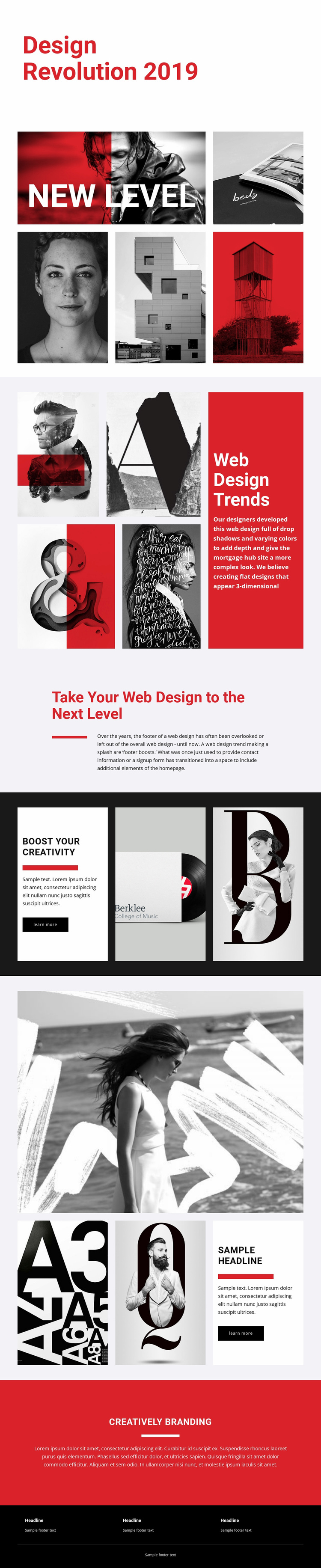
Trend Sections Provide a Foundation for a Creative Design Project
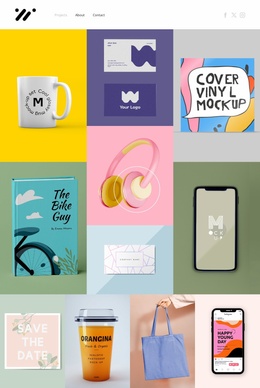
The page already identifies several major content areas that a broader creative design project may need. “New Level” introduces the visual subject through a five-image collage, while “Web Design Trends” pairs four supporting images with a contrasting text panel for explanation. Together, these sections establish a useful relationship between examples and editorial interpretation. The centered statement about taking web design to the next level can then serve as a thematic transition rather than another isolated feature block.
The later sections broaden that foundation without changing its visual focus. “Boost Your Creativity” combines a white text card, a learn more link, and two image panels, creating a compact area for a highlighted idea or project direction. The following feature uses a large image, two smaller images, and a text card, offering another repeatable pattern for presenting creative work or commentary. “Creatively Branding” closes the main content with a full-width red statement, and the black footer organizes three compact text columns for shared supporting information. These areas do not prove that the template contains multiple completed pages, but they do provide a clear visual and informational base that could guide related pages as a creative website project expands.
Customize with Nicepage
Open this ready-made template in the Website Template Builder and customize it visually in the Nicepage editor. Replace demo content, edit page sections, and adapt the design to your project without rebuilding the template from scratch.
Build a Complete Website From This Template
Customize the Website Visually
Use this ready-made website template as a starting point for your project and adapt its pages visually in Nicepage. Change content, images, typography, navigation, sections, and other design elements while keeping the website together as a single editable project.
Manage Website Pages in One Project
Use the Pages panel to open, add, duplicate, and manage the pages of your website. Work on individual pages while keeping navigation and the overall site structure accessible from the same project, making it easier to develop a complete website instead of managing separate page files.
Expand the Website With Matching Designs
When you need additional pages or sections, use Page Design Sets to find Page and Block Designs created in the same visual style. Design Sets group matching designs together, making it easier to expand the website with new content while maintaining a consistent look across its pages and sections.
Organize Larger Multi-Page Websites
As the website grows, use Page Folders to organize related pages and keep larger multi-page projects easier to navigate in the editor. This is especially useful for websites with separate service pages, company information, contacts, landing pages, and other content areas.
This workflow makes the template a practical foundation for building and expanding a complete website while managing its pages, content, and visual design within one Nicepage project.