Get our new articles Website Template


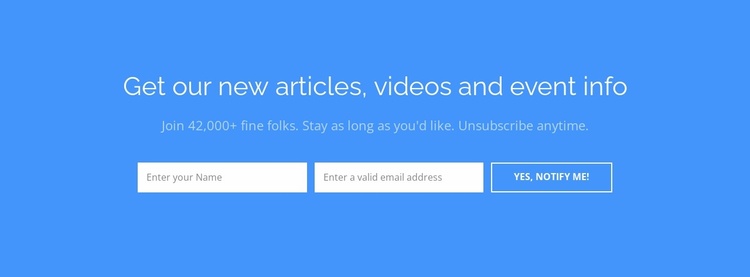
A bright blue newsletter area for a broader site
The section combines a prominent editorial invitation with a direct subscription task. “Get our new articles, videos and event info” identifies the kind of updates the visitor may receive, while the supporting line adds reassurance around joining and unsubscribing. The name and email fields appear together in one horizontal form beneath the text, followed by the “Yes, Notify Me!” control. This arrangement keeps the block self-contained: the message explains the purpose, the fields collect the basic details, and the button marks the response point.
Within a broader website template project, the section can serve as a reusable newsletter area alongside article listings, video content, event information, or other page sections. Its full-width bright blue background makes it easy to recognize as a distinct communication moment rather than another general text region. White typography and white rectangular fields create a consistent contrast system, while the transparent outlined button adds emphasis without introducing a separate visual language. The block can therefore occupy a recurring or strategically placed subscription position while other pages and sections handle navigation, long-form content, and additional site functions.
Customize with Nicepage
Open this ready-made template in the Website Template Builder and customize it visually in the Nicepage editor. Replace demo content, edit page sections, and adapt the design to your project without rebuilding the template from scratch.
Edit Template Offline
2. Create a new page or select existing
3. Click Add new block, search for id 3073700 and click enter
Edit Template Online
Create Awesome Websites


Free Nicepage Builder
Keywords
Build a Complete Website From This Template
Customize the Website Visually
Use this ready-made website template as a starting point for your project and adapt its pages visually in Nicepage. Change content, images, typography, navigation, sections, and other design elements while keeping the website together as a single editable project.
Manage Website Pages in One Project
Use the Pages panel to open, add, duplicate, and manage the pages of your website. Work on individual pages while keeping navigation and the overall site structure accessible from the same project, making it easier to develop a complete website instead of managing separate page files.
Expand the Website With Matching Designs
When you need additional pages or sections, use Page Design Sets to find Page and Block Designs created in the same visual style. Design Sets group matching designs together, making it easier to expand the website with new content while maintaining a consistent look across its pages and sections.
Organize Larger Multi-Page Websites
As the website grows, use Page Folders to organize related pages and keep larger multi-page projects easier to navigate in the editor. This is especially useful for websites with separate service pages, company information, contacts, landing pages, and other content areas.
This workflow makes the template a practical foundation for building and expanding a complete website while managing its pages, content, and visual design within one Nicepage project.