Fashion tips Website Template


Edit Template Offline
2. Create new page and search for id 26458
Edit Template Online
Create Awesome Websites


Free Nicepage Builder
Keywords
Business Style Content Establishes a Broader Site Foundation
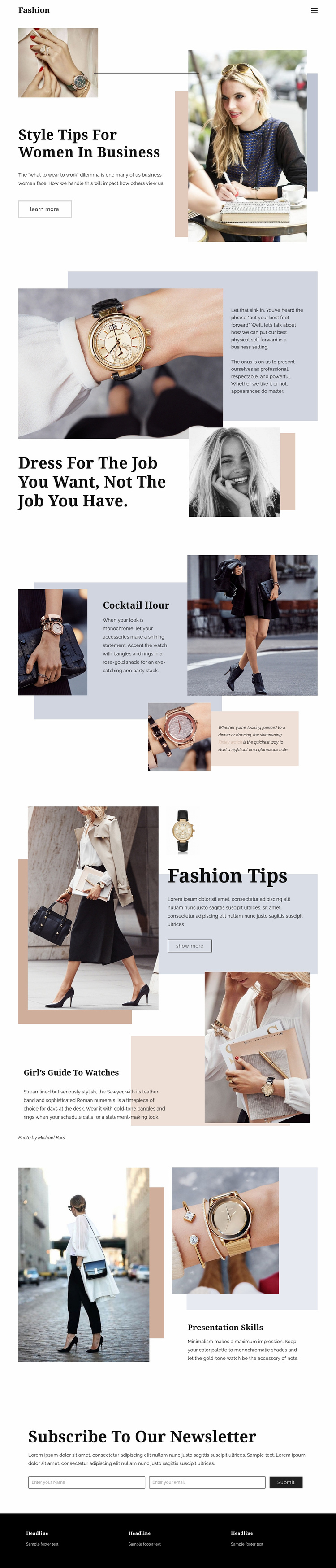
The page already defines several major content areas that could anchor a wider fashion or personal-style project. The opening navigation and Fashion wordmark establish a recognizable entry point, while Style Tips for Women in Business supplies a central subject area. The following sections separate professional attire, watches, cocktail-hour accessories, fashion guidance, and presentation skills into related but distinct topics. This gives a broader website a starting information structure instead of only a decorative homepage with no clear editorial categories.
The repeated relationship between advice and photography can also guide future sections. A watch-focused feature can sit beside professional presentation content, while the Cocktail Hour area demonstrates how accessory styling can receive its own treatment. The Fashion Tips and Girl’s Guide to Watches section shows that related subjects can overlap visually without losing their individual headings. These verified content areas could support additional pages or recurring editorial material, but the analysis confirms only the current page and does not prove that a multi-page set already exists.
The newsletter block adds a practical shared-site opportunity. Its centered message, name field, email field, and Subscribe control can remain a consistent engagement point while other content areas expand. The three-column footer offers a defined place for supporting information, navigation, or contact content after its sample text is replaced. Across the project, the serif typography, restrained palette, asymmetrical image treatment, and generous spacing could preserve a common visual direction. Nicepage’s Pages panel can support page management when expansion is needed, but the page itself is the verified foundation.
Customize with Nicepage
Open this ready-made template in the Website Template Builder and customize it visually in the Nicepage editor. Replace demo content, edit page sections, and adapt the design to your project without rebuilding the template from scratch.
Build a Complete Website From This Template
Customize the Website Visually
Use this ready-made website template as a starting point for your project and adapt its pages visually in Nicepage. Change content, images, typography, navigation, sections, and other design elements while keeping the website together as a single editable project.
Manage Website Pages in One Project
Use the Pages panel to open, add, duplicate, and manage the pages of your website. Work on individual pages while keeping navigation and the overall site structure accessible from the same project, making it easier to develop a complete website instead of managing separate page files.
Expand the Website With Matching Designs
When you need additional pages or sections, use Page Design Sets to find Page and Block Designs created in the same visual style. Design Sets group matching designs together, making it easier to expand the website with new content while maintaining a consistent look across its pages and sections.
Organize Larger Multi-Page Websites
As the website grows, use Page Folders to organize related pages and keep larger multi-page projects easier to navigate in the editor. This is especially useful for websites with separate service pages, company information, contacts, landing pages, and other content areas.
This workflow makes the template a practical foundation for building and expanding a complete website while managing its pages, content, and visual design within one Nicepage project.