Building constructions Website Template


Edit Template Offline
2. Create new page and search for id 18217
Edit Template Online
Create Awesome Websites


Free Nicepage Builder
Keywords
Service, project, and contact areas establish a broader site foundation
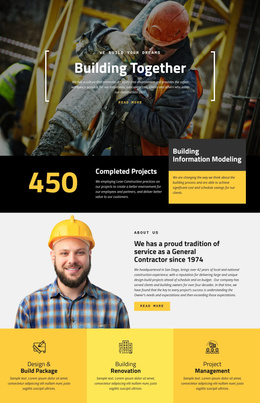
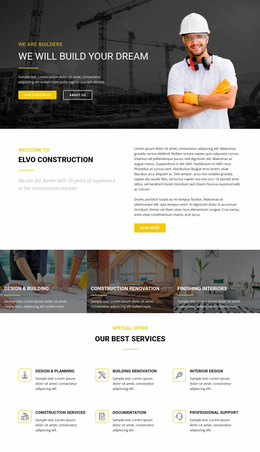
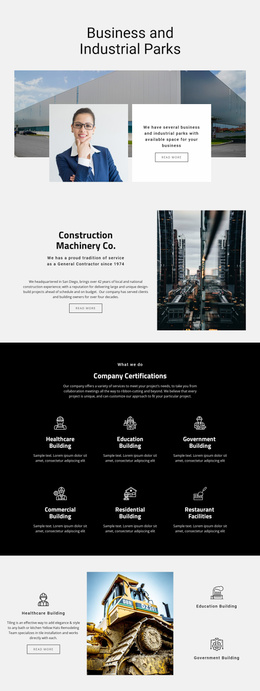
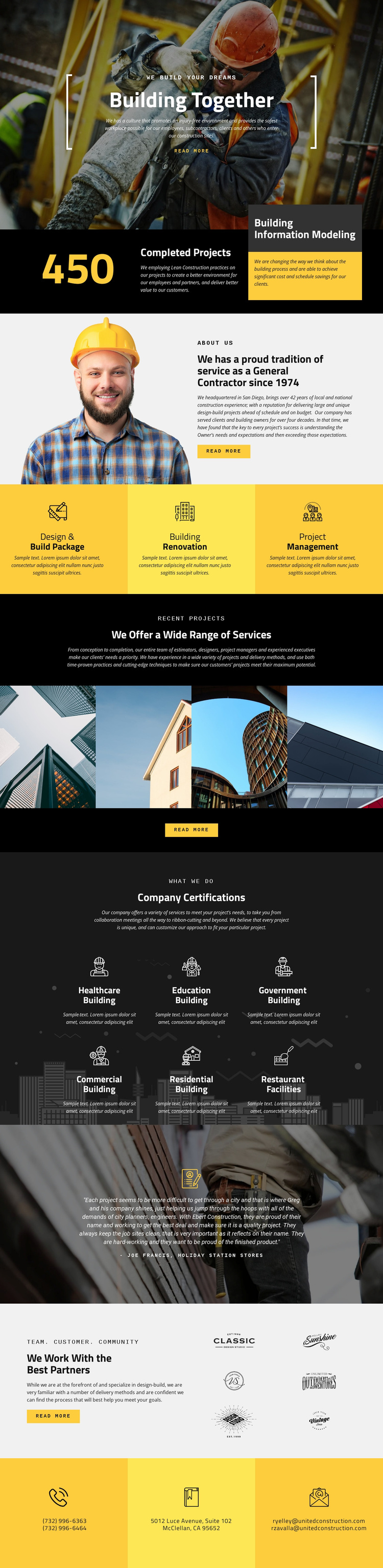
The page already defines several major content areas that a construction website project may need. The hero introduces the company’s building focus, while the completed-projects counter and company-history section provide an opening foundation for background information. The three service panels then establish a clear capability group covering Design & Build Package, Building Renovation, and Project Management. These areas could guide related service or company pages as the project grows, without claiming that those additional pages already exist.
The four-image Recent Projects strip supplies a natural portfolio category, and the six labeled panels broaden the information architecture through Healthcare, Education, Government, Commercial, Residential, and Restaurant Facilities. Those categories can help organize future project or sector content because they already appear as distinct topics in the design. The testimonial and six partner marks add relationship-oriented content, while the final contact panels keep phone, address, and email information visibly separate.
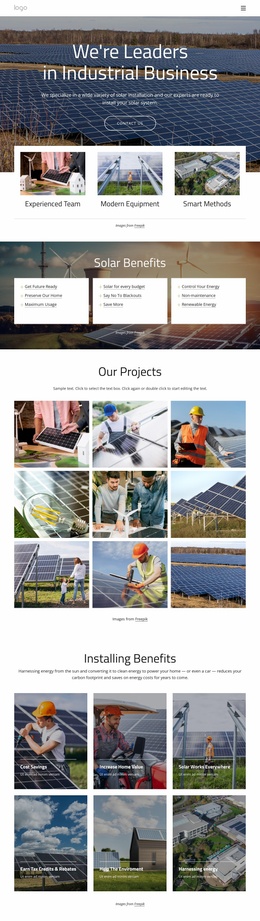
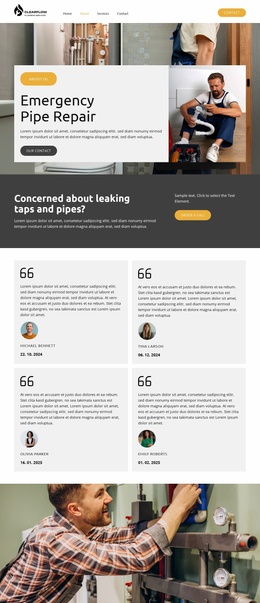
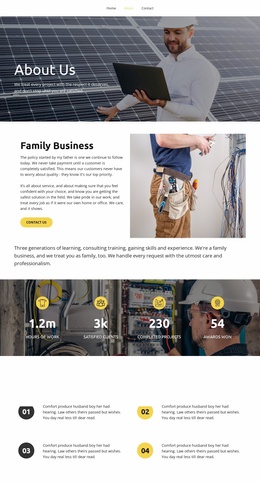
Together, the sections provide more than a single promotional statement: they define a possible site structure around company information, services, projects, construction categories, credibility, partners, and contact. The strong charcoal, white, and yellow visual system can connect future pages, but the verified evidence supports describing this template as a foundation for expansion rather than as an existing multi-page website.
Customize with Nicepage
Open this ready-made template in the Website Template Builder and customize it visually in the Nicepage editor. Replace demo content, edit page sections, and adapt the design to your project without rebuilding the template from scratch.
Build a Complete Website From This Template
Customize the Website Visually
Use this ready-made website template as a starting point for your project and adapt its pages visually in Nicepage. Change content, images, typography, navigation, sections, and other design elements while keeping the website together as a single editable project.
Manage Website Pages in One Project
Use the Pages panel to open, add, duplicate, and manage the pages of your website. Work on individual pages while keeping navigation and the overall site structure accessible from the same project, making it easier to develop a complete website instead of managing separate page files.
Expand the Website With Matching Designs
When you need additional pages or sections, use Page Design Sets to find Page and Block Designs created in the same visual style. Design Sets group matching designs together, making it easier to expand the website with new content while maintaining a consistent look across its pages and sections.
Organize Larger Multi-Page Websites
As the website grows, use Page Folders to organize related pages and keep larger multi-page projects easier to navigate in the editor. This is especially useful for websites with separate service pages, company information, contacts, landing pages, and other content areas.
This workflow makes the template a practical foundation for building and expanding a complete website while managing its pages, content, and visual design within one Nicepage project.