Connect With the Universe Website Design


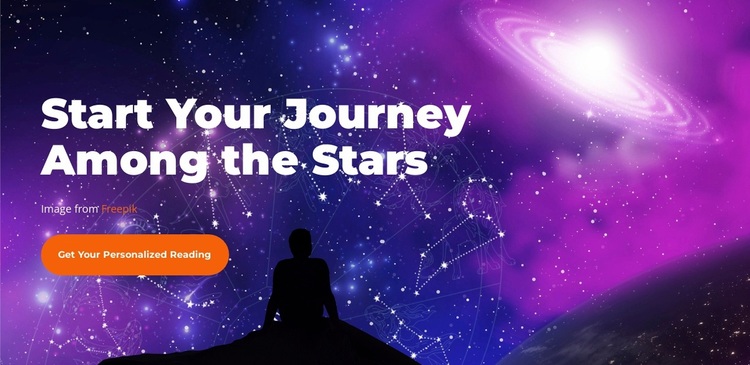
Cosmic Imagery and Orange Accents Define the Section’s Language
The section’s visual language comes from the interaction of cool atmospheric colors and a single warm accent. Deep blue, purple, and magenta form the dominant background, with bright galaxy highlights adding energy within the image. The silhouetted seated figure along the lower edge introduces a recognizable human presence without changing the cosmic setting. These choices give the block a strong thematic direction before any neighboring section is considered.
Large bold white typography provides the main contrast and keeps “Start Your Journey Among the Stars” readable against the image. The rounded orange “Get Your Personalized Reading” button then acts as a repeatable accent opportunity: its color can become a visual cue for important actions elsewhere in a broader site, while its shape gives the hero a softer counterpoint to the expansive background. The attribution line remains a restrained supporting detail rather than a separate design theme.
As a Website Design contribution, the block can help establish a palette, contrast pattern, and image treatment that related sections may echo. One hero does not define an entire site, but it does offer concrete ingredients for a consistent visual language: cosmic imagery, bright foreground type, a warm CTA accent, and a balance between atmosphere and direct action.
Customize with Nicepage
Open this ready-made template in the Website Design Builder and customize it visually in the Nicepage editor. Replace demo content, edit page sections, and adapt the design to your project without rebuilding the template from scratch.
Edit Template Offline
2. Create a new page or select existing
3. Click Add new block, search for id 6572195 and click enter
Edit Template Online
Create Awesome Websites


Free Nicepage Builder
Keywords
Connect This Block to a Consistent Website Design
Apply a Shared Visual Language
Use Theme Settings to coordinate Colors, Fonts, and Typography across the broader website. A block can express the same visual language through its backgrounds, text hierarchy, image treatment, buttons, cards, icons, and spacing without claiming that one section defines the entire site's identity.
Keep Repeated Treatments Consistent
When the block contains repeated items or distinctive accents, align those choices with the broader project. Shared typography, color roles, button styles, and image treatments can help a service, testimonial, pricing, or gallery block feel connected to other pages and sections.
Add Motion Only When It Supports the Section
Use Animation Effects when movement genuinely helps present the block's content. Effects can be applied to elements or Containers, but animation should remain secondary to the section's verified content and visual hierarchy.
This workflow lets one block contribute to a consistent website design while site-wide identity continues to be defined by the broader set of pages, sections, and shared style rules.