Infographics Website Design


Black, White, and Blue Form a Distinctive Section Language
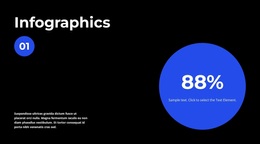
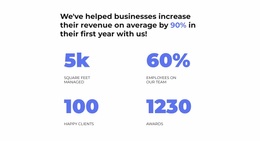
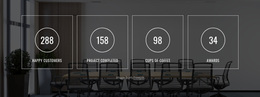
The block’s visual character comes from a controlled palette and a clear difference in scale. White typography places the “Infographics” heading and supporting paragraph in sharp contrast with the black background, while vivid blue shapes provide the accents. The small rounded “01” marker and the much larger circular percentage do not compete equally: together they create a visual language in which blue identifies the infographic subject and size determines emphasis. The result is a section with a strong geometric signature.
Within a broader Website Design, these choices can serve as one reference point for related sections. Blue may be echoed in other accents, white typography may establish a comparable contrast on dark surfaces, and circular forms may become a recurring motif where appropriate. The block alone does not define the complete site identity, but it does show how color, typography, shape, and spacing can work together around one content purpose. Keeping the heading and metric visually prominent while the paragraph remains compact will help preserve the same design relationship when the section is coordinated with other pages or blocks. The numbered marker adds a smaller repeated shape, ensuring that the visual system includes both a sequence cue and a dominant data symbol.
Customize with Nicepage
Open this ready-made template in the Website Design Builder and customize it visually in the Nicepage editor. Replace demo content, edit page sections, and adapt the design to your project without rebuilding the template from scratch.
Edit Template Offline
2. Create a new page or select existing
3. Click Add new block, search for id 2338964 and click enter
Edit Template Online
Create Awesome Websites


Free Nicepage Builder
Keywords
Connect This Block to a Consistent Website Design
Apply a Shared Visual Language
Use Theme Settings to coordinate Colors, Fonts, and Typography across the broader website. A block can express the same visual language through its backgrounds, text hierarchy, image treatment, buttons, cards, icons, and spacing without claiming that one section defines the entire site's identity.
Keep Repeated Treatments Consistent
When the block contains repeated items or distinctive accents, align those choices with the broader project. Shared typography, color roles, button styles, and image treatments can help a service, testimonial, pricing, or gallery block feel connected to other pages and sections.
Add Motion Only When It Supports the Section
Use Animation Effects when movement genuinely helps present the block's content. Effects can be applied to elements or Containers, but animation should remain secondary to the section's verified content and visual hierarchy.
This workflow lets one block contribute to a consistent website design while site-wide identity continues to be defined by the broader set of pages, sections, and shared style rules.