Business tabs on grey background CSS Template


Yellow Accents Organize the Dark Product Panel
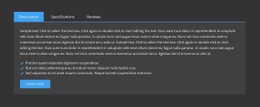
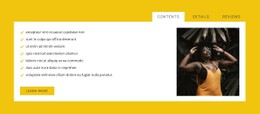
The dark gray background establishes the block’s main visual field, allowing the white heading, paragraph, checklist, and action text to remain legible as one content hierarchy. Yellow is reserved for the active tab and button-style accents, so the color contrast identifies both the selected information state and the available action without requiring additional decoration. This makes the three-panel structure easier to scan while preserving the product-information purpose.
Spacing is equally important to the styling logic. The tab labels sit toward the upper right, while the active content begins on the left with the heading and supporting copy. Generous open space keeps the three checklist items from appearing crowded and gives the Learn more link room to function as a separate action. In the Reviews panel, the review prompt and write-review link can follow the same contrast and spacing rules. As a CSS Template interpretation, the block is best understood through these local properties: background, text contrast, accent color, alignment, spacing, and the visual distinction between inactive and active tabs. Those rules can be refined without changing the Description, Specifications, or Reviews content model.
Customize with Nicepage
Open this ready-made template in the CSS Template Builder and customize it visually in the Nicepage editor. Replace demo content, edit page sections, and adapt the design to your project without rebuilding the template from scratch.
Edit Template Offline
2. Create a new page or select existing
3. Click Add new block, search for id 92931 and click enter
Edit Template Online
Create Awesome Websites


Free Nicepage Builder
Keywords
Customize This Template With CSS
Control Page-Specific Styling
Customize the visual appearance of this ready-made template directly in the Nicepage editor. Adjust typography, spacing, backgrounds, borders, colors, positioning, and other style properties using visual controls while keeping the page layout easy to manage without writing CSS manually.
Add Custom CSS When Needed
For styling requirements that go beyond the standard editor options, use Custom CSS to add targeted rules. CSS can be applied to individual elements, specific pages, or the entire website depending on the scope of the customization, while CSS classes can be used to connect custom rules with selected elements.
Export Minimal CSS Per Page
For projects where CSS size and page performance matter, Nicepage can export minimal CSS for each page. Instead of relying on one larger common stylesheet, each page can use a separate CSS file containing only the style rules required for that particular page. According to Nicepage documentation, these page-specific CSS files can be about ten times more compact, helping reduce unnecessary CSS and improve page loading performance.
This workflow combines visual styling with optional custom CSS and optimized page-specific CSS output, giving you additional control when a project requires it without making manual CSS editing the primary way to customize the template.