Six reviews CSS Template


Orange Rings and Names Shape the Testimonial Styling
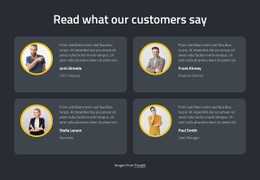
The white background gives the six-entry collection a quiet base, allowing the black uppercase “TESTIMONIALS” heading and orange details to carry the visual emphasis. Each testimonial uses the same internal treatment: a circular portrait with a prominent orange ring sits beside a quote and person name. Repeating that relationship across two columns and three rows creates visual consistency without merging the six entries into one undifferentiated text area.
For a CSS Template interpretation, the important styling decisions belong to this section itself. The orange ring and orange name form a repeated accent pair, while the heading establishes a separate typographic level above the testimonial grid. Spacing between rows and columns gives each review room to breathe and helps readers distinguish one quote from the next. Adjusting colors, borders, typography, or spacing can change the block’s tone while preserving its testimonial purpose.
The design is therefore most useful when the content should remain recognizable as six separate reviews. Styling can strengthen hierarchy, contrast, and repetition inside the block without implying that the section needs site-wide rules or additional page elements.
Customize with Nicepage
Open this ready-made template in the CSS Template Builder and customize it visually in the Nicepage editor. Replace demo content, edit page sections, and adapt the design to your project without rebuilding the template from scratch.
Edit Template Offline
2. Create a new page or select existing
3. Click Add new block, search for id 901199 and click enter
Edit Template Online
Create Awesome Websites


Free Nicepage Builder
Keywords
Customize This Template With CSS
Control Page-Specific Styling
Customize the visual appearance of this ready-made template directly in the Nicepage editor. Adjust typography, spacing, backgrounds, borders, colors, positioning, and other style properties using visual controls while keeping the page layout easy to manage without writing CSS manually.
Add Custom CSS When Needed
For styling requirements that go beyond the standard editor options, use Custom CSS to add targeted rules. CSS can be applied to individual elements, specific pages, or the entire website depending on the scope of the customization, while CSS classes can be used to connect custom rules with selected elements.
Export Minimal CSS Per Page
For projects where CSS size and page performance matter, Nicepage can export minimal CSS for each page. Instead of relying on one larger common stylesheet, each page can use a separate CSS file containing only the style rules required for that particular page. According to Nicepage documentation, these page-specific CSS files can be about ten times more compact, helping reduce unnecessary CSS and improve page loading performance.
This workflow combines visual styling with optional custom CSS and optimized page-specific CSS output, giving you additional control when a project requires it without making manual CSS editing the primary way to customize the template.