Packages and pricing CSS Template


Gray card surfaces and green prices shape the comparison
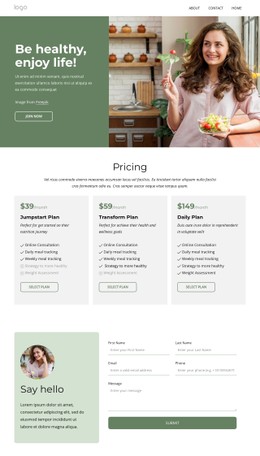
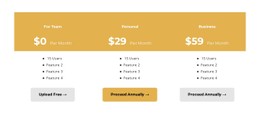
The three equal-column cards provide a clear visual system for styling the Pricing section. Light gray backgrounds separate Jumpstart Plan, Transform Plan, and Daily Plan from the surrounding page, while green monthly prices create a repeated focal point near the top of each card. The centered heading and supporting paragraph form a contrasting introductory area above the row, keeping the section’s visual entry point distinct from its denser plan content.
Consistent left alignment gives the plan names, descriptions, feature lists, and Select Plan actions a shared reading edge. The outlined rounded buttons repeat the same shape language across all three choices, so the actions feel related without competing with the prices. Check and muted indicators add a second visual layer: Online Consultation, Daily meal tracking, and Weekly meal tracking appear across the plans, while unavailable items remain visibly differentiated within the same card treatment.
These styling relationships can be refined at the block level while retaining the comparison structure. Spacing between the centered introduction, card columns, feature rows, and buttons affects how quickly visitors can scan the plans. The gray, green, and muted contrast also helps preserve hierarchy when the section is placed beside other content. The result is a focused appearance system for one pricing area, with its repeated colors, borders, radius, alignment, and emphasis working together around the plan choices.
Customize with Nicepage
Open this ready-made template in the CSS Template Builder and customize it visually in the Nicepage editor. Replace demo content, edit page sections, and adapt the design to your project without rebuilding the template from scratch.
Edit Template Offline
2. Create a new page or select existing
3. Click Add new block, search for id 6324532 and click enter
Edit Template Online
Create Awesome Websites


Free Nicepage Builder
Keywords
Customize This Template With CSS
Control Page-Specific Styling
Customize the visual appearance of this ready-made template directly in the Nicepage editor. Adjust typography, spacing, backgrounds, borders, colors, positioning, and other style properties using visual controls while keeping the page layout easy to manage without writing CSS manually.
Add Custom CSS When Needed
For styling requirements that go beyond the standard editor options, use Custom CSS to add targeted rules. CSS can be applied to individual elements, specific pages, or the entire website depending on the scope of the customization, while CSS classes can be used to connect custom rules with selected elements.
Export Minimal CSS Per Page
For projects where CSS size and page performance matter, Nicepage can export minimal CSS for each page. Instead of relying on one larger common stylesheet, each page can use a separate CSS file containing only the style rules required for that particular page. According to Nicepage documentation, these page-specific CSS files can be about ten times more compact, helping reduce unnecessary CSS and improve page loading performance.
This workflow combines visual styling with optional custom CSS and optimized page-specific CSS output, giving you additional control when a project requires it without making manual CSS editing the primary way to customize the template.