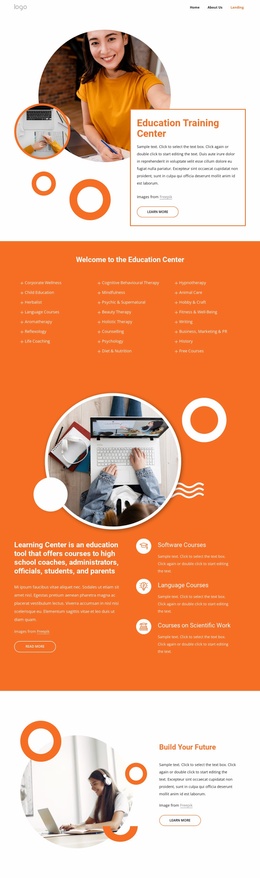
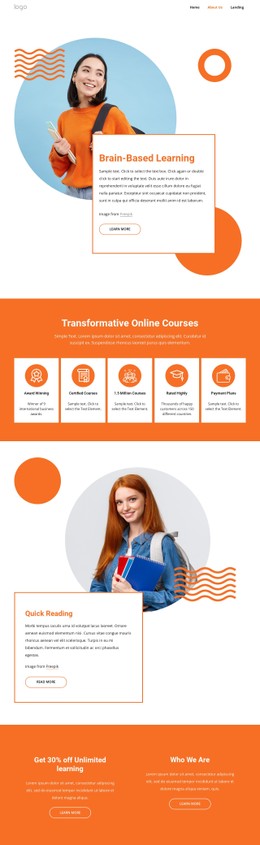
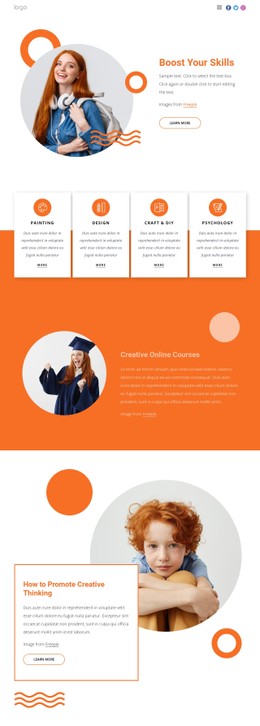
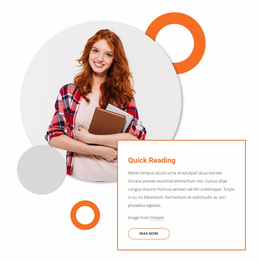
Fitness challenge CSS Template


Orange Type and Offset Tiles Shape the Challenge Section
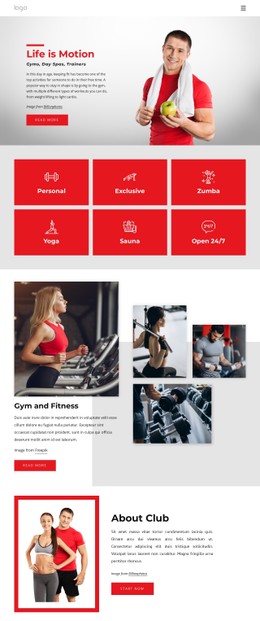
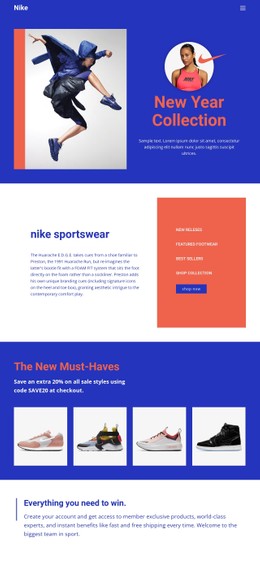
The warm orange heading gives “30 Day Fitness Challenge” immediate visual priority, while muted gray body text keeps the explanatory material quieter and easier to scan. On the white background, the pale peach accent shape behind the right-side content adds a soft field of color without competing with the title or the two photographs. This combination creates a styling system that separates emphasis, supporting information, and imagery within one section.
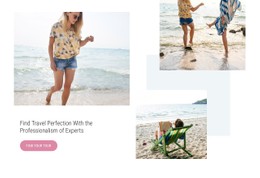
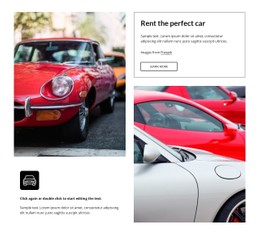
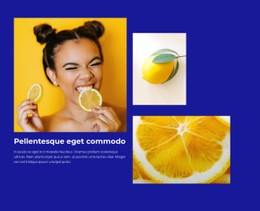
The two fitness-related photographs are presented as large rectangular tiles rather than small decorative images. Their scale gives the visual content meaningful weight, while generous whitespace prevents the asymmetrical composition from feeling crowded. The stacked left-side content and the right-side text-and-image grouping can therefore retain their distinct roles even when colors, type settings, spacing, or tile treatment are adjusted. The visual relationship matters more than any individual decoration: the heading introduces the challenge, the copy explains it, and the photographs reinforce its active subject.
For a CSS Template interpretation, the useful decisions are local to this block. Orange accents, peach background treatment, gray text, image proportions, alignment, and spacing can be refined to match a wider fitness visual language while preserving the same challenge introduction. Nicepage’s styling controls or targeted Custom CSS can support those refinements when standard properties do not cover a specific visual requirement, but the block’s existing content arrangement remains the basis for every adjustment.
Customize with Nicepage
Open this ready-made template in the CSS Template Builder and customize it visually in the Nicepage editor. Replace demo content, edit page sections, and adapt the design to your project without rebuilding the template from scratch.
Edit Template Offline
2. Create a new page or select existing
3. Click Add new block, search for id 183413 and click enter
Edit Template Online
Create Awesome Websites


Free Nicepage Builder
Keywords
Customize This Template With CSS
Control Page-Specific Styling
Customize the visual appearance of this ready-made template directly in the Nicepage editor. Adjust typography, spacing, backgrounds, borders, colors, positioning, and other style properties using visual controls while keeping the page layout easy to manage without writing CSS manually.
Add Custom CSS When Needed
For styling requirements that go beyond the standard editor options, use Custom CSS to add targeted rules. CSS can be applied to individual elements, specific pages, or the entire website depending on the scope of the customization, while CSS classes can be used to connect custom rules with selected elements.
Export Minimal CSS Per Page
For projects where CSS size and page performance matter, Nicepage can export minimal CSS for each page. Instead of relying on one larger common stylesheet, each page can use a separate CSS file containing only the style rules required for that particular page. According to Nicepage documentation, these page-specific CSS files can be about ten times more compact, helping reduce unnecessary CSS and improve page loading performance.
This workflow combines visual styling with optional custom CSS and optimized page-specific CSS output, giving you additional control when a project requires it without making manual CSS editing the primary way to customize the template.