We respect your privacy Web Page Design


Edit Template Offline
2. Create new page and search for id 6543092
Edit Template Online
Create Awesome Websites


Free Nicepage Builder
Keywords
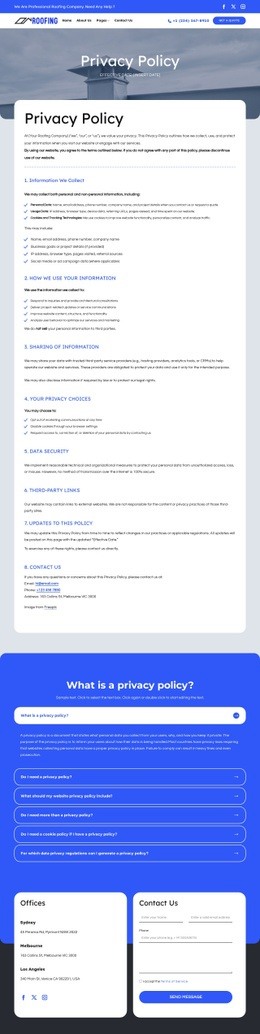
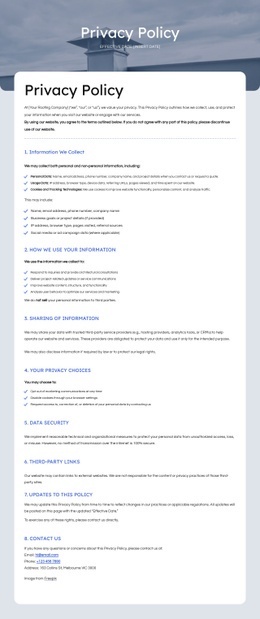
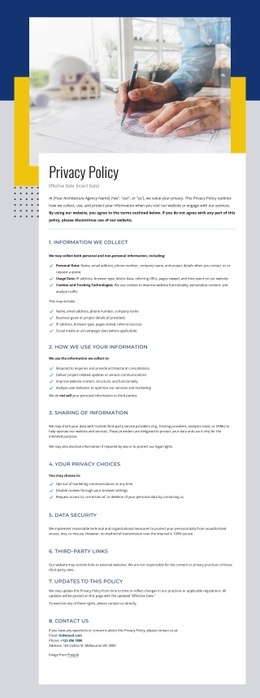
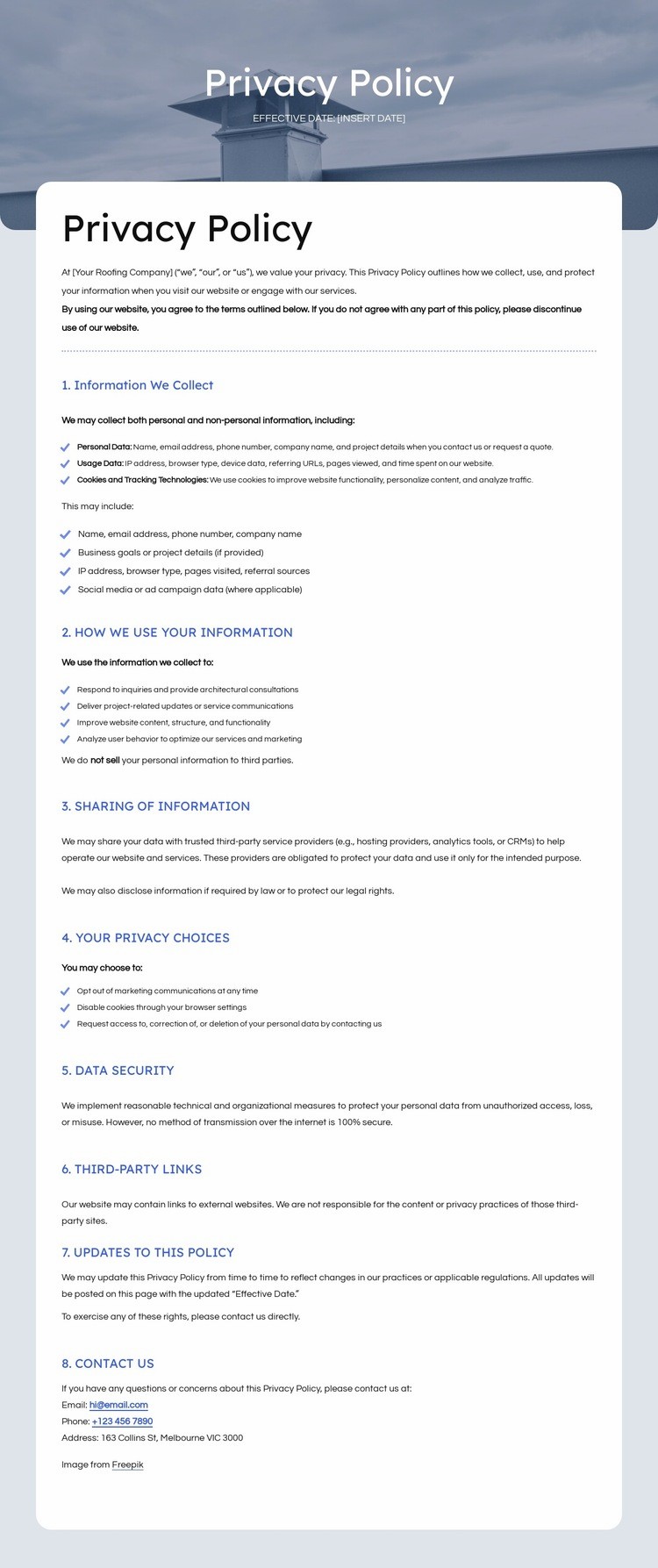
The Blue Title Band Separates Navigation From Dense Policy Text
The composition depends on clear changes in visual density. The upper utility bar is compact, while the second header row places the roofing logo, primary navigation, phone contact, and quote action into a more substantial horizontal band. This gives visitors immediate orientation before the page changes scale and rhythm through the centered Privacy Policy banner, where white type and the effective-date line create a simple, high-contrast title area.
Below that opening, the light-gray content region uses a narrower left-aligned text column to make the document distinct from the full-width bands above and below it. The policy is broken into numbered headings and bullet lists covering personal data, usage data, cookies, information use, sharing, privacy choices, data security, third-party links, updates, and contact details. The repeated heading-and-text pattern provides visual pauses inside an otherwise dense information area. It also lets the reader understand the progression from collection practices to user rights and final contact information.
The dark footer changes the composition again by dividing company summary, contact information, and related links into three columns. These transitions—from compact header, to full-width title, to dense document, to multi-column footer—give one page a controlled informational rhythm rather than a flat block of text.
Customize with Nicepage
Open this ready-made template in the Web Page Design Builder and customize it visually in the Nicepage editor. Replace demo content, edit page sections, and adapt the design to your project without rebuilding the template from scratch.
Design a Web Page Section by Section
Choose a Design for Each Section
Build the page from individual content sections instead of starting with a fixed full-page layout. Use Block Designs to browse ready-made sections for different purposes, including introductions, services, galleries, testimonials, contact forms, pricing, and other common parts of a web page. Search or filter the available designs to find a layout that fits the content you want to add.
Combine Blocks and Page Elements
Add selected Blocks to the page and arrange them in the order that supports the page's purpose. A hero section can introduce the main message, followed by services, benefits, portfolio content, testimonials, calls to action, or contact information.
Inside each section, use Web Page Elements such as Text, Image, Hyperlink, Grid, Gallery, and other elements to build and present the page content. Individual elements can be added and adjusted within the Blocks, giving you more control over the composition of each section without having to create the complete layout from scratch.
Refine the Page Layout and Flow
After assembling the main sections, adjust their content, spacing, backgrounds, images, typography, and element placement in the Nicepage editor. Reorder Blocks when necessary and refine the transition from one section to the next so the information hierarchy and visual flow remain clear throughout the page.
This workflow makes the template useful as a web page design that can be composed from ready-made sections, customized with individual page elements, rearranged, and adapted to the content and purpose of an individual page.