Sunny interior design color Web Page Design


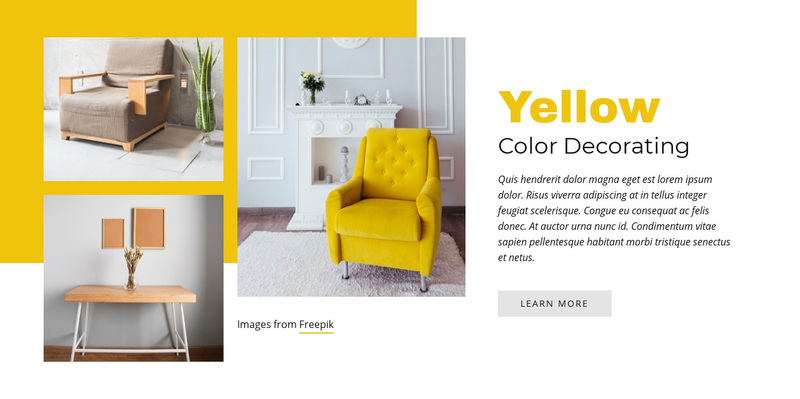
Stacked images, a central feature, and text create a guided page rhythm
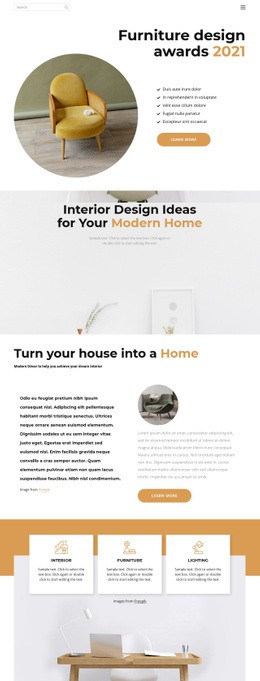
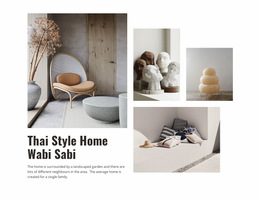
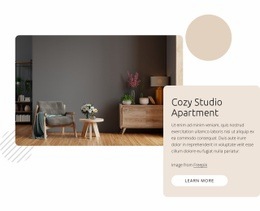
The composition establishes three different levels of visual weight. Two smaller photographs are stacked on the left as supporting material, the central image is larger and shows the yellow armchair that visually defines the theme, and the right panel translates that image-led idea into text. This arrangement prevents the paragraph and button from competing directly with the feature photograph, while the yellow background shape links the image group into one recognizable section.
The “Yellow” headline provides the first textual entry point, followed by the “Color Decorating” label and supporting paragraph. The light gray “learn more” button sits within the text panel as a secondary action, giving the composition a clear endpoint without disrupting its informational emphasis. Generous white spacing around the rectangular image crops helps preserve separation between the stacked, central, and textual areas.
As a Web Page Design section, the block can serve as a strong mid-page transition between broader content areas. Its asymmetrical distribution moves the eye from supporting images to the dominant room photograph and then to the explanatory copy. The surrounding page can determine what appears before and after it, while this block retains a self-contained composition and a static content relationship.
Customize with Nicepage
Open this ready-made template in the Web Page Design Builder and customize it visually in the Nicepage editor. Replace demo content, edit page sections, and adapt the design to your project without rebuilding the template from scratch.
Edit Template Offline
2. Create a new page or select existing
3. Click Add new block, search for id 60033 and click enter
Edit Template Online
Create Awesome Websites


Free Nicepage Builder
Keywords
Design a Web Page Section by Section
Choose a Design for Each Section
Build the page from individual content sections instead of starting with a fixed full-page layout. Use Block Designs to browse ready-made sections for different purposes, including introductions, services, galleries, testimonials, contact forms, pricing, and other common parts of a web page. Search or filter the available designs to find a layout that fits the content you want to add.
Combine Blocks and Page Elements
Add selected Blocks to the page and arrange them in the order that supports the page's purpose. A hero section can introduce the main message, followed by services, benefits, portfolio content, testimonials, calls to action, or contact information.
Inside each section, use Web Page Elements such as Text, Image, Hyperlink, Grid, Gallery, and other elements to build and present the page content. Individual elements can be added and adjusted within the Blocks, giving you more control over the composition of each section without having to create the complete layout from scratch.
Refine the Page Layout and Flow
After assembling the main sections, adjust their content, spacing, backgrounds, images, typography, and element placement in the Nicepage editor. Reorder Blocks when necessary and refine the transition from one section to the next so the information hierarchy and visual flow remain clear throughout the page.
This workflow makes the template useful as a web page design that can be composed from ready-made sections, customized with individual page elements, rearranged, and adapted to the content and purpose of an individual page.