School of artistic education Web Page Design


Edit Template Offline
2. Create new page and search for id 34007
Edit Template Online
Create Awesome Websites


Free Nicepage Builder
Keywords
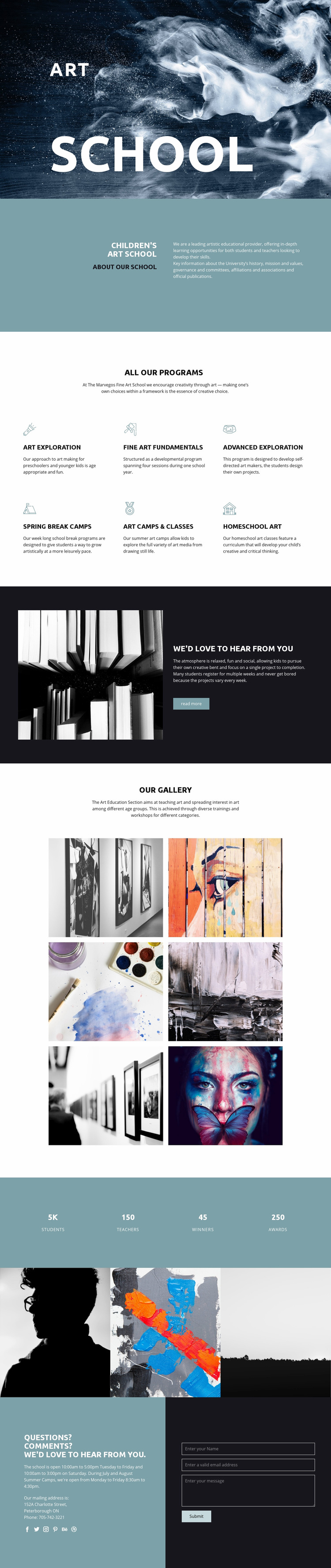
A Shift From Full-Width Artwork to Repeated Programs Controls the Page Rhythm
The opening block uses a large Art School title over a full-width image, creating a high-impact first field before the page narrows into the two-column About section. That change in width and density gives the explanatory content a calmer reading zone. The next transition is more regular: six program descriptions form two rows of three, creating a repeated visual cadence for Art Exploration, Fine Art Fundamentals, Advanced Exploration, Spring Break Camps, Art Camps & Classes, and Homeschool Art.
The composition then changes direction through a split block, where an artwork image and supporting copy share equal space and the Read more button creates a visual endpoint. The centered gallery restores a broader image-led rhythm with six artwork images, while the horizontal counter band compresses information into four aligned highlights. Three full-height artwork tiles create a strong continuous strip before the final contact block divides school details and the form into two columns. These transitions keep the page from feeling like one repeated grid. Image scale, whitespace, alignment, and section width work together to guide attention from subject, to explanation, to programs, to visual proof, and finally to questions. The value here is the composition of this individual page, not a claim about site-wide branding or code structure.
Customize with Nicepage
Open this ready-made template in the Web Page Design Builder and customize it visually in the Nicepage editor. Replace demo content, edit page sections, and adapt the design to your project without rebuilding the template from scratch.
Design a Web Page Section by Section
Choose a Design for Each Section
Build the page from individual content sections instead of starting with a fixed full-page layout. Use Block Designs to browse ready-made sections for different purposes, including introductions, services, galleries, testimonials, contact forms, pricing, and other common parts of a web page. Search or filter the available designs to find a layout that fits the content you want to add.
Combine Blocks and Page Elements
Add selected Blocks to the page and arrange them in the order that supports the page's purpose. A hero section can introduce the main message, followed by services, benefits, portfolio content, testimonials, calls to action, or contact information.
Inside each section, use Web Page Elements such as Text, Image, Hyperlink, Grid, Gallery, and other elements to build and present the page content. Individual elements can be added and adjusted within the Blocks, giving you more control over the composition of each section without having to create the complete layout from scratch.
Refine the Page Layout and Flow
After assembling the main sections, adjust their content, spacing, backgrounds, images, typography, and element placement in the Nicepage editor. Reorder Blocks when necessary and refine the transition from one section to the next so the information hierarchy and visual flow remain clear throughout the page.
This workflow makes the template useful as a web page design that can be composed from ready-made sections, customized with individual page elements, rearranged, and adapted to the content and purpose of an individual page.