Techno tabs Landing Page


Product Evidence Comes Before the Primary Response
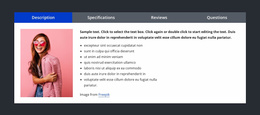
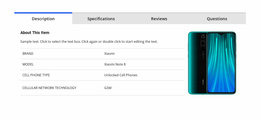
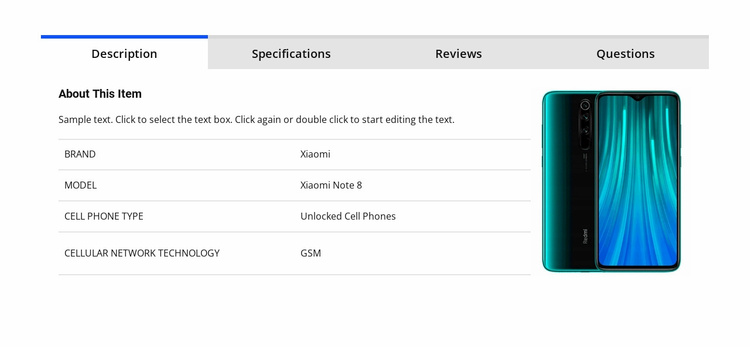
The active Description view can support a landing-page sequence by answering product questions before visitors reach a separate purchase, inquiry, or other primary response point. The Xiaomi phone image gives immediate visual context, while the adjacent product information and four-row table clarify the example’s brand, Xiaomi Note 8 model, unlocked cell-phone type, and GSM technology. Together, those areas turn a broad product proposition into specific information that can support evaluation.
The four tabs allow the section to handle more than one decision-related concern without making every detail visible at once. Specifications provides structured attributes, Reviews offers a review prompt and write-product-review action, and Questions creates a place for additional product information. These paths can reduce uncertainty within the sequence, but the block does not itself establish a complete checkout or primary campaign action. A separate response point can remain visually dominant elsewhere on the containing page.
The two-column arrangement helps preserve that progression. The image attracts attention, while the table and description provide the detail needed after initial interest. The blue active-tab line quietly signals where the visitor is reading, and the gray inactive tabs keep alternative information available without creating competing calls to action. Used this way, the section contributes product evidence and consideration support rather than becoming the whole landing-page flow.
Customize with Nicepage
Open this ready-made template in the Landing Page Builder and customize it visually in the Nicepage editor. Replace demo content, edit page sections, and adapt the design to your project without rebuilding the template from scratch.
Edit Template Offline
2. Create a new page or select existing
3. Click Add new block, search for id 93568 and click enter
Edit Template Online
Create Awesome Websites


Free Nicepage Builder
Keywords
Build a Landing Page Around One Conversion Goal
Focus on One Primary Action
Use the landing page to guide visitors toward one measurable response, such as requesting a quote, registering, subscribing, booking a consultation, applying for a service, or submitting an inquiry. Keep the primary call-to-action consistent across the important sections so the headline, supporting content, form, and CTA buttons work toward the same campaign goal instead of competing for attention.
Capture Leads With a Form
Use the Contact Form Element to add a contact, subscription, application, or other conversion form directly to the landing page. Customize the form fields, layout, labels, inputs, and button to collect the information required for your campaign while keeping the form focused on the action you want visitors to complete.
Nicepage also provides several form submission options. Form submissions can be sent to Email, stored as Leads, added to Google Sheets, passed to a custom URL or server endpoint, or used to populate a MailChimp mailing list. This provides practical options for collecting inquiries, registrations, subscriptions, applications, and other campaign responses.
Manage Leads and Campaign Responses
When submissions are stored as Leads, you can use Contact Form Leads to review the information collected through the landing page and use it for follow-up. Keep the form connected to the same offer and primary CTA presented throughout the page so visitors move from the campaign message to a clear conversion action.
This workflow makes the template suitable for landing pages where the offer, content, call-to-action, form, and lead collection process work together toward one defined conversion goal.



More from Technology Blocks
-
-

-
-
-
-
-
-
-
-
-
Free Website Builder SoftwareDownload
-
-
-
-
-
-
-
-
-
-









More from Tabs Blocks
-
-
-
-
-
-
-
-
-
-
-
Free Website Builder SoftwareDownload
-
-
-
-
-
-
-
-
-
-