Get in touch block Landing Page


Service Choices Lead Into a Focused Inquiry Point
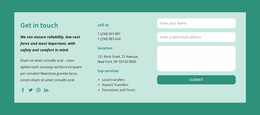
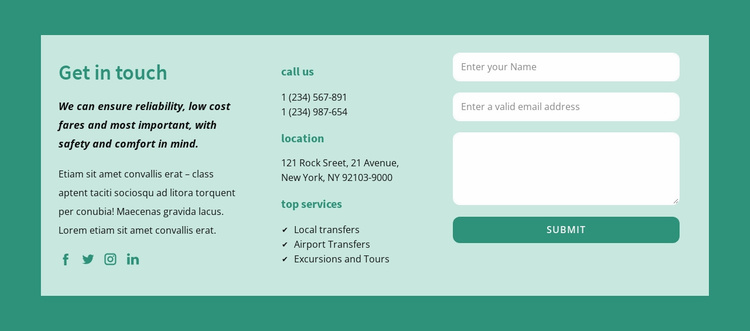
The three service items give this section a useful role in a transportation landing-page sequence because they clarify what a visitor can ask about before the inquiry is sent. Local transfers, Airport Transfers, and Excursions and Tours appear in the center column alongside two phone numbers and a location address. That practical information can reduce uncertainty, while the right-hand form provides the block’s direct response point through name, email, and message fields followed by Submit.
The left column supports the decision without competing with the form. Its “Get in touch” heading, two supporting text blocks, and four social links establish context and offer an additional way to remain connected. The three-column order also creates a clear progression from introduction, to service and contact details, to action. In a landing-page sequence, the block could therefore work near the point where a visitor is ready to request information, while earlier sections handle the main promise and service explanation. The teal outer background and pale mint panel give the inquiry area a distinct boundary, and the white rounded inputs make the response task visually apparent. The sample phone numbers, address, and transportation copy are structural content and should be replaced with campaign-specific details. The form is a real response mechanism in this section, but the wider landing-page path still depends on the surrounding blocks and their messages.
Customize with Nicepage
Open this ready-made template in the Landing Page Builder and customize it visually in the Nicepage editor. Replace demo content, edit page sections, and adapt the design to your project without rebuilding the template from scratch.
Edit Template Offline
2. Create a new page or select existing
3. Click Add new block, search for id 488382 and click enter
Edit Template Online
Create Awesome Websites


Free Nicepage Builder
Keywords
Build a Landing Page Around One Conversion Goal
Focus on One Primary Action
Use the landing page to guide visitors toward one measurable response, such as requesting a quote, registering, subscribing, booking a consultation, applying for a service, or submitting an inquiry. Keep the primary call-to-action consistent across the important sections so the headline, supporting content, form, and CTA buttons work toward the same campaign goal instead of competing for attention.
Capture Leads With a Form
Use the Contact Form Element to add a contact, subscription, application, or other conversion form directly to the landing page. Customize the form fields, layout, labels, inputs, and button to collect the information required for your campaign while keeping the form focused on the action you want visitors to complete.
Nicepage also provides several form submission options. Form submissions can be sent to Email, stored as Leads, added to Google Sheets, passed to a custom URL or server endpoint, or used to populate a MailChimp mailing list. This provides practical options for collecting inquiries, registrations, subscriptions, applications, and other campaign responses.
Manage Leads and Campaign Responses
When submissions are stored as Leads, you can use Contact Form Leads to review the information collected through the landing page and use it for follow-up. Keep the form connected to the same offer and primary CTA presented throughout the page so visitors move from the campaign message to a clear conversion action.
This workflow makes the template suitable for landing pages where the offer, content, call-to-action, form, and lead collection process work together toward one defined conversion goal.

More from Contacts Blocks
-
-

-
-
-
-
-
-
-
-
-
Free Website Builder SoftwareDownload
-
-
-
-
-
-
-
-
-
-