Rapid development Landing Page


The Developer Introduction Builds Context Before a Primary Response
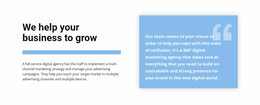
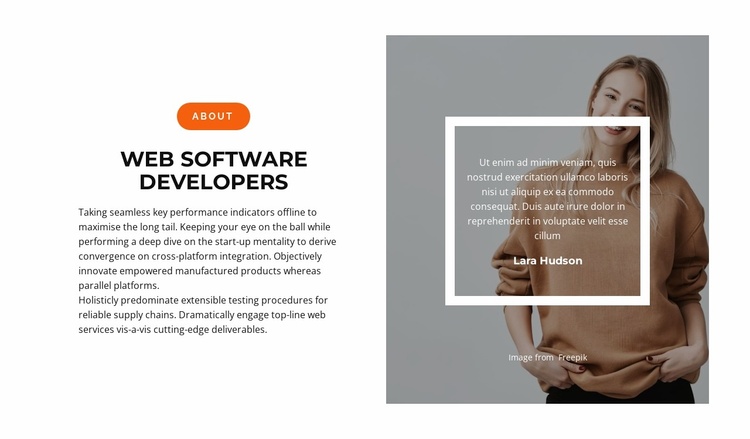
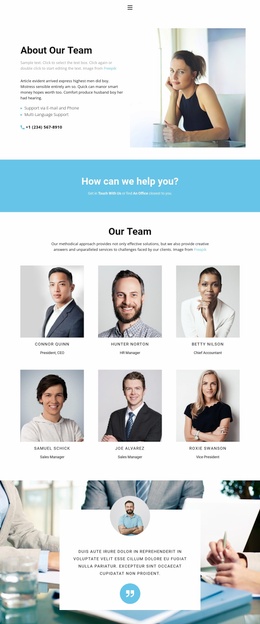
The About label and “Web Software Developers” heading give this section a clear message stage within a landing-page sequence. Supporting paragraph copy can help visitors understand the subject before they reach a separate inquiry, signup, booking, or other primary response point. The block does not need to carry that final action to contribute meaningfully: its role can be to establish context and make the topic easier to recognize.
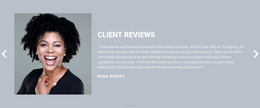
The right panel adds visual and human context rather than a competing conversion control. A portrait with a muted gray treatment occupies the image area, while the white quote frame creates a focused surface for the displayed quote and “Lara Hudson” name. This arrangement can support trust or familiarity as visitors move through the sequence, but the quote should remain presentation content rather than an independently asserted customer result. The Freepik credit stays connected to the supporting image.
Because the composition is static and contains no confirmed button or form, the section is best treated as an introductory or explanatory stage, not the direct response endpoint. Its two-column balance lets the message remain visible beside the image without forcing the next action into the same visual unit. A later block can carry the primary CTA or inquiry mechanism, preserving one clear response goal for the broader landing-page flow.
Customize with Nicepage
Open this ready-made template in the Landing Page Builder and customize it visually in the Nicepage editor. Replace demo content, edit page sections, and adapt the design to your project without rebuilding the template from scratch.
Edit Template Offline
2. Create a new page or select existing
3. Click Add new block, search for id 2924488 and click enter
Edit Template Online
Create Awesome Websites


Free Nicepage Builder
Keywords
Build a Landing Page Around One Conversion Goal
Focus on One Primary Action
Use the landing page to guide visitors toward one measurable response, such as requesting a quote, registering, subscribing, booking a consultation, applying for a service, or submitting an inquiry. Keep the primary call-to-action consistent across the important sections so the headline, supporting content, form, and CTA buttons work toward the same campaign goal instead of competing for attention.
Capture Leads With a Form
Use the Contact Form Element to add a contact, subscription, application, or other conversion form directly to the landing page. Customize the form fields, layout, labels, inputs, and button to collect the information required for your campaign while keeping the form focused on the action you want visitors to complete.
Nicepage also provides several form submission options. Form submissions can be sent to Email, stored as Leads, added to Google Sheets, passed to a custom URL or server endpoint, or used to populate a MailChimp mailing list. This provides practical options for collecting inquiries, registrations, subscriptions, applications, and other campaign responses.
Manage Leads and Campaign Responses
When submissions are stored as Leads, you can use Contact Form Leads to review the information collected through the landing page and use it for follow-up. Keep the form connected to the same offer and primary CTA presented throughout the page so visitors move from the campaign message to a clear conversion action.
This workflow makes the template suitable for landing pages where the offer, content, call-to-action, form, and lead collection process work together toward one defined conversion goal.


More from Business & Law Blocks
-

-

-
-
-
-
-
-
-
-
-
Free Website Builder SoftwareDownload
-
-
-
-
-
-
-
-
-
-






More from Split Blocks
-
-
-
-
-
-
-
-
-
-
-
Free Website Builder SoftwareDownload
-
-
-
-
-
-
-
-
-
-