Design of future technology Landing Page
Edit Template Offline
2. Create new page and search for id 12295
Edit Template Online
Create Awesome Websites


Free Nicepage Builder
Keywords
The dark hero moves naturally toward visible project proof
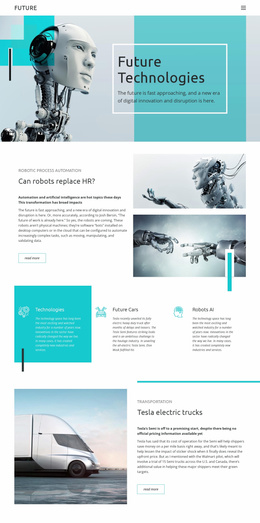
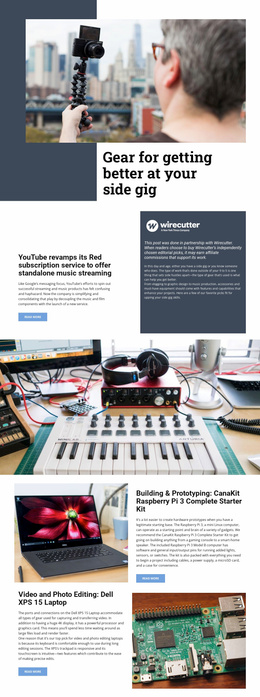
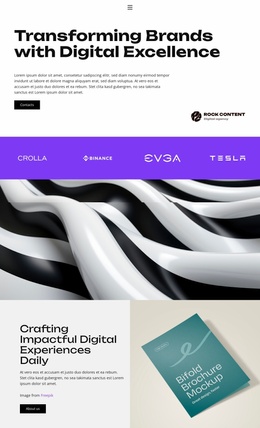
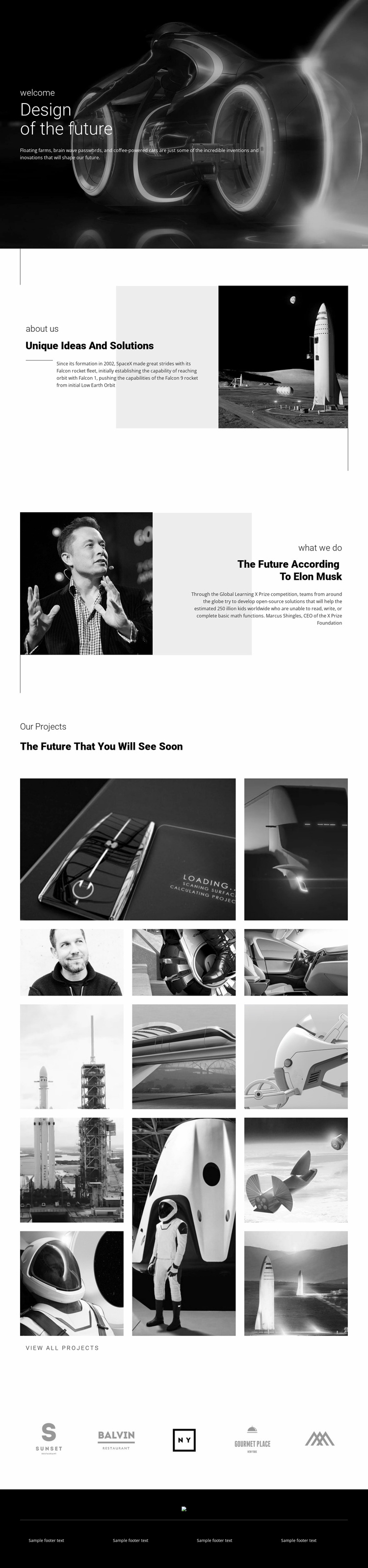
The opening image and headline give a campaign-like presentation an immediate subject: future design and innovation. Because the hero places “Design of the future” over a dark photographic background, visitors encounter the central idea before reaching the supporting explanation. The next section develops that idea through “Unique Ideas And Solutions” beside a rocket image, turning the initial theme into a more concrete technology reference rather than leaving the page at the level of an abstract statement.
The portrait-led section provides another interpretive step. Its image and right-aligned commentary can add human context before the page asks visitors to examine the projects themselves. The first gallery then introduces five project images in an asymmetrical composition, allowing the visual material to act as evidence of the future-oriented direction. The second gallery expands that evidence with eight additional images in three vertical columns, creating a longer visual path without changing the page’s monochrome character.
The “View all projects” action is the clearest response point that is actually verified in the analysis. It can serve as the next step after the gallery sequence, while the five brand marks provide a later credibility or affiliation region and the four-part footer closes the presentation. Since no single conversion goal is verified, the design should be interpreted conservatively: it supports a focused showcase path toward project exploration, but it does not prove a booking, purchase, signup, or inquiry funnel.
Customize with Nicepage
Open this ready-made template in the Landing Page Builder and customize it visually in the Nicepage editor. Replace demo content, edit page sections, and adapt the design to your project without rebuilding the template from scratch.
Build a Landing Page Around One Conversion Goal
Focus on One Primary Action
Use the landing page to guide visitors toward one measurable response, such as requesting a quote, registering, subscribing, booking a consultation, applying for a service, or submitting an inquiry. Keep the primary call-to-action consistent across the important sections so the headline, supporting content, form, and CTA buttons work toward the same campaign goal instead of competing for attention.
Capture Leads With a Form
Use the Contact Form Element to add a contact, subscription, application, or other conversion form directly to the landing page. Customize the form fields, layout, labels, inputs, and button to collect the information required for your campaign while keeping the form focused on the action you want visitors to complete.
Nicepage also provides several form submission options. Form submissions can be sent to Email, stored as Leads, added to Google Sheets, passed to a custom URL or server endpoint, or used to populate a MailChimp mailing list. This provides practical options for collecting inquiries, registrations, subscriptions, applications, and other campaign responses.
Manage Leads and Campaign Responses
When submissions are stored as Leads, you can use Contact Form Leads to review the information collected through the landing page and use it for follow-up. Keep the form connected to the same offer and primary CTA presented throughout the page so visitors move from the campaign message to a clear conversion action.
This workflow makes the template suitable for landing pages where the offer, content, call-to-action, form, and lead collection process work together toward one defined conversion goal.

More from Technology Landing Pages
-
Free Website Builder SoftwareDownload