How to price your product Joomla Template


Four Structured Plan Groups Define a Joomla Content Region
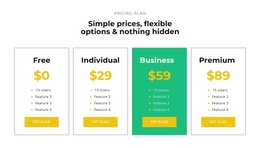
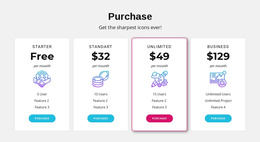
The four columns form a structured pricing information area that can participate in a Joomla-managed page. Each group keeps its plan label, displayed price, billing period, feature list, user limit, and selection action together, making the content readable as four related tiers rather than as unrelated text. This organization is useful for a page section whose purpose is to compare available plans while the broader Joomla project manages other editorial and site content around it.
The section’s visual cues reinforce the content grouping. Evenly sized columns create a stable comparison row on a white background, and light gray summary panels distinguish the standard groups from the surrounding page. The Business panel has a warm gradient highlight, allowing one tier to receive additional visual attention without changing the repeated information model. Centered black typography and compact gray buttons keep the region restrained and consistent.
In a Joomla Template context, the block can serve as a reusable pricing region inside a page or article-like content presentation. The sample names, prices, user limits, and repeated feature labels are structural examples that would need editorial replacement. The section does not itself establish Joomla Articles, categories, or module positions; it supplies a defined visual and informational area that can sit within the larger CMS-managed page.
Customize with Nicepage
Open this ready-made template in the Joomla Page Builder and customize it visually in the Nicepage editor. Replace demo content, edit page sections, and adapt the design to your project without rebuilding the template from scratch.
Edit Template Offline
2. Create a new page or select existing
3. Click Add new block, search for id 87795 and click enter
Edit Template Online
Create Awesome Websites


Free Nicepage Builder
Keywords
Work With This Template in Joomla
Customize and Install the Joomla Template
Start with this ready-made template instead of building the Joomla design from scratch. Customize its layout, content, typography, images, sections, and other design elements visually in the Nicepage application, then export and install the Joomla Template, Nicepage Extension, and supported content on your Joomla website.
Edit the Template Directly in Joomla
After installation, you can edit the Joomla Template directly in Joomla with the Nicepage Joomla Extension. Customize the Header, Footer, Colors, Fonts, typography, and Page Templates from the Joomla workflow while keeping the site design connected with your CMS content.
Edit Joomla Articles Visually
Use the Nicepage Joomla Extension to open and edit Joomla Articles visually from the Joomla Administrator. Change text, images, sections, layouts, and other page content in the Nicepage editor while continuing to manage the Articles through Joomla.
Joomla Content and Template Integration
Use the customized template together with Joomla Articles, module Positions, menus, forms, Blog Pages, and other supported CMS elements. With the Nicepage Extension used as the Site Style Source, shared design settings can be applied across Joomla Articles while Joomla continues to provide the CMS environment for managing site content.
This workflow combines a ready-made Joomla Template with visual customization, direct template editing in Joomla, and continued content management through the Nicepage Joomla Extension.