Creative graphic design HTML Template


A Mockup-Led Graphic Design Section for Static HTML
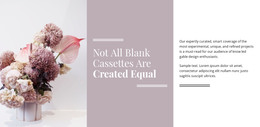
The large mockup image and overlapping white text panel already establish the block’s central content relationship. The image carries the visual introduction on the left, while the right-side panel gives the “Graphic design” heading and supporting paragraph a readable surface above the image area. The “Learn more” button provides a clear next step within the section, but the surrounding static HTML page would still supply any additional navigation, context, or destination content.
Muted green fills and pale and dark green accents connect the text panel to the image-led composition without flattening its asymmetrical balance. A circle, rectangle, dark base shape, and striped circular accent act as separate decorative forms around the two main regions, adding graphic interest while keeping the heading and button prominent. Used as a ready-made section inside a static HTML page, this block can introduce a graphic design offering in one contained visual unit. Its existing arrangement gives the page a prepared introduction to place alongside other sections, while the surrounding project determines the broader content sequence, implementation, and final destination for the button link.
Customize with Nicepage
Open this ready-made template in the HTML Builder and customize it visually in the Nicepage editor. Replace demo content, edit page sections, and adapt the design to your project without rebuilding the template from scratch.
Edit Template Offline
2. Create a new page or select existing
3. Click Add new block, search for id 263778 and click enter
Edit Template Online
Create Awesome Websites


Free Nicepage Builder
Keywords
Use This Block in a Static HTML Page
Start With a Ready-Made Section
A block provides one prepared content area that can be combined with other sections to build a static HTML page. Customize its text, images, spacing, colors, and other elements in the Nicepage editor while keeping the block focused on its own purpose, such as services, testimonials, pricing, contact information, or visual presentation.
Export the Containing HTML Project
When the page or website that contains the block is ready, use HTML Export to create the files required for a static HTML project. The export applies to the containing page/site rather than turning one individual block into a complete website by itself.
Reuse the Section Within the Project
The same block design can be adapted as one content section within a larger static site. Other Blocks can provide navigation, introductions, portfolios, forms, footers, and additional page content while this section keeps its own verified content and layout role.
This workflow makes the block useful as a ready-made section inside a static HTML implementation, with export and deployment handled at the page or website level.