Faq and form HTML Template


A Ready-Made Static Section for Contact Questions
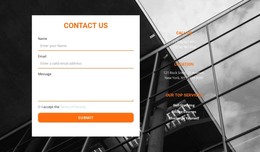
The contact and FAQ content is already arranged as one coherent section for a static HTML page. The left column carries the direct communication task: “Get In Touch” sits above vertically stacked name, email, and message fields, followed by the Submit action. The right column answers a different visitor need through three accordion items, keeping two questions collapsed while exposing the first answer paragraph. This division lets the section present contact access and supporting information without mixing their visual roles.
Its neutral base also makes the arrangement easy to place between other static page sections. Pale gray form fields and a light gray FAQ panel distinguish the two columns, while white question cards, dark text, arrow icons, and orange accents provide repeated visual cues. The layout therefore arrives with both a clear content model and a recognizable interaction pattern: form submission on one side and expansion or collapse on the other. The surrounding HTML page can provide navigation, introductions, or additional content, while this block retains its contact-and-FAQ purpose. Nicepage supports exporting a containing project as a static HTML website, making this kind of prepared section suitable for a static implementation once the surrounding page has been assembled.
Customize with Nicepage
Open this ready-made template in the HTML Builder and customize it visually in the Nicepage editor. Replace demo content, edit page sections, and adapt the design to your project without rebuilding the template from scratch.
Edit Template Offline
2. Create a new page or select existing
3. Click Add new block, search for id 1843457 and click enter
Edit Template Online
Create Awesome Websites


Free Nicepage Builder
Keywords
Export and Use This Template as an HTML Website
Create a Portable HTML Website
When the template is ready, use the HTML Export option to create a static website with the files required for deployment. The exported website can be used independently of the Nicepage editor and deployed on your preferred hosting.
Nicepage also provides SEO settings and optimization features, including Page Titles and Descriptions, Canonical settings, headings, image Alt Text, and other page-level properties that help prepare the website for search engines.
Deploy Without a CMS
Upload the finished website to the hosting environment that fits your project. Because the exported site does not require WordPress, Joomla, or another CMS to deliver its pages, it can be placed on your own server, uploaded to a hosting provider, or deployed through an existing web infrastructure.
Hand Off the Website Files
The generated website files can also be provided to a client, developer, or hosting team. They remain available outside the Nicepage editor for deployment, technical review, or project-specific development when additional work is required.
This workflow makes the template a practical foundation for a portable static website that can be exported from the Nicepage editor and deployed independently.