Promotion Plans Html Code Example


The Plan Columns Create Defined Extension Areas
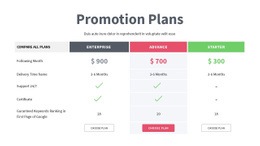
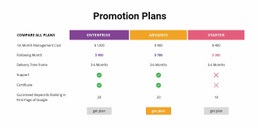
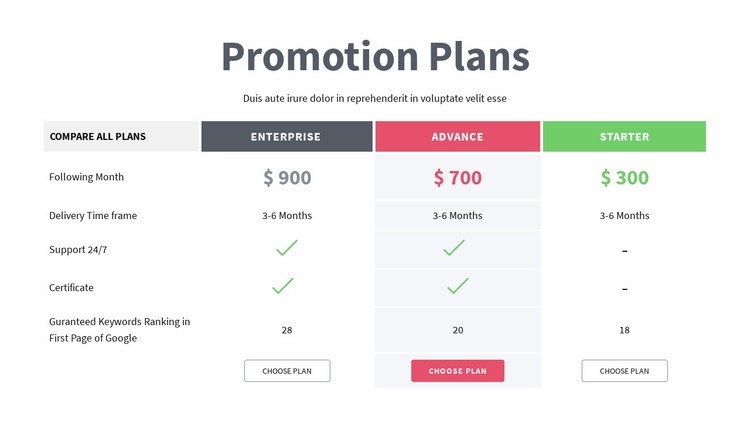
The centered heading and supporting paragraph already frame the section as a focused plan-comparison area. Inside the table, the first column provides the comparison context and the three neighboring columns identify Enterprise, Advance, and Starter. Each plan has a displayed price, five shared comparison rows, and a Choose plan button, creating clearly bounded regions for any project-specific extension that must remain associated with a particular option.
The static checkmarks and dashes are especially useful when considering custom functionality. Support 24/7 and Certificate use different marks for Starter than for Enterprise and Advance, so an external comparison detail, eligibility note, or plan-specific data element would need to sit close to the relevant row or column rather than replace the table's visual logic. The colored headers and pale middle-column emphasis also provide recognizable placement cues for an added element.
For an HTML Code use case, custom markup or an external component could be introduced around these existing content regions if the project requires behavior beyond the displayed comparison and buttons. Nicepage's HTML Element can provide an extension point, but the existing block should remain the source of the plan structure rather than being treated as custom code already built into the section.
Customize with Nicepage
Open this ready-made template in the HTML Code Generator and customize it visually in the Nicepage editor. Replace demo content, edit page sections, and adapt the design to your project without rebuilding the template from scratch.
Edit Template Offline
2. Create a new page or select existing
3. Click Add new block, search for id 87393 and click enter
Edit Template Online
Create Awesome Websites


Free Nicepage Builder
Keywords
Extend This Page With Custom HTML Code
Insert Code With the HTML Element
Use the HTML Element to add custom code directly to a Block in the Nicepage editor. Enter the required markup in the Code field when the page needs content or functionality that is not available through the standard page elements.
Place the HTML Element in the Layout
Treat the HTML Element as part of the visual page composition. Adjust its position, width, height, alignment, and margins to place the custom content where it belongs alongside text, images, buttons, and other elements. This makes it possible to combine visually edited sections with project-specific code without separating the custom element from the rest of the layout.
Add HTML, CSS, JavaScript, and External Components
The HTML Element supports HTML, CSS, and JavaScript, allowing you to extend the page with custom markup and interactive functionality. It can also be used to embed custom code and third-party components, such as social feeds, advertising code, widgets, or other external functionality required by the project.
This workflow makes the template useful for projects that need a visual page editor together with custom HTML code, JavaScript, embedded components, and functionality beyond the standard page elements.

More from Table Blocks
-
-

-
-
-
-
-
-
-
-
-
Customize Any TemplateDownload
-
-
-
-
-
-
-
-
-
-