
No Connection Page WordPress Theme


Edit Template Offline
2. Create new page and search for id 6658547
Edit Template Online
Create Awesome Websites


Free Nicepage Builder
Keywords
Permanent rental identity surrounds page-specific offline content
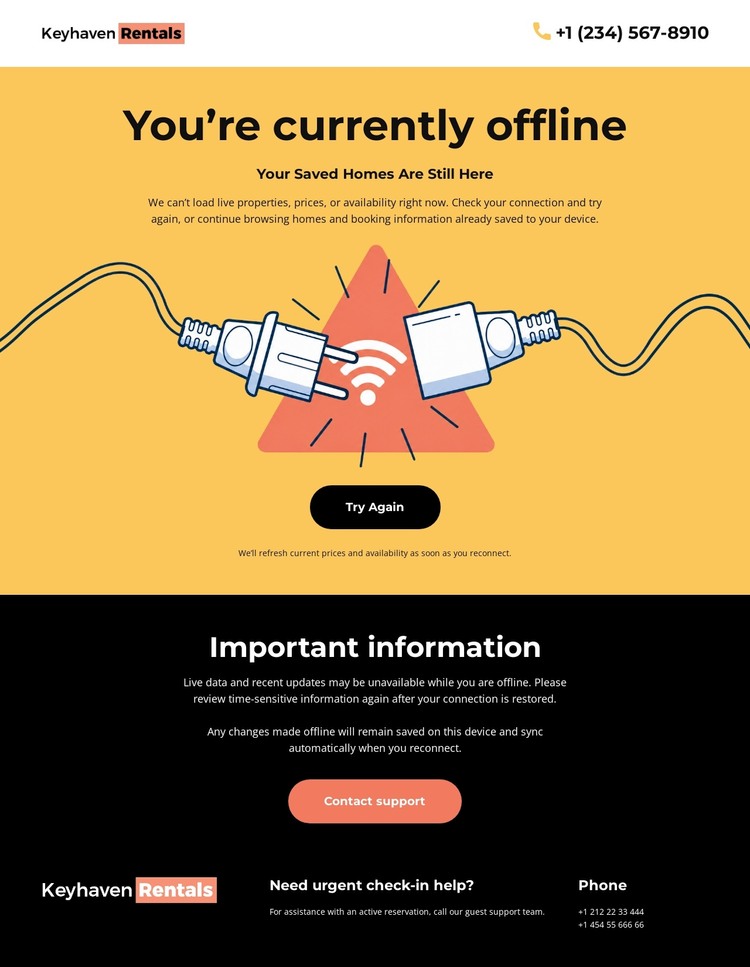
The page separates the elements that could represent shared site identity from the content specific to the current service condition. Keyhaven Rentals and a phone contact appear in the compact header, while the footer repeats the branding and adds urgent check-in support. Those regions provide a stable visual frame. Between them, the yellow status area carries page-oriented content: the offline heading, illustration, saved-homes message, retry action, and support action.
The black “Important information” panel forms another clear content area for explanatory guidance. Together, the central and lower sections could be maintained as distinct page content while the shared header and footer preserve the same rental-service character. This relationship is more useful for a WordPress theme interpretation than simply labeling the design as a theme, because it shows how permanent site elements and temporary operational information can coexist.
If the project later adds regularly updated rental announcements or other editorial material, the existing visual direction could frame that content, but no blog or post structure is verified in this template. The Nicepage WordPress Plugin is therefore not necessary to explain the design’s main value. The strongest interpretation comes from the separation between shared branding, offline page content, guidance, and support, allowing a WordPress-managed site to keep the visual system consistent while its information changes.
Customize with Nicepage
Open this ready-made template in the WordPress Website Builder and customize it visually in the Nicepage editor. Replace demo content, edit page sections, and adapt the design to your project without rebuilding the template from scratch.
Manage and Edit This Theme in WordPress
Customize and Install the WordPress Theme
Start with this ready-made theme instead of building the WordPress design from scratch. Customize its layout, content, typography, images, sections, and other design elements visually in Nicepage editor, then export and install the WordPress Theme, Plugin, and Pages on your WordPress site. The Nicepage WordPress Plugin lets you continue working with the site after installation.
Edit the Theme Directly in WordPress
After installation, you can edit the WordPress Theme directly in WordPress with the Nicepage WordPress Plugin. Use Site Style to customize site Colors, Fonts, Header, Footer, Blog, and Post Page Templates while working within your WordPress website.
Edit WordPress Pages Visually
Use the Nicepage WordPress Plugin to edit page content directly from the WordPress admin area. Open a WordPress Page with Nicepage and visually change its text, images, sections, and other page elements while continuing to manage the Page through WordPress.
WordPress Content and Theme Integration
Use the customized theme with WordPress Pages, Posts, Blog and Post Templates, menus, widgets, and other CMS-managed content. Shared theme elements such as Colors, Fonts, Header, Footer, Blog, and Post Page Templates can be managed as part of the overall site design, while WordPress provides the CMS environment for managing site content.
This workflow combines a ready-made WordPress Theme with visual customization, direct theme editing in WordPress, and continued content management through the Nicepage WordPress Plugin.
