Smart Surveys, Real Impact WordPress Theme


A Multi-Step Application Area for Managed Page Content
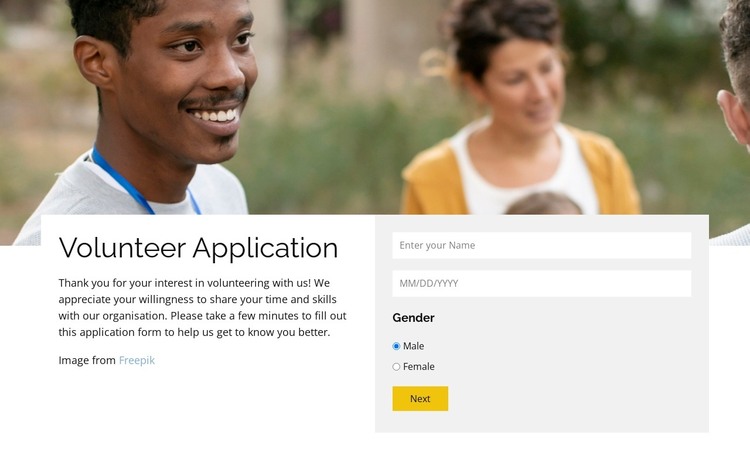
The “Volunteer Application” heading and introductory thank-you message establish stable page content before the visitor reaches the form. Behind the overlapping panel, the full-width photograph adds visual context, while the white introduction panel and light-gray form panel separate explanation from data collection. This relationship suits a WordPress-managed page where the section can present a defined volunteer opportunity alongside other site content.
The visible form step is organized around applicant details: full name, date of birth, and gender, with Male and Female radio options. The yellow Next control makes the progression explicit and keeps the first view from becoming a crowded list of every field. The HTML-defined second step continues with email and address information, so the block represents a staged application area rather than a simple message or single-field inquiry box.
Within a WordPress-oriented project, this section can remain a reusable page-content region for volunteer recruitment or community participation. Its content model is specific enough to support a stable application section, while surrounding pages can provide program explanations, eligibility information, confirmation messaging, or broader organizational context. The two-column arrangement also gives editors a clear visual relationship to preserve when updating the introduction or application wording. The block therefore contributes a focused, publishable content area without being treated as the entire theme or site.
Customize with Nicepage
Open this ready-made template in the WordPress Website Builder and customize it visually in the Nicepage editor. Replace demo content, edit page sections, and adapt the design to your project without rebuilding the template from scratch.
Edit Template Offline
2. Create a new page or select existing
3. Click Add new block, search for id 6537818 and click enter
Edit Template Online
Create Awesome Websites


Free Nicepage Builder
Keywords
Manage and Edit This Theme in WordPress
Customize and Install the WordPress Theme
Start with this ready-made theme instead of building the WordPress design from scratch. Customize its layout, content, typography, images, sections, and other design elements visually in Nicepage editor, then export and install the WordPress Theme, Plugin, and Pages on your WordPress site. The Nicepage WordPress Plugin lets you continue working with the site after installation.
Edit the Theme Directly in WordPress
After installation, you can edit the WordPress Theme directly in WordPress with the Nicepage WordPress Plugin. Use Site Style to customize site Colors, Fonts, Header, Footer, Blog, and Post Page Templates while working within your WordPress website.
Edit WordPress Pages Visually
Use the Nicepage WordPress Plugin to edit page content directly from the WordPress admin area. Open a WordPress Page with Nicepage and visually change its text, images, sections, and other page elements while continuing to manage the Page through WordPress.
WordPress Content and Theme Integration
Use the customized theme with WordPress Pages, Posts, Blog and Post Templates, menus, widgets, and other CMS-managed content. Shared theme elements such as Colors, Fonts, Header, Footer, Blog, and Post Page Templates can be managed as part of the overall site design, while WordPress provides the CMS environment for managing site content.
This workflow combines a ready-made WordPress Theme with visual customization, direct theme editing in WordPress, and continued content management through the Nicepage WordPress Plugin.