Beautiful Interfaces That Work Template


A Bold Identity Heading Meets Grouped Contact Paths
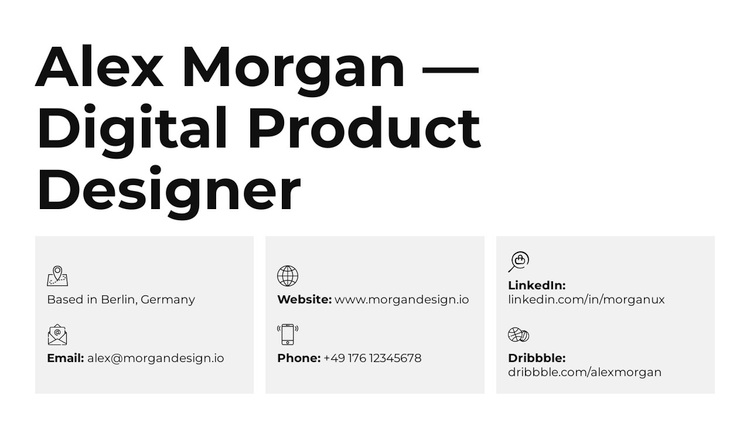
The design stands out through the relationship between its prominent identity heading and its carefully divided card row. Instead of placing every contact channel in one vertical list, it creates three equal visual units with different information roles. Location and email provide an immediate local and written contact pair; website and phone offer direct access to the professional presence; LinkedIn and Dribbble collect profile-based connections. The structure gives visitors several ways to continue without making the section feel crowded.
That combination makes the block a useful design choice for a portfolio or professional profile that needs contact information to feel intentional rather than appended. The six channels are broad enough to cover practical outreach and social discovery, while the matching icons, labels, card surfaces, and spacing maintain one visual rhythm. The large black heading adds identity before the cards begin, so the section communicates both who the person is and how to reach or follow them.
Compared with a basic contact strip, this option offers stronger grouping and more visual balance while remaining static and easy to understand. It can be selected when the surrounding page needs a compact closing or supporting contact area with a clear editorial structure. The block’s value comes from this specific combination of identity, three-card organization, and mixed direct-and-social contact coverage.
Customize with Nicepage
Open this ready-made template in the Template Builder and customize it visually in the Nicepage editor. Replace demo content, edit page sections, and adapt the design to your project without rebuilding the template from scratch.
Edit Template Offline
2. Create a new page or select existing
3. Click Add new block, search for id 6542413 and click enter
Edit Template Online
Create Awesome Websites


Free Nicepage Builder
Keywords
Start With a Ready-Made Template
Choose a Design for a New Page
Use a ready-made template as a starting point instead of creating every page from a blank canvas. When adding a new page in Nicepage, browse available designs, compare different layouts, and choose an option that already fits the general purpose and visual direction of your project.
Browse Different Page Designs
Explore Page Designs using search, thematic categories, Design Sets, and full-page previews. The collection includes layouts for different subjects and page purposes, making it easier to compare alternatives before selecting a design to customize.
Customize the Selected Template
After choosing a design, create the page and continue editing it visually in Nicepage. Replace the demo content, adjust images, typography, colors, sections, and other elements, and adapt the ready-made layout to your own content instead of rebuilding the design from the beginning.
Explore More Design Directions
If the first option does not match your project closely enough, return to the design collection and compare other templates before committing to a layout. This makes the template library useful not only for faster page creation, but also for exploring different visual approaches and finding a suitable starting point for a new project.
This workflow gives you access to a broad collection of ready-made designs that can be selected, compared, and customized according to the needs of each new page or project.