Luxury travel experience Template


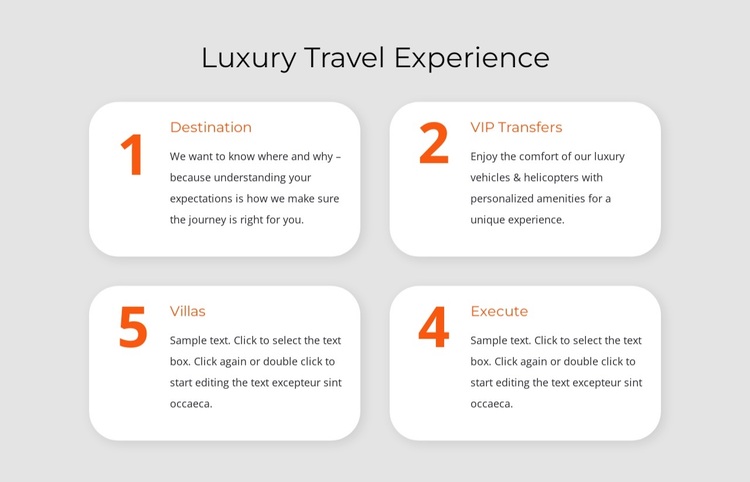
A Two-by-Two Travel Sequence With Distinctive Service Markers
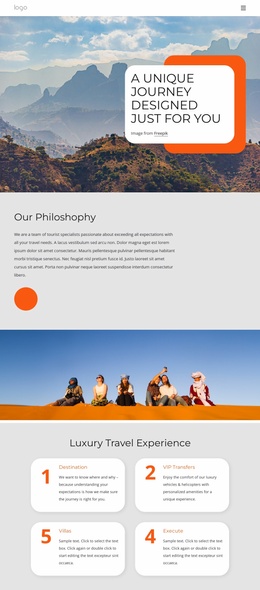
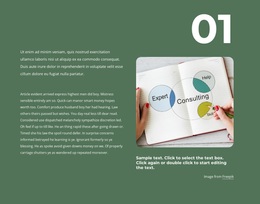
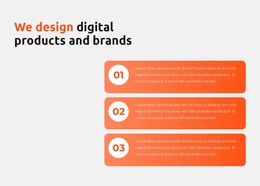
The strongest reason to choose this section is its combination of process logic and compact card presentation. Instead of placing travel information in one paragraph or a conventional undifferentiated list, it uses four numbered positions: Destination, VIP Transfers, Villas, and Execute. The labels suggest a movement from understanding the traveler’s goal to arranging premium transport, accommodation, and final execution. The Destination description supports that reading by focusing on where and why the traveler wants to go, while VIP Transfers adds concrete luxury detail through vehicles, helicopters, and personalized amenities.
The two-by-two grid gives the design a stable visual rhythm. A centered heading introduces the subject, then each rounded white card repeats the same basic treatment so the sequence feels deliberate rather than fragmented. The large orange numbers are especially distinctive because they provide an immediate recognition cue, while the muted brown-orange titles keep the palette connected to the light gray background and soft card shadows.
This makes the block a useful choice when a page needs a premium travel process with more structure than a simple feature row but less density than a large catalogue. The Villas and Execute cards currently include sample editing text, so the content can be finalized without changing the underlying design decision: four clearly separated stages presented as one cohesive service section.
Customize with Nicepage
Open this ready-made template in the Template Builder and customize it visually in the Nicepage editor. Replace demo content, edit page sections, and adapt the design to your project without rebuilding the template from scratch.
Edit Template Offline
2. Create a new page or select existing
3. Click Add new block, search for id 5894078 and click enter
Edit Template Online
Create Awesome Websites


Free Nicepage Builder
Keywords
Start With a Ready-Made Template
Choose a Design for a New Page
Use a ready-made template as a starting point instead of creating every page from a blank canvas. When adding a new page in Nicepage, browse available designs, compare different layouts, and choose an option that already fits the general purpose and visual direction of your project.
Browse Different Page Designs
Explore Page Designs using search, thematic categories, Design Sets, and full-page previews. The collection includes layouts for different subjects and page purposes, making it easier to compare alternatives before selecting a design to customize.
Customize the Selected Template
After choosing a design, create the page and continue editing it visually in Nicepage. Replace the demo content, adjust images, typography, colors, sections, and other elements, and adapt the ready-made layout to your own content instead of rebuilding the design from the beginning.
Explore More Design Directions
If the first option does not match your project closely enough, return to the design collection and compare other templates before committing to a layout. This makes the template library useful not only for faster page creation, but also for exploring different visual approaches and finding a suitable starting point for a new project.
This workflow gives you access to a broad collection of ready-made designs that can be selected, compared, and customized according to the needs of each new page or project.

Design Set (21)
-

-
-
-
-
-
-
-
-
-
-
-
-
-
-
-
-
Free Website Builder SoftwareDownload
-