Gallery and guides Template


Edit Template Offline
2. Create new page and search for id 5533365
Edit Template Online
Create Awesome Websites


Free Nicepage Builder
Keywords
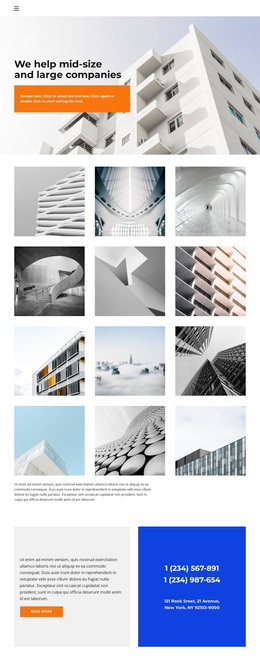
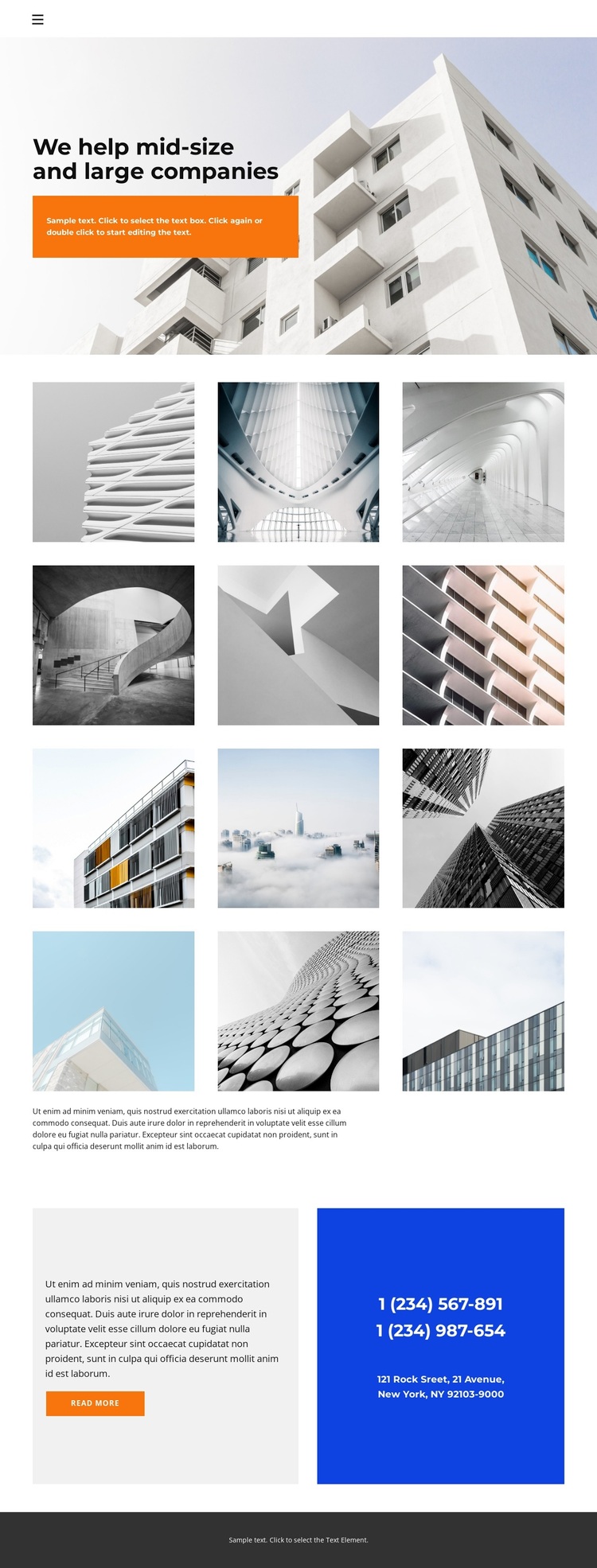
Architectural photography gives this design a clear visual direction
The twelve-image architectural gallery is the strongest reason to choose this design when a project needs property or building imagery to carry the presentation. Instead of making text the dominant feature, the layout gives a repeated collection of photographs the largest share of the page. Generous white spacing separates the images and prevents the gallery from reading as a dense wall of content, while the supporting paragraph adds context beneath the visual material.
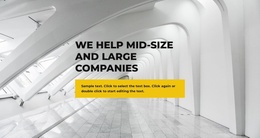
The opening hero reinforces that direction without duplicating the gallery. A large architectural background image establishes the subject immediately, and the orange text panel creates a strong contrast with the blue, white, and gray palette. The heading about helping mid-size and large companies gives the page a business-oriented frame, although the verified design remains broad enough to adapt to related architecture or property presentations. Below, the contact panels add practical follow-up content: a read-more action appears alongside phone numbers and an address, so the page does not end with images alone. Home navigation and the mobile menu control keep the compact structure connected to a broader site context, while the dark footer provides a firm visual ending. These relationships make the template a useful option for projects that need image-led communication with a concise route toward additional information and contact.
Customize with Nicepage
Open this ready-made template in the Template Builder and customize it visually in the Nicepage editor. Replace demo content, edit page sections, and adapt the design to your project without rebuilding the template from scratch.
Start With a Ready-Made Template
Choose a Design for a New Page
Use a ready-made template as a starting point instead of creating every page from a blank canvas. When adding a new page in Nicepage, browse available designs, compare different layouts, and choose an option that already fits the general purpose and visual direction of your project.
Browse Different Page Designs
Explore Page Designs using search, thematic categories, Design Sets, and full-page previews. The collection includes layouts for different subjects and page purposes, making it easier to compare alternatives before selecting a design to customize.
Customize the Selected Template
After choosing a design, create the page and continue editing it visually in Nicepage. Replace the demo content, adjust images, typography, colors, sections, and other elements, and adapt the ready-made layout to your own content instead of rebuilding the design from the beginning.
Explore More Design Directions
If the first option does not match your project closely enough, return to the design collection and compare other templates before committing to a layout. This makes the template library useful not only for faster page creation, but also for exploring different visual approaches and finding a suitable starting point for a new project.
This workflow gives you access to a broad collection of ready-made designs that can be selected, compared, and customized according to the needs of each new page or project.