Digital product prototyping Template


Six Concise Choices Instead of a Generic Service List
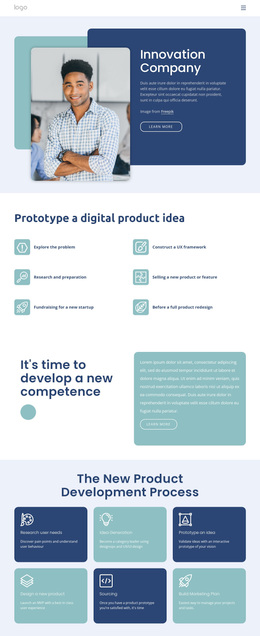
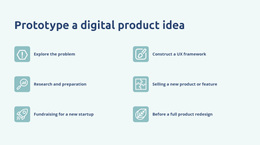
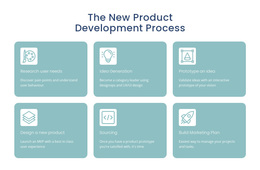
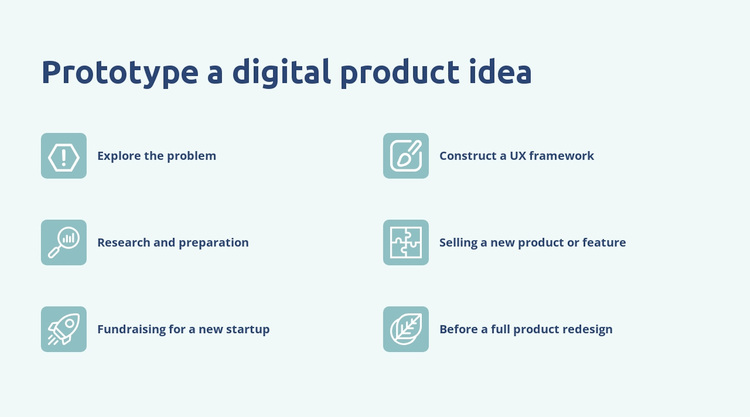
The section combines a direct heading with six specific feature labels, giving it a more focused identity than a generic collection of service cards. “Prototype a digital product idea” introduces the subject, while “Explore the problem” and “Construct a UX framework” point to product discovery and experience planning. “Research and preparation” broadens that early-stage view, and the labels about selling a new product or feature, fundraising for a new startup, and preparing before a full product redesign extend the range of situations represented.
This combination makes the block useful when a page needs to show several related capabilities without giving every capability a long description. The two-column grid keeps the six items compact and balanced, while the rounded-square icons create a repeated visual cue that helps visitors move from one label to the next. The pale blue-green background, dark navy heading, muted teal icons, and left-aligned composition give the option a recognizable visual direction as well as a clear content model. Compared with a simpler paragraph or a large undifferentiated card grid, this design communicates breadth through six short, scannable choices. It can therefore serve as a section option for a digital product design presentation while leaving detailed explanations and other page functions to neighboring blocks.
Customize with Nicepage
Open this ready-made template in the Template Builder and customize it visually in the Nicepage editor. Replace demo content, edit page sections, and adapt the design to your project without rebuilding the template from scratch.
Edit Template Offline
2. Create a new page or select existing
3. Click Add new block, search for id 533057 and click enter
Edit Template Online
Create Awesome Websites


Free Nicepage Builder
Keywords
Start With a Ready-Made Template
Choose a Design for a New Page
Use a ready-made template as a starting point instead of creating every page from a blank canvas. When adding a new page in Nicepage, browse available designs, compare different layouts, and choose an option that already fits the general purpose and visual direction of your project.
Browse Different Page Designs
Explore Page Designs using search, thematic categories, Design Sets, and full-page previews. The collection includes layouts for different subjects and page purposes, making it easier to compare alternatives before selecting a design to customize.
Customize the Selected Template
After choosing a design, create the page and continue editing it visually in Nicepage. Replace the demo content, adjust images, typography, colors, sections, and other elements, and adapt the ready-made layout to your own content instead of rebuilding the design from the beginning.
Explore More Design Directions
If the first option does not match your project closely enough, return to the design collection and compare other templates before committing to a layout. This makes the template library useful not only for faster page creation, but also for exploring different visual approaches and finding a suitable starting point for a new project.
This workflow gives you access to a broad collection of ready-made designs that can be selected, compared, and customized according to the needs of each new page or project.

Design Set (21)
-

-
-
-
-
-
-
-
-
-
-
-
-
-
Free Website Builder SoftwareDownload
-