My experiences Template


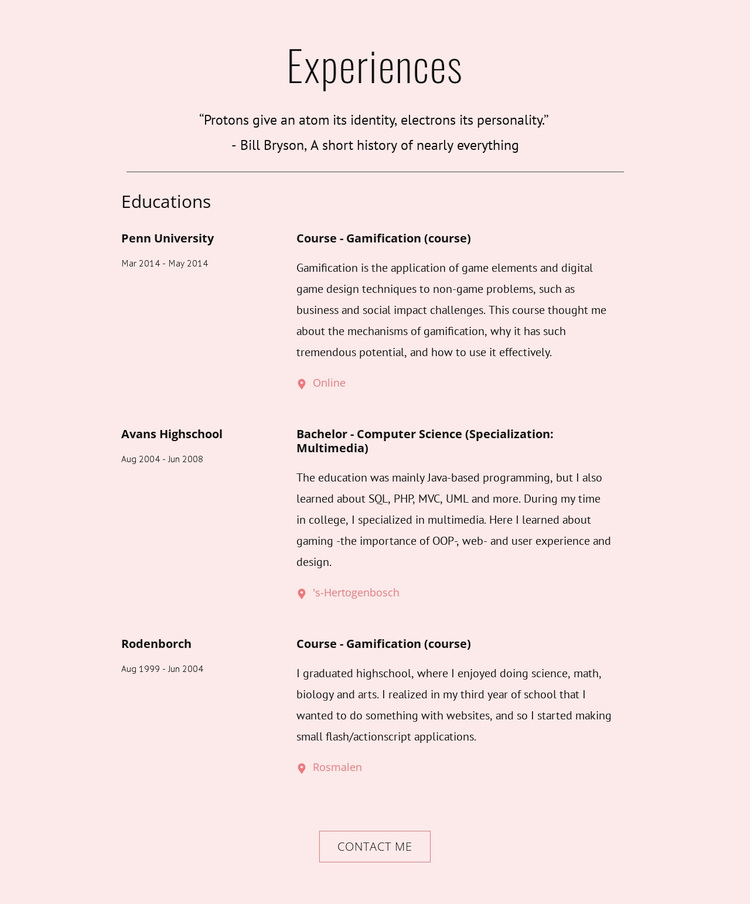
A personal timeline with room for readable detail
The section stands out by combining a short personal introduction with three substantial education records instead of reducing the history to a simple list of dates. The centered Experiences heading and quotation establish a reflective opening, and the thin divider creates a quiet transition into the Educations area. That balance gives the block both a narrative entrance and a practical information structure.
Its strongest design choice is the repeated two-column entry pattern. Institutions and date ranges remain grouped as quick-reference metadata, while titles, descriptions, and location or delivery labels receive a separate explanatory column. The first record names Penn University and a gamification course, the second identifies a Computer Science bachelor specialization in Multimedia, and the final record describes high-school education and early website-related interests. The consistent pattern makes varied educational stages feel like parts of one history.
The pale pink background, dark text, muted accents, and generous vertical spacing add visual distinction without competing with the content. The centered Contact Me button gives the section a useful closing point after the narrative has been read. Among ready-made profile sections, this design is especially suitable when a project needs personal context, chronological detail, and a visible invitation to continue the conversation in one composed area.
Customize with Nicepage
Open this ready-made template in the Template Builder and customize it visually in the Nicepage editor. Replace demo content, edit page sections, and adapt the design to your project without rebuilding the template from scratch.
Edit Template Offline
2. Create a new page or select existing
3. Click Add new block, search for id 366365 and click enter
Edit Template Online
Create Awesome Websites


Free Nicepage Builder
Keywords
Start With a Ready-Made Template
Choose a Design for a New Page
Use a ready-made template as a starting point instead of creating every page from a blank canvas. When adding a new page in Nicepage, browse available designs, compare different layouts, and choose an option that already fits the general purpose and visual direction of your project.
Browse Different Page Designs
Explore Page Designs using search, thematic categories, Design Sets, and full-page previews. The collection includes layouts for different subjects and page purposes, making it easier to compare alternatives before selecting a design to customize.
Customize the Selected Template
After choosing a design, create the page and continue editing it visually in Nicepage. Replace the demo content, adjust images, typography, colors, sections, and other elements, and adapt the ready-made layout to your own content instead of rebuilding the design from the beginning.
Explore More Design Directions
If the first option does not match your project closely enough, return to the design collection and compare other templates before committing to a layout. This makes the template library useful not only for faster page creation, but also for exploring different visual approaches and finding a suitable starting point for a new project.
This workflow gives you access to a broad collection of ready-made designs that can be selected, compared, and customized according to the needs of each new page or project.