Management consultants Template



Edit Template Offline
2. Create new page and search for id 3407555
Edit Template Online
Create Awesome Websites


Free Nicepage Builder
Keywords
Four Service Cards Lead Into a Broader Consulting Story
Four compact service cards make the design easy to understand at a glance. Marketing, Growth, Development, and Consultants establish a broad consulting direction before the page moves into a six-cell capability arrangement. That tiled section pairs labels such as Online Research, Social Media, and Website Design with photographic panels, so the template offers more than a generic corporate introduction. It gives visitors several visible entry points into the type of work the company presents.
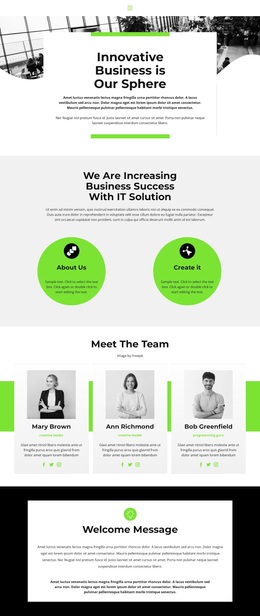
The design is also worth considering when a project needs organizational context alongside service information. Three vertically stacked insight cards cover Sales Insights, Management, and Marketing beside a circular image, creating a distinct visual rhythm after the earlier tiles. The team area then adds three portrait cards with roles and social links, while the About Company, Our strategy, and Global business panels give the page a clear set of themes for explaining the company. These sections make the content feel developed without relying on long uninterrupted text.
The closing sequence adds practical decision support: Help and Support sits beside a Book Consultation button, the partner section displays four logo marks, and the final panel invites a quotation request through a name, email, and message form. The light palette, rounded imagery, circular portraits, and generous spacing tie these varied sections together. As a ready-made design option, it suits consulting projects that need to show capabilities, people, relationships, and a direct next step within one coherent presentation.
Customize with Nicepage
Open this ready-made template in the Template Builder and customize it visually in the Nicepage editor. Replace demo content, edit page sections, and adapt the design to your project without rebuilding the template from scratch.
Start With a Ready-Made Template
Choose a Design for a New Page
Use a ready-made template as a starting point instead of creating every page from a blank canvas. When adding a new page in Nicepage, browse available designs, compare different layouts, and choose an option that already fits the general purpose and visual direction of your project.
Browse Different Page Designs
Explore Page Designs using search, thematic categories, Design Sets, and full-page previews. The collection includes layouts for different subjects and page purposes, making it easier to compare alternatives before selecting a design to customize.
Customize the Selected Template
After choosing a design, create the page and continue editing it visually in Nicepage. Replace the demo content, adjust images, typography, colors, sections, and other elements, and adapt the ready-made layout to your own content instead of rebuilding the design from the beginning.
Explore More Design Directions
If the first option does not match your project closely enough, return to the design collection and compare other templates before committing to a layout. This makes the template library useful not only for faster page creation, but also for exploring different visual approaches and finding a suitable starting point for a new project.
This workflow gives you access to a broad collection of ready-made designs that can be selected, compared, and customized according to the needs of each new page or project.