Digital Art Museum Template


Edit Template Offline
2. Create new page and search for id 14287
Edit Template Online
Create Awesome Websites


Free Nicepage Builder
Keywords
Immersive Images and Editorial Depth Define the Museum Story
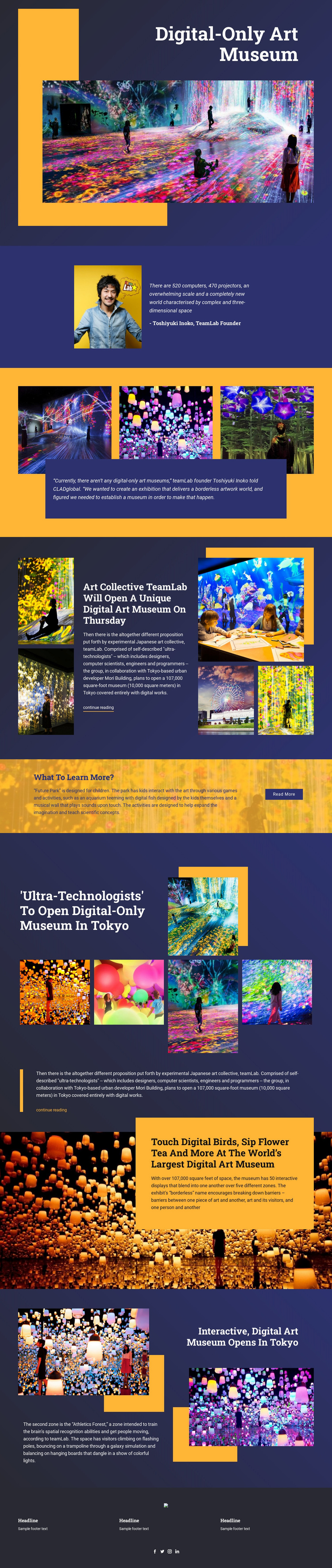
The design’s strongest distinguishing feature is the way it treats artwork imagery as part of the editorial argument rather than as decoration placed after the text. The opening museum title sits beside a large immersive image, and gold and navy geometric accents frame the subject with immediate visual contrast. A portrait and quotation attributed to Toshiyuki Inoko then introduce a recognizable voice before three artwork images gather around a central museum statement.
The content coverage also makes this design more specific than a generic arts landing page. One central article explains that teamLab will open a digital art museum, while a separate full-width feature presents Future Park as an experience designed for children. Another section addresses the Tokyo museum through an editorial headline, excerpt, featured artwork, and a row of four images. The page later shifts from coverage into visitor experience, describing digital birds, flower tea, and other interactive displays before presenting Athletics Forest as a zone concerned with spatial recognition and movement.
That mix suits projects where readers need both visual atmosphere and explanatory context. The layout can support museum announcements, exhibition storytelling, cultural journalism, or educational introductions without relying on dense uninterrupted copy. Its asymmetric compositions, vivid image fields, compact article panels, and social footer make it a compelling design choice for communicating digital culture through a sequence of memorable visual and editorial moments.
Customize with Nicepage
Open this ready-made template in the Template Builder and customize it visually in the Nicepage editor. Replace demo content, edit page sections, and adapt the design to your project without rebuilding the template from scratch.
Start With a Ready-Made Template
Choose a Design for a New Page
Use a ready-made template as a starting point instead of creating every page from a blank canvas. When adding a new page in Nicepage, browse available designs, compare different layouts, and choose an option that already fits the general purpose and visual direction of your project.
Browse Different Page Designs
Explore Page Designs using search, thematic categories, Design Sets, and full-page previews. The collection includes layouts for different subjects and page purposes, making it easier to compare alternatives before selecting a design to customize.
Customize the Selected Template
After choosing a design, create the page and continue editing it visually in Nicepage. Replace the demo content, adjust images, typography, colors, sections, and other elements, and adapt the ready-made layout to your own content instead of rebuilding the design from the beginning.
Explore More Design Directions
If the first option does not match your project closely enough, return to the design collection and compare other templates before committing to a layout. This makes the template library useful not only for faster page creation, but also for exploring different visual approaches and finding a suitable starting point for a new project.
This workflow gives you access to a broad collection of ready-made designs that can be selected, compared, and customized according to the needs of each new page or project.