National art school Template


Edit Template Offline
2. Create new page and search for id 12952
Edit Template Online
Create Awesome Websites


Free Nicepage Builder
Keywords
A Visual Arts Story Built Around Study and Community
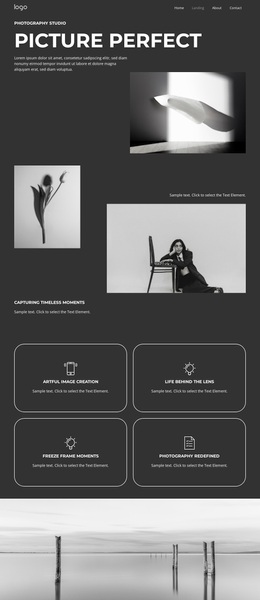
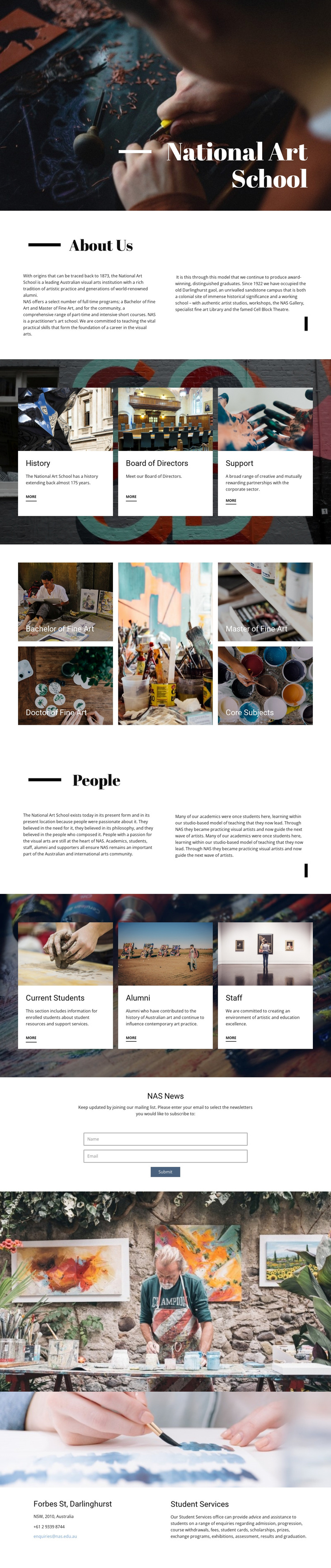
Large art-studio photography carries much of the first impression, while the editorial black-and-white presentation gives the institutional information a gallery-like setting. That balance makes the design a useful choice for an art school that needs to communicate both cultural identity and practical educational content. The About Us section supplies the core explanation, including the school’s origins, programs, campus, and teaching model, so the page is not dependent on imagery alone.
The four-tile mosaic is the strongest point of distinction in the content arrangement. Bachelor of Fine Art, Doctor of Fine Art, Master of Fine Art, and Core Subjects appear as separate study areas, allowing academic offerings to be scanned visually. The surrounding cards broaden the story: History, Board of Directors, and Support represent institutional context, while Current Students, Alumni, and Staff acknowledge different parts of the school community. The People section connects these groups through students, academics, artists, and supporters. NAS News adds a simple subscription action, and the closing Forbes St, Darlinghurst area gives the design a concrete contact endpoint with Student Services information. This combination suits projects that need visual storytelling, educational coverage, and community navigation in the same considered presentation.
Customize with Nicepage
Open this ready-made template in the Template Builder and customize it visually in the Nicepage editor. Replace demo content, edit page sections, and adapt the design to your project without rebuilding the template from scratch.
Start With a Ready-Made Template
Choose a Design for a New Page
Use a ready-made template as a starting point instead of creating every page from a blank canvas. When adding a new page in Nicepage, browse available designs, compare different layouts, and choose an option that already fits the general purpose and visual direction of your project.
Browse Different Page Designs
Explore Page Designs using search, thematic categories, Design Sets, and full-page previews. The collection includes layouts for different subjects and page purposes, making it easier to compare alternatives before selecting a design to customize.
Customize the Selected Template
After choosing a design, create the page and continue editing it visually in Nicepage. Replace the demo content, adjust images, typography, colors, sections, and other elements, and adapt the ready-made layout to your own content instead of rebuilding the design from the beginning.
Explore More Design Directions
If the first option does not match your project closely enough, return to the design collection and compare other templates before committing to a layout. This makes the template library useful not only for faster page creation, but also for exploring different visual approaches and finding a suitable starting point for a new project.
This workflow gives you access to a broad collection of ready-made designs that can be selected, compared, and customized according to the needs of each new page or project.