
10 Years of Style Website Template


Edit Template Offline
2. Create new page and search for id 6548896
Edit Template Online
Create Awesome Websites


Free Nicepage Builder
Keywords
Event Dates, Activities, and Location Establish a Broader Project Foundation
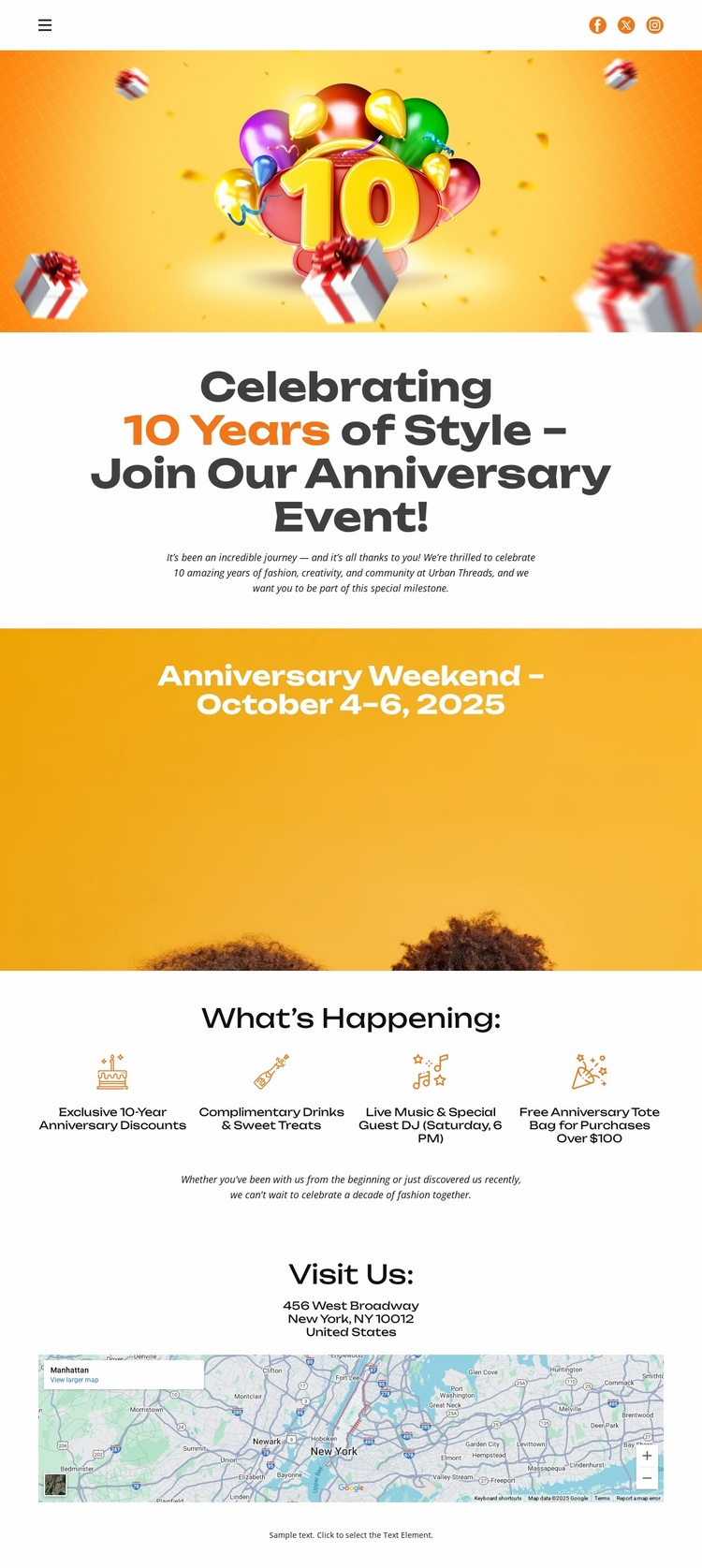
The design already identifies the main content areas an anniversary project needs to communicate. Its opening block introduces the 10-year celebration through balloon artwork, a large headline, and invitation copy. The separate date banner then gives the October 4–6, 2025 weekend its own information space, creating a useful distinction between the event’s message and its schedule. These first regions can serve as the central presentation layer for a broader celebration website.
The four-item What’s Happening section adds reusable categories of event content. The exclusive anniversary event, complimentary drinks and gourmet treats, live music with a special guest performance, and tote-bag promotion cover experience, hospitality, entertainment, and purchase-related information. If the project grows, these categories provide a clear basis for related pages or expanded sections without requiring the main event story to be rebuilt from an empty layout. The repeated compact treatment also offers a visual pattern for future supporting content.
Visit Us supplies the practical site endpoint through address information and a map image. It gives the project a defined location area that could remain part of the main page or become a reference point for additional venue and contact content. The design therefore offers more than a decorative hero: it establishes announcement, schedule, activities, promotion, and location as connected website regions. Its bright palette and rounded typography can continue to unify those areas as the event project develops.
Customize with Nicepage
Open this ready-made template in the Website Template Builder and customize it visually in the Nicepage editor. Replace demo content, edit page sections, and adapt the design to your project without rebuilding the template from scratch.
Build a Complete Website From This Template
Customize the Website Visually
Use this ready-made website template as a starting point for your project and adapt its pages visually in Nicepage. Change content, images, typography, navigation, sections, and other design elements while keeping the website together as a single editable project.
Manage Website Pages in One Project
Use the Pages panel to open, add, duplicate, and manage the pages of your website. Work on individual pages while keeping navigation and the overall site structure accessible from the same project, making it easier to develop a complete website instead of managing separate page files.
Expand the Website With Matching Designs
When you need additional pages or sections, use Page Design Sets to find Page and Block Designs created in the same visual style. Design Sets group matching designs together, making it easier to expand the website with new content while maintaining a consistent look across its pages and sections.
Organize Larger Multi-Page Websites
As the website grows, use Page Folders to organize related pages and keep larger multi-page projects easier to navigate in the editor. This is especially useful for websites with separate service pages, company information, contacts, landing pages, and other content areas.
This workflow makes the template a practical foundation for building and expanding a complete website while managing its pages, content, and visual design within one Nicepage project.
