Your questions answered page Website Template


Edit Template Offline
2. Create new page and search for id 6351902
Edit Template Online
Create Awesome Websites


Free Nicepage Builder
Keywords
Service Areas and Shared Contact Regions Create a Site Foundation
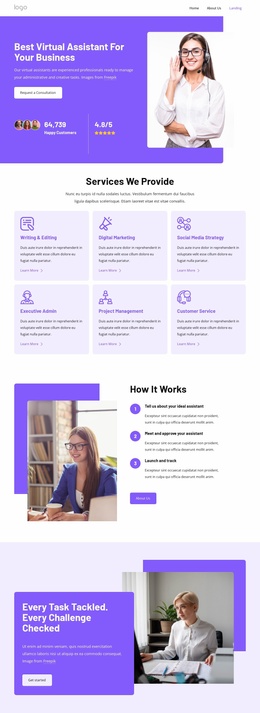
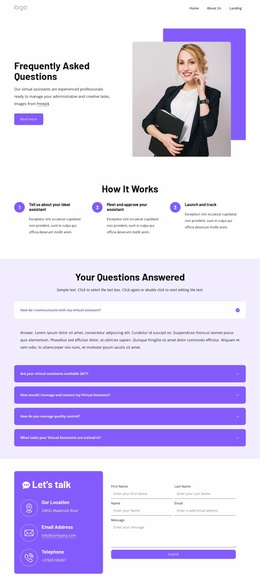
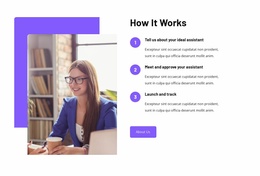
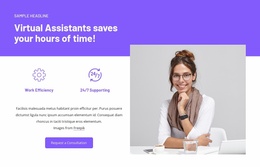
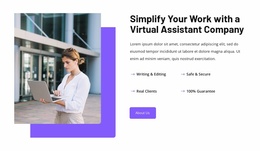
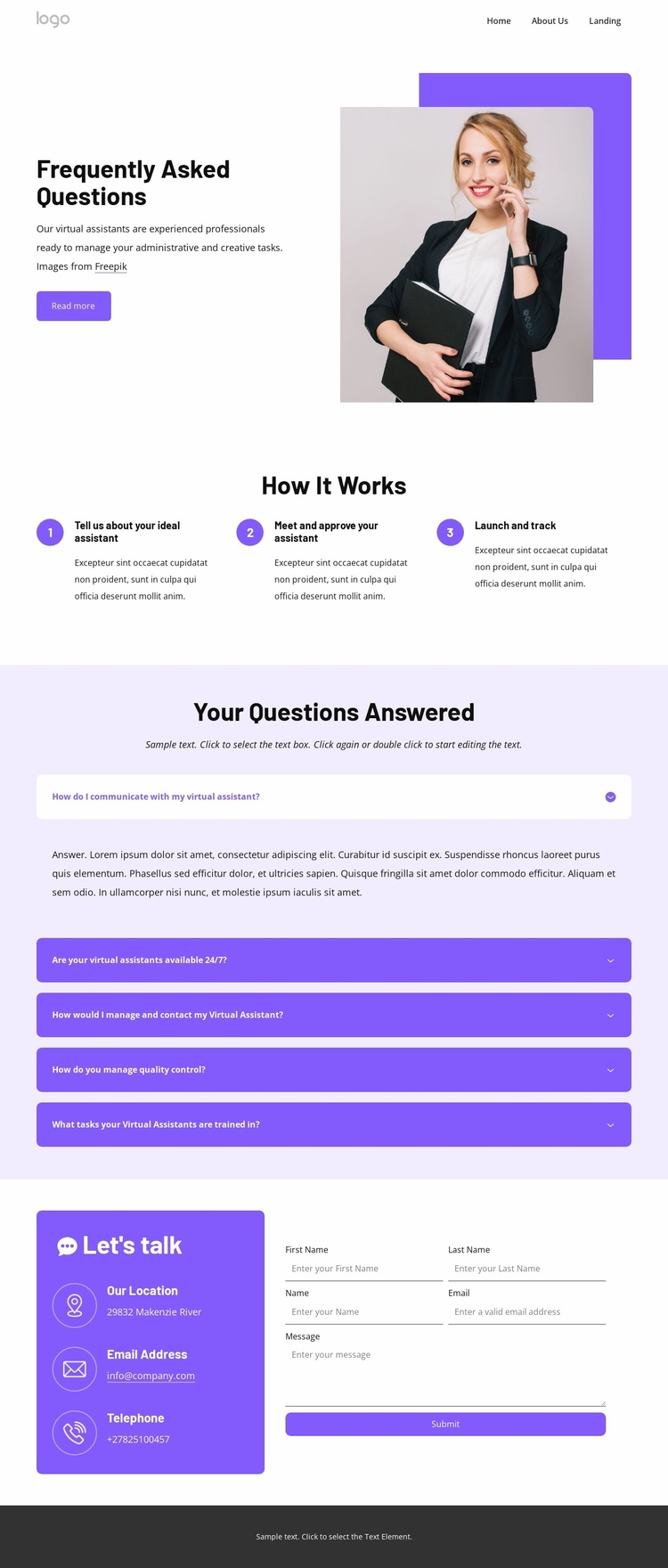
The header establishes reusable project elements through a logo, primary navigation, and a consultation action. Beneath it, the split introduction provides a natural starting area for service information and supporting imagery. The professional office portrait gives the visual system a clear subject reference, while the text area can introduce the scope of virtual assistant support without requiring the page to claim that additional site pages already exist.
The three-step onboarding section defines a second content category that could support a broader service structure. Its progression from describing an ideal assistant to approval and ongoing tracking gives future pages a consistent process reference. The five-question accordion adds another reusable category, organizing concerns about communication, availability, management, quality control, and training. These areas could guide related service or information pages while retaining the same visual direction.
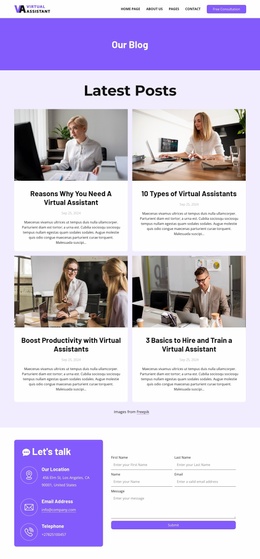
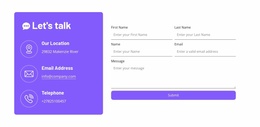
The contact block and footer provide shared site regions for expansion. Email, telephone, and location channels sit beside the form, and the form collects name, email, and message information. The dark footer groups For Clients and Quick Links navigation with contact details and a final action. Together, the navigation, process explanation, FAQ content, inquiry area, and footer create a credible foundation for a wider website project. The evidence supports a foundation for expansion, not a claim that this single analyzed page already contains a complete multi-page site.
Customize with Nicepage
Open this ready-made template in the Website Template Builder and customize it visually in the Nicepage editor. Replace demo content, edit page sections, and adapt the design to your project without rebuilding the template from scratch.
Build a Complete Website From This Template
Customize the Website Visually
Use this ready-made website template as a starting point for your project and adapt its pages visually in Nicepage. Change content, images, typography, navigation, sections, and other design elements while keeping the website together as a single editable project.
Manage Website Pages in One Project
Use the Pages panel to open, add, duplicate, and manage the pages of your website. Work on individual pages while keeping navigation and the overall site structure accessible from the same project, making it easier to develop a complete website instead of managing separate page files.
Expand the Website With Matching Designs
When you need additional pages or sections, use Page Design Sets to find Page and Block Designs created in the same visual style. Design Sets group matching designs together, making it easier to expand the website with new content while maintaining a consistent look across its pages and sections.
Organize Larger Multi-Page Websites
As the website grows, use Page Folders to organize related pages and keep larger multi-page projects easier to navigate in the editor. This is especially useful for websites with separate service pages, company information, contacts, landing pages, and other content areas.
This workflow makes the template a practical foundation for building and expanding a complete website while managing its pages, content, and visual design within one Nicepage project.

Design Set (23)
-

-
-
-
-
-
-
-
-
-
-
-
-
Customize Any TemplateDownload
-
-
-