Corporate training company FAQs Website Template


Edit Template Offline
2. Create new page and search for id 6331129
Edit Template Online
Create Awesome Websites


Free Nicepage Builder
Keywords
The FAQ, Contact Panels, and Map Establish a Broader Site Foundation
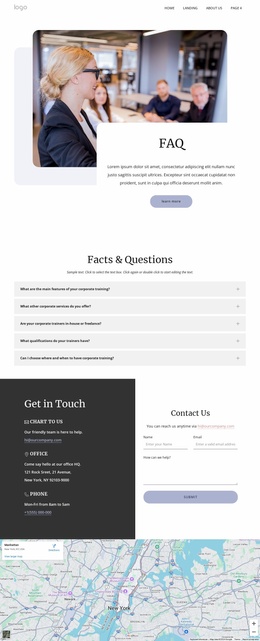
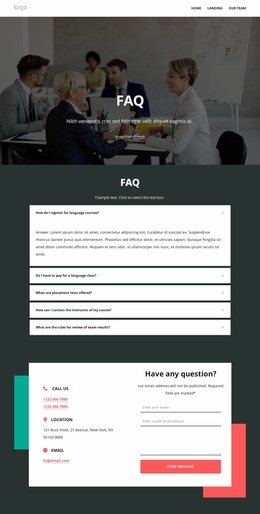
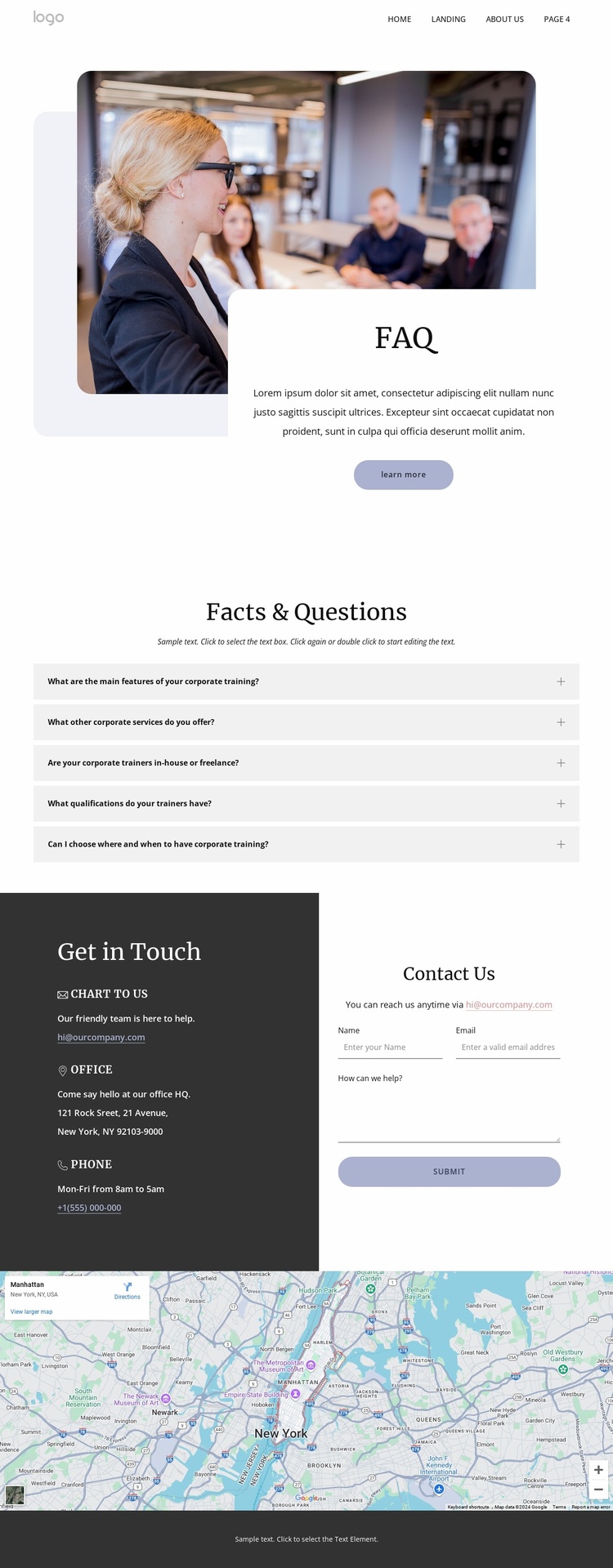
The page begins with a recognizable information area rather than a generic homepage treatment. A photographic hero introduces the FAQ subject and places the Learn more action in an overlapping centered card. Five expandable questions then create a focused knowledge section covering corporate training and related service concerns. These questions can serve as one content category within a larger project, giving visitors a dedicated place to review recurring information before they contact the organization.
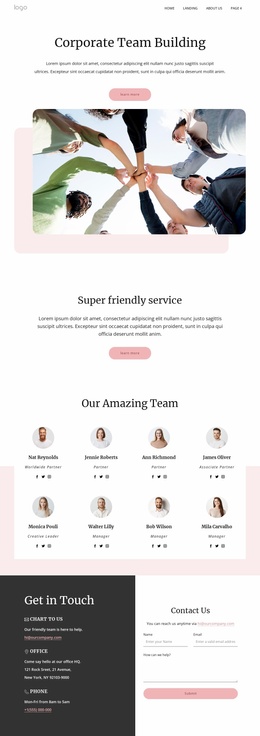
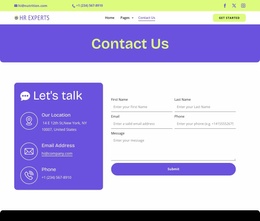
The lower sections add the practical areas needed around that content. Chat, office, and phone channels are grouped in a dark panel, while the neighboring light panel contains a Contact Us heading, form, and Submit button. The map beneath them extends the contact context with a location display, and the centered dark footer provides a reusable visual endpoint. Navigation is also present, helping the page function as part of a wider information structure rather than as a disconnected presentation.
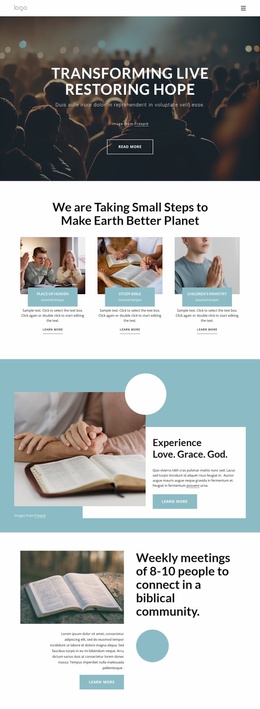
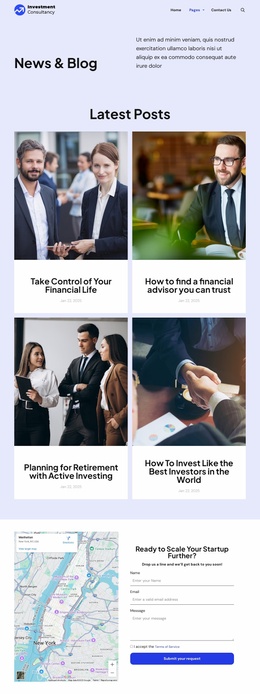
Although the analysis confirms one FAQ page rather than a complete multi-page site, its content areas provide a credible foundation for expansion. A broader corporate training project could build around the existing question section, contact region, location content, and consistent visual treatment. The design already separates informational, inquiry, and location roles, making it easier to plan related pages without losing the relationship established by this starting page.
Customize with Nicepage
Open this ready-made template in the Website Template Builder and customize it visually in the Nicepage editor. Replace demo content, edit page sections, and adapt the design to your project without rebuilding the template from scratch.
Build a Complete Website From This Template
Customize the Website Visually
Use this ready-made website template as a starting point for your project and adapt its pages visually in Nicepage. Change content, images, typography, navigation, sections, and other design elements while keeping the website together as a single editable project.
Manage Website Pages in One Project
Use the Pages panel to open, add, duplicate, and manage the pages of your website. Work on individual pages while keeping navigation and the overall site structure accessible from the same project, making it easier to develop a complete website instead of managing separate page files.
Expand the Website With Matching Designs
When you need additional pages or sections, use Page Design Sets to find Page and Block Designs created in the same visual style. Design Sets group matching designs together, making it easier to expand the website with new content while maintaining a consistent look across its pages and sections.
Organize Larger Multi-Page Websites
As the website grows, use Page Folders to organize related pages and keep larger multi-page projects easier to navigate in the editor. This is especially useful for websites with separate service pages, company information, contacts, landing pages, and other content areas.
This workflow makes the template a practical foundation for building and expanding a complete website while managing its pages, content, and visual design within one Nicepage project.