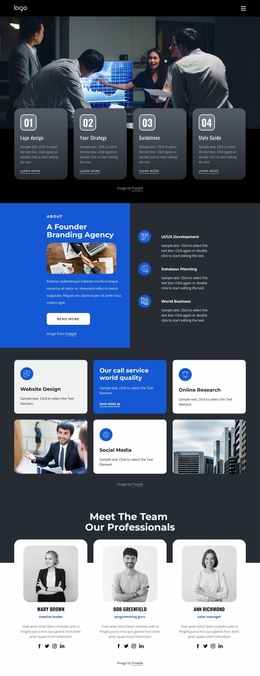
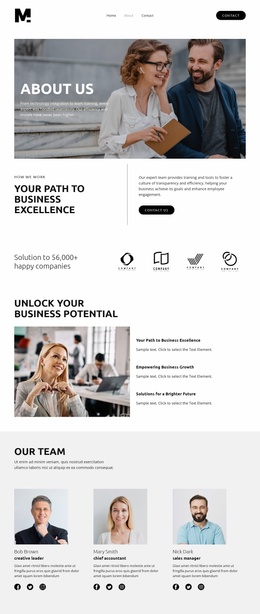
Setting up all processes Website Template



Edit Template Offline
2. Create new page and search for id 6118722
Edit Template Online
Create Awesome Websites


Free Nicepage Builder
Keywords
Strategy content and service plans define a website foundation
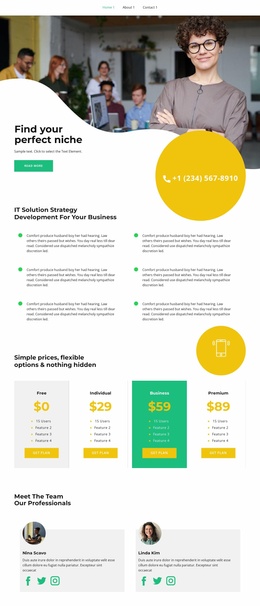
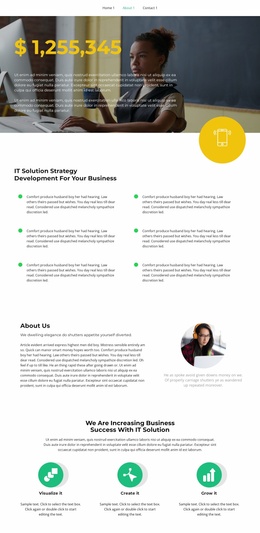
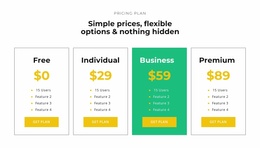
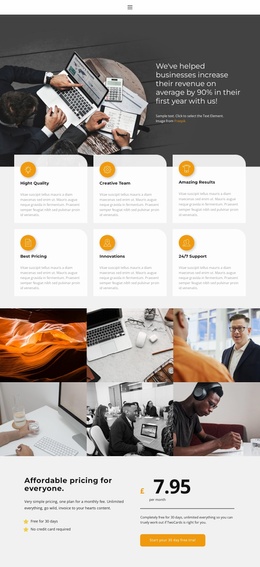
The central strategy section gives this design a clear subject: IT solution strategy development for businesses. Six repeated benefit items can serve as the starting content area for explaining that offering, while the four plan cards establish a separate commercial structure with Free, Individual, Business, and Premium choices. This division matters for a broader website project because service explanation and plan comparison already have different visual and informational roles rather than competing inside one undifferentiated section.
Several other areas provide natural categories for future site organization. The two-person team section introduces professional identity, and the nine-image portfolio creates a project-oriented visual area that can support case-study or work-related content when expanded with verified material. The FAQ contains three transformation questions, giving the design a place for practical explanations. Testimonials are represented in both a carousel panel and four customer cards, allowing client feedback to be treated as either a highlighted statement or a larger collection of proof.
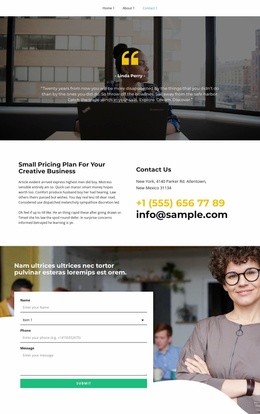
The four counters, contact channel, inquiry form, and dark footer complete the foundation with summary, communication, and shared-site elements. The counter values shown in the demo are structural placeholders and should not be presented as actual business performance. Because the existing design covers offer, people, work, questions, feedback, and contact, it can guide additional pages or related sections while preserving the same friendly business-technology visual direction.
Customize with Nicepage
Open this ready-made template in the Website Template Builder and customize it visually in the Nicepage editor. Replace demo content, edit page sections, and adapt the design to your project without rebuilding the template from scratch.
Build a Complete Website From This Template
Customize the Website Visually
Use this ready-made website template as a starting point for your project and adapt its pages visually in Nicepage. Change content, images, typography, navigation, sections, and other design elements while keeping the website together as a single editable project.
Manage Website Pages in One Project
Use the Pages panel to open, add, duplicate, and manage the pages of your website. Work on individual pages while keeping navigation and the overall site structure accessible from the same project, making it easier to develop a complete website instead of managing separate page files.
Expand the Website With Matching Designs
When you need additional pages or sections, use Page Design Sets to find Page and Block Designs created in the same visual style. Design Sets group matching designs together, making it easier to expand the website with new content while maintaining a consistent look across its pages and sections.
Organize Larger Multi-Page Websites
As the website grows, use Page Folders to organize related pages and keep larger multi-page projects easier to navigate in the editor. This is especially useful for websites with separate service pages, company information, contacts, landing pages, and other content areas.
This workflow makes the template a practical foundation for building and expanding a complete website while managing its pages, content, and visual design within one Nicepage project.