Types of customer needs Website Template


A Reusable Audience Section for Customer-Research Content
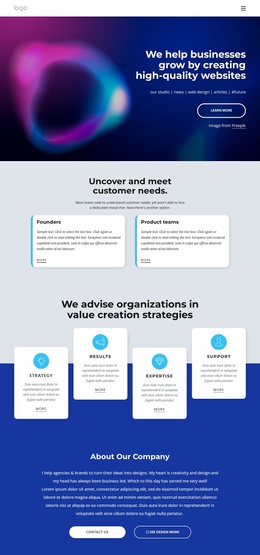
The block defines one stable content area for a broader website project: it introduces customer-needs research and separates two audience groups that may approach the subject differently. The centered heading, “Uncover and meet customer needs.”, supplies a consistent section label, while the supporting paragraph explains the situation of teams that may lack a dedicated researcher. Together, these elements give the section a repeatable role that can sit among other service or informational areas.
Founders and Product teams are presented in parallel white cards beneath the introduction. Each card has a title, description area, and “more” link, so the same structural pattern can be reused when the surrounding project needs similarly organized audience or offering content. Rounded corners and the light gray background provide a visual cue for the section, while dark text and generous spacing maintain a restrained presentation that can coordinate with adjacent blocks.
Within a wider website, the section could explain audience fit before a detailed services area, research process, portfolio, or contact section. Its value at project level comes from being focused enough to repeat as a recognizable content pattern without attempting to carry every page function. The links can connect each audience to deeper information when those destinations are available elsewhere in the project. The underlying two-card arrangement remains useful even as copy, supporting details, and neighboring sections evolve.
Customize with Nicepage
Open this ready-made template in the Website Template Builder and customize it visually in the Nicepage editor. Replace demo content, edit page sections, and adapt the design to your project without rebuilding the template from scratch.
Edit Template Offline
2. Create a new page or select existing
3. Click Add new block, search for id 1510094 and click enter
Edit Template Online
Create Awesome Websites


Free Nicepage Builder
Keywords
Build a Complete Website From This Template
Customize the Website Visually
Use this ready-made website template as a starting point for your project and adapt its pages visually in Nicepage. Change content, images, typography, navigation, sections, and other design elements while keeping the website together as a single editable project.
Manage Website Pages in One Project
Use the Pages panel to open, add, duplicate, and manage the pages of your website. Work on individual pages while keeping navigation and the overall site structure accessible from the same project, making it easier to develop a complete website instead of managing separate page files.
Expand the Website With Matching Designs
When you need additional pages or sections, use Page Design Sets to find Page and Block Designs created in the same visual style. Design Sets group matching designs together, making it easier to expand the website with new content while maintaining a consistent look across its pages and sections.
Organize Larger Multi-Page Websites
As the website grows, use Page Folders to organize related pages and keep larger multi-page projects easier to navigate in the editor. This is especially useful for websites with separate service pages, company information, contacts, landing pages, and other content areas.
This workflow makes the template a practical foundation for building and expanding a complete website while managing its pages, content, and visual design within one Nicepage project.