
Log in Form Website Template


A Reusable Member-Access Section for a Broader Project
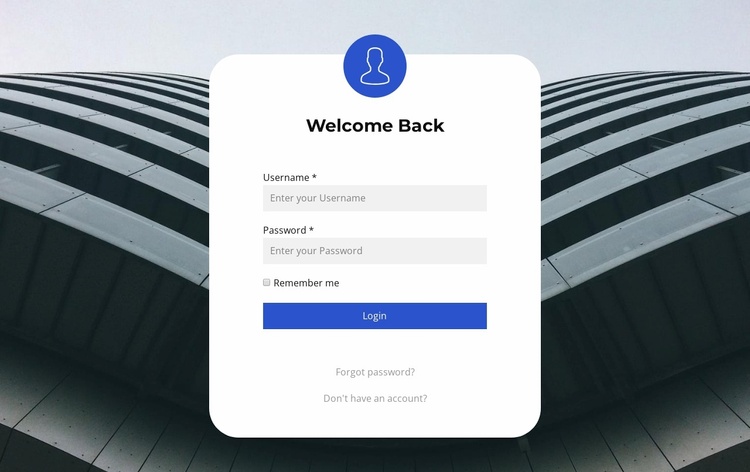
The block establishes a stable account-access pattern that can be reused wherever a wider website project needs members or registered users to sign in. The Welcome Back heading and user icon introduce the purpose, the username and password fields carry the main credential task, and the Remember me checkbox adds a returning-user preference. The blue Login button gives the section one clear primary action, while Forgot password? and the account-registration link support alternate account states.
Its centered white rounded panel makes the content easy to identify when placed among other sections or on a related page. The architectural background image supplies visual context, but the panel preserves the form’s functional priority. This separation means the block can coordinate with introduction, account-information, support, or protected-content areas without requiring those broader roles to be included inside the section itself.
Within a broader website template project, the block can serve as a repeatable member-access area while other pages handle public information and deeper account workflows. Its visual pattern—dark image field, white foreground surface, blue action accent, and compact vertical hierarchy—can be matched or adjusted alongside related designs. The section contributes a defined content area and interaction pattern; it does not represent the project’s full page set or site architecture. Its usefulness comes from giving one recurring account task a consistent place and appearance.
Customize with Nicepage
Open this ready-made template in the Website Template Builder and customize it visually in the Nicepage editor. Replace demo content, edit page sections, and adapt the design to your project without rebuilding the template from scratch.
Edit Template Offline
2. Create a new page or select existing
3. Click Add new block, search for id 1443169 and click enter
Edit Template Online
Create Awesome Websites


Free Nicepage Builder
Keywords
Build a Complete Website From This Template
Customize the Website Visually
Use this ready-made website template as a starting point for your project and adapt its pages visually in Nicepage. Change content, images, typography, navigation, sections, and other design elements while keeping the website together as a single editable project.
Manage Website Pages in One Project
Use the Pages panel to open, add, duplicate, and manage the pages of your website. Work on individual pages while keeping navigation and the overall site structure accessible from the same project, making it easier to develop a complete website instead of managing separate page files.
Expand the Website With Matching Designs
When you need additional pages or sections, use Page Design Sets to find Page and Block Designs created in the same visual style. Design Sets group matching designs together, making it easier to expand the website with new content while maintaining a consistent look across its pages and sections.
Organize Larger Multi-Page Websites
As the website grows, use Page Folders to organize related pages and keep larger multi-page projects easier to navigate in the editor. This is especially useful for websites with separate service pages, company information, contacts, landing pages, and other content areas.
This workflow makes the template a practical foundation for building and expanding a complete website while managing its pages, content, and visual design within one Nicepage project.
