What is our strength Website Mockup



Edit Template Offline
2. Create new page and search for id 2712005
Edit Template Online
Create Awesome Websites


Free Nicepage Builder
Keywords
Large Photo Banners and Dense Card Groups Need Careful Review
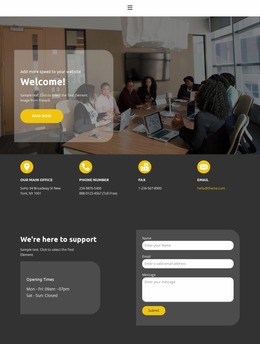
The full-width photographic hero is the first area to inspect in a responsive presentation. Its overlaid headline, white copy, yellow action, and compact email form must remain visually balanced when the available width changes. The later phone-led banner presents a similar review point, although its purpose is more direct: the question, phone number, and action need to retain a clear relationship without allowing the image to overpower the message.
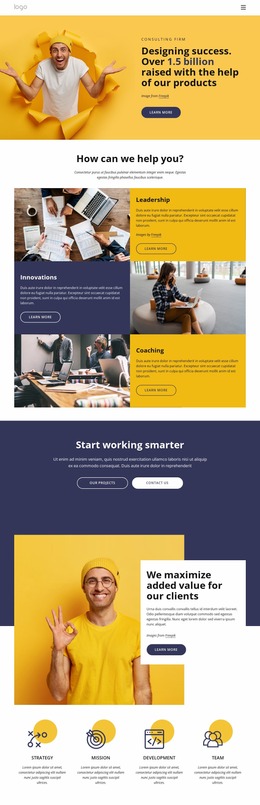
The six service cards form a dense two-row group on wider screens, so their text, icons, spacing, and progression should be checked as the layout becomes narrower. The three-image gallery also needs review because image scale and horizontal density affect how the portfolio heading connects to the visual tiles. Portrait-based team and testimonial cards create additional points where image crops, text lengths, and card widths can change the perceived balance.
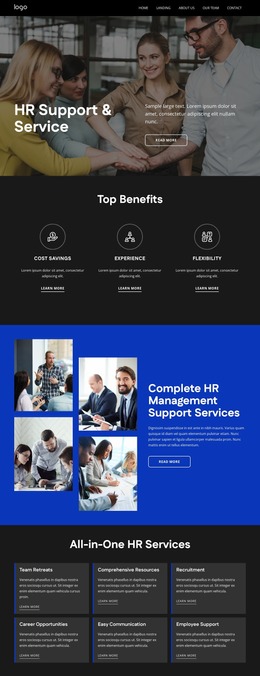
The pricing area deserves separate attention because three plans use alternating light and dark treatments, with the middle option visually highlighted. On smaller screens, the order and separation of these plans should remain easy to compare. The seven-logo row, three-item accordion, and final two-column contact area introduce further density changes, especially around the newsletter form and contact-detail cards. Reviewing these sections at multiple widths helps preserve hierarchy, readability, and action visibility throughout the finished presentation.
Customize with Nicepage
Open this ready-made template in the Website Mockup Builder and customize it visually in the Nicepage editor. Replace demo content, edit page sections, and adapt the design to your project without rebuilding the template from scratch.
Preview and Refine This Website Mockup
Review the Design Across Devices
Use Responsive Modes to see how the website design appears on Large Screens, Desktops, Laptops, Tablets, and Phones. Switch between the available views to compare the same layout at different screen widths and review how typography, images, spacing, navigation, and other content adapt to each device.
Adapt the Mockup for Different Screens
Nicepage provides responsive web design tools for adjusting individual device views when the initial layout needs refinement. You can customize Mobile Views separately, change element sizes and positions, adapt Grids, Lists, and Galleries, and hide selected Elements or Blocks on particular screen sizes. This makes it possible to develop a responsive website mockup instead of evaluating the design at only one fixed desktop size.
Preview the Website Without Editing Controls
Use Live Page / Preview to review the design with the editing interface removed from view. Instant Preview can hide the Page Navigator, Property Panel, selections, and frames, making it easier to evaluate the overall presentation, content hierarchy, and responsive layout as a visitor would see them.
This workflow makes the template useful as a responsive website mockup for visualizing, comparing, and refining how the same website design will appear across different screen sizes.