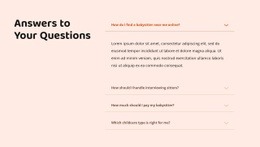
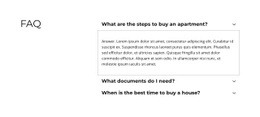
Answers to all questions Web Page Design


A left information column balances a right visual anchor
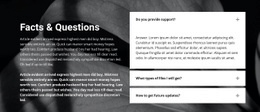
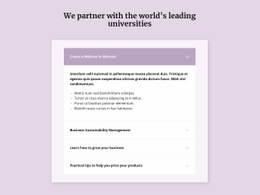
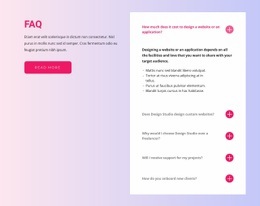
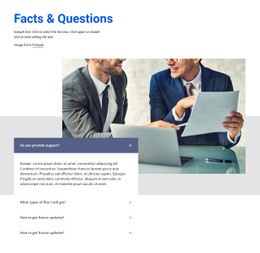
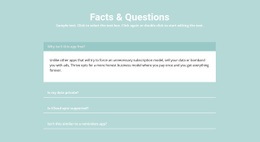
The block’s composition depends on a clear division of visual weight. Four stacked accordion labels occupy the left side and create a vertical information rhythm, while the expanded “Create a Webinar in Minutes” answer introduces a larger lavender-blue panel with white text and four bullet points. This gives the left column both repetition and a visible focal state. The plus indicators maintain the shape of the closed items without competing with the active answer.
The right side works as a visual anchor rather than another list. A single illustration is centered above supporting copy, an image credit, and a “read more” button, creating a more open arrangement beside the denser accordion. That contrast helps the section breathe and gives the button a defined compositional position. The white background and generous spacing also separate the two columns without requiring a heavy border or additional structural device.
Within one webpage, this block can operate as a mid-page transition from explanatory content to a deeper resource or related action. Its placement should account for the open answer’s height and the visual alignment between the accordion and illustration. The surrounding page can supply other sections, while this component contributes one balanced FAQ composition. The important design decision is therefore not merely the presence of four questions, but how their changing height interacts with the fixed visual support region.
Customize with Nicepage
Open this ready-made template in the Web Page Design Builder and customize it visually in the Nicepage editor. Replace demo content, edit page sections, and adapt the design to your project without rebuilding the template from scratch.
Edit Template Offline
2. Create a new page or select existing
3. Click Add new block, search for id 953784 and click enter
Edit Template Online
Create Awesome Websites


Free Nicepage Builder
Keywords
Design a Web Page Section by Section
Choose a Design for Each Section
Build the page from individual content sections instead of starting with a fixed full-page layout. Use Block Designs to browse ready-made sections for different purposes, including introductions, services, galleries, testimonials, contact forms, pricing, and other common parts of a web page. Search or filter the available designs to find a layout that fits the content you want to add.
Combine Blocks and Page Elements
Add selected Blocks to the page and arrange them in the order that supports the page's purpose. A hero section can introduce the main message, followed by services, benefits, portfolio content, testimonials, calls to action, or contact information.
Inside each section, use Web Page Elements such as Text, Image, Hyperlink, Grid, Gallery, and other elements to build and present the page content. Individual elements can be added and adjusted within the Blocks, giving you more control over the composition of each section without having to create the complete layout from scratch.
Refine the Page Layout and Flow
After assembling the main sections, adjust their content, spacing, backgrounds, images, typography, and element placement in the Nicepage editor. Reorder Blocks when necessary and refine the transition from one section to the next so the information hierarchy and visual flow remain clear throughout the page.
This workflow makes the template useful as a web page design that can be composed from ready-made sections, customized with individual page elements, rearranged, and adapted to the content and purpose of an individual page.