Travel blogger designer biography Web Page Design


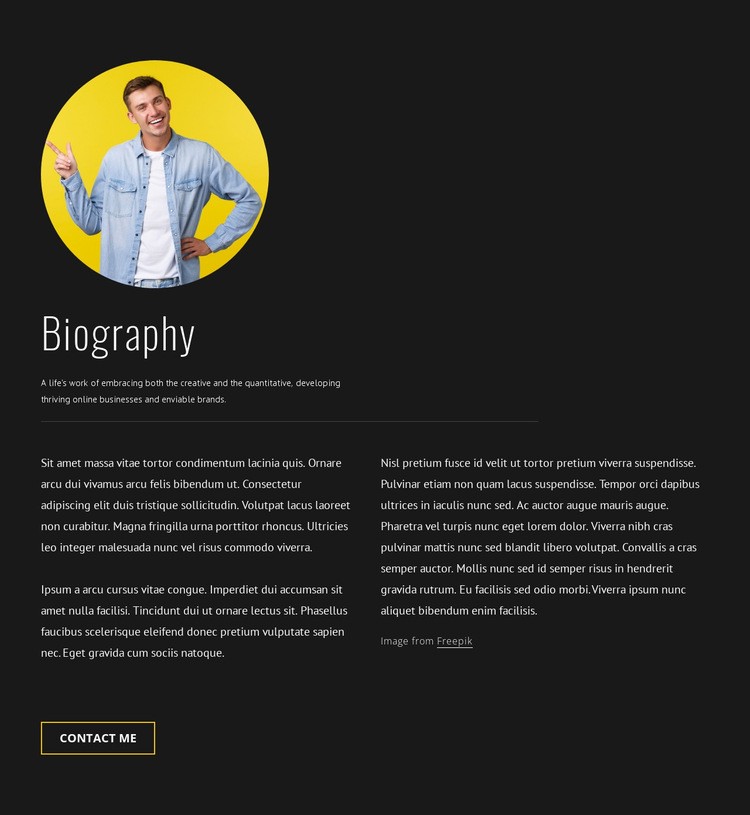
The Portrait-to-Columns Sequence Creates a Strong Page Rhythm
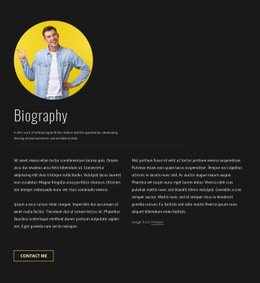
The composition begins with a circular portrait positioned above the left-aligned “Biography” heading, establishing a clear entry point within the section. The introductory statement follows as a compact block of context, while the tall condensed heading contrasts with the smaller paragraph typography and helps control the visual hierarchy. This sequence keeps the visitor’s attention moving from the person to the supporting explanation.
A horizontal divider creates a deliberate pause before the two-column biography area. The columns then widen the information field, allowing the main text to occupy more horizontal space while remaining grouped beneath the same introduction. The dark background makes the white copy easy to distinguish, and the spacious alignment within the centered section width prevents the text-rich arrangement from feeling compressed. At the bottom, the outlined Contact Me button acts as a visual endpoint rather than another competing content group.
As one unit of web page design, the block can work as a mid-page transition from an introductory profile into a later contact or portfolio area. The surrounding page determines what comes before and after; this section contributes its own internal rhythm and information hierarchy. Nicepage’s Web Page Elements can support refinement of the existing content relationships, but the composition remains grounded in this portrait, divider, column, and button arrangement.
Customize with Nicepage
Open this ready-made template in the Web Page Design Builder and customize it visually in the Nicepage editor. Replace demo content, edit page sections, and adapt the design to your project without rebuilding the template from scratch.
Edit Template Offline
2. Create a new page or select existing
3. Click Add new block, search for id 815621 and click enter
Edit Template Online
Create Awesome Websites


Free Nicepage Builder
Keywords
Design a Web Page Section by Section
Choose a Design for Each Section
Build the page from individual content sections instead of starting with a fixed full-page layout. Use Block Designs to browse ready-made sections for different purposes, including introductions, services, galleries, testimonials, contact forms, pricing, and other common parts of a web page. Search or filter the available designs to find a layout that fits the content you want to add.
Combine Blocks and Page Elements
Add selected Blocks to the page and arrange them in the order that supports the page's purpose. A hero section can introduce the main message, followed by services, benefits, portfolio content, testimonials, calls to action, or contact information.
Inside each section, use Web Page Elements such as Text, Image, Hyperlink, Grid, Gallery, and other elements to build and present the page content. Individual elements can be added and adjusted within the Blocks, giving you more control over the composition of each section without having to create the complete layout from scratch.
Refine the Page Layout and Flow
After assembling the main sections, adjust their content, spacing, backgrounds, images, typography, and element placement in the Nicepage editor. Reorder Blocks when necessary and refine the transition from one section to the next so the information hierarchy and visual flow remain clear throughout the page.
This workflow makes the template useful as a web page design that can be composed from ready-made sections, customized with individual page elements, rearranged, and adapted to the content and purpose of an individual page.