Restoring hope Web Page Design



Edit Template Offline
2. Create new page and search for id 5571212
Edit Template Online
Create Awesome Websites


Free Nicepage Builder
Keywords
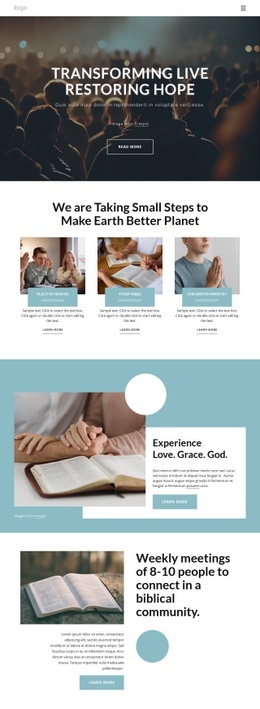
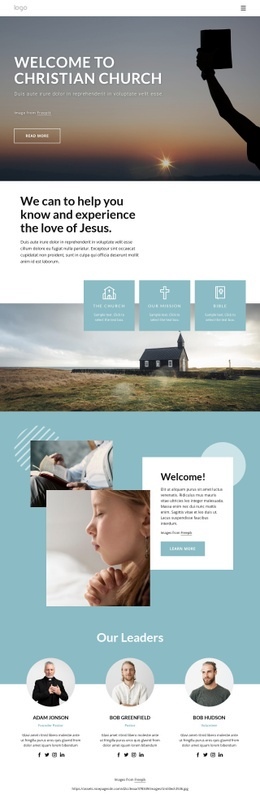
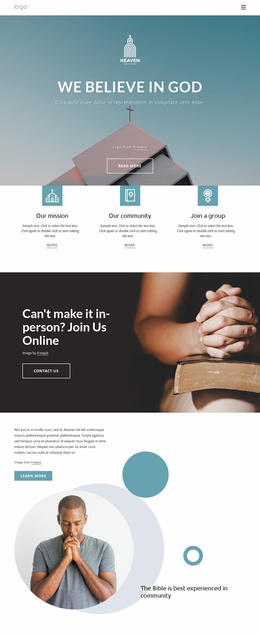
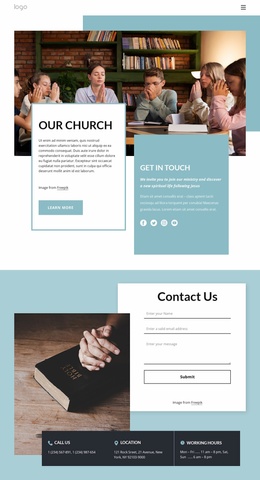
Alternating images, cards, and overlap panels shape the page rhythm
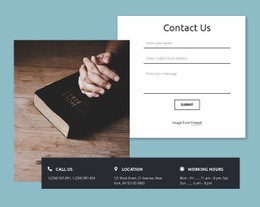
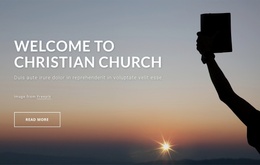
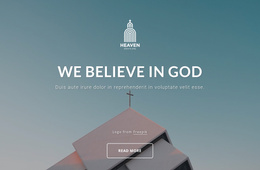
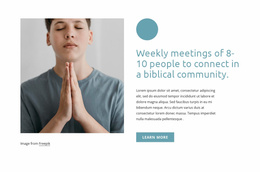
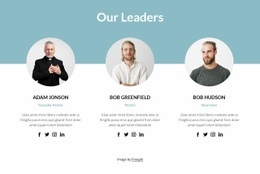
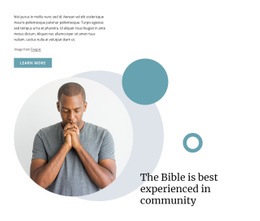
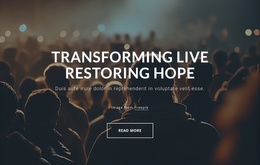
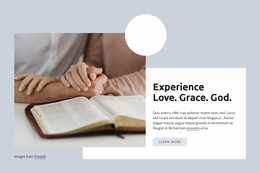
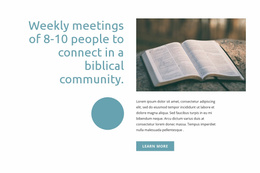
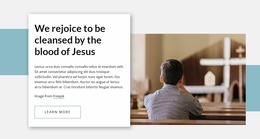
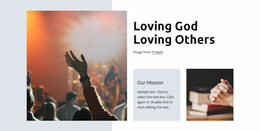
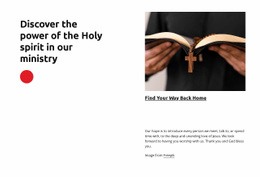
The composition begins with a strong full-width image and centered white messaging, giving the first block a high visual impact before the page moves into a more measured card grid. Three equal image cards then distribute attention across Place Of Heaven, Study Bible, and Children’s Ministry. This change from one dominant image to repeated units establishes a clear contrast in scale and information density. The following split sections continue that rhythm by pairing a faith image with a white text panel, placing a Bible photograph beside the weekly-meeting statement, and setting prayer copy next to a large devotional image.
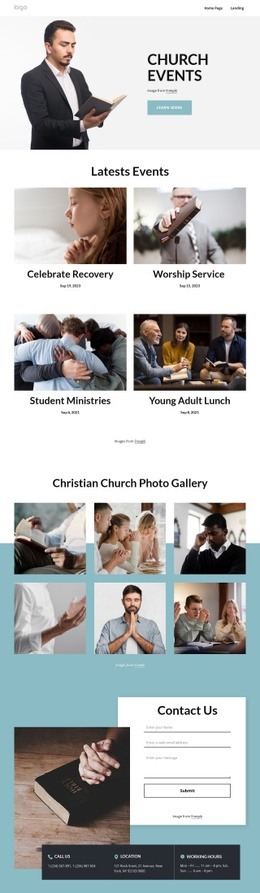
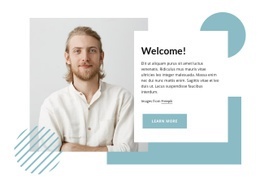
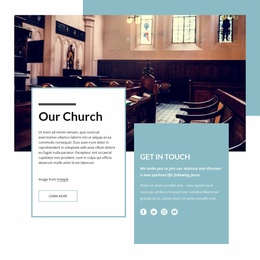
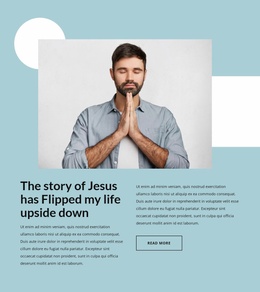
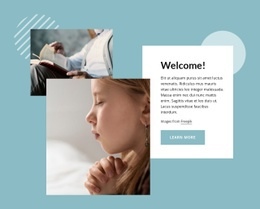
Overlap compositions add another layer to the page’s visual flow. The welcome block uses a portrait, aqua framing, geometric shapes, and a white panel, while the personal faith story uses a large portrait with two text columns. Near the end, two equal photographic panels create a balanced choice between volunteering and weekly podcasts; the podcast panel’s email signup introduces a compact interactive area before the final contact composition. That last section balances a form and supporting image, then organizes phone, location, and working-hours information into three cards. The sequence therefore uses scale, alignment, overlap, and image-to-text transitions to keep a long page from becoming visually uniform. Its value as a Web Page Design lies in how each section changes the presentation while preserving the same ministry narrative.
Customize with Nicepage
Open this ready-made template in the Web Page Design Builder and customize it visually in the Nicepage editor. Replace demo content, edit page sections, and adapt the design to your project without rebuilding the template from scratch.
Design a Web Page Section by Section
Choose a Design for Each Section
Build the page from individual content sections instead of starting with a fixed full-page layout. Use Block Designs to browse ready-made sections for different purposes, including introductions, services, galleries, testimonials, contact forms, pricing, and other common parts of a web page. Search or filter the available designs to find a layout that fits the content you want to add.
Combine Blocks and Page Elements
Add selected Blocks to the page and arrange them in the order that supports the page's purpose. A hero section can introduce the main message, followed by services, benefits, portfolio content, testimonials, calls to action, or contact information.
Inside each section, use Web Page Elements such as Text, Image, Hyperlink, Grid, Gallery, and other elements to build and present the page content. Individual elements can be added and adjusted within the Blocks, giving you more control over the composition of each section without having to create the complete layout from scratch.
Refine the Page Layout and Flow
After assembling the main sections, adjust their content, spacing, backgrounds, images, typography, and element placement in the Nicepage editor. Reorder Blocks when necessary and refine the transition from one section to the next so the information hierarchy and visual flow remain clear throughout the page.
This workflow makes the template useful as a web page design that can be composed from ready-made sections, customized with individual page elements, rearranged, and adapted to the content and purpose of an individual page.